Time and breaks
Start, pause, resume and finish work. Keep today’s time close at hand.
CREWTANGO FOR CHROME
Start work, manage breaks and choose a project from your browser toolbar. Everything goes into your time records in CrewTango.
Install from Chrome Web Store · CrewTango account required
Start, pause, resume and finish work. Keep today’s time close at hand.
Find an available project and assign your next work interval to it.
Review the status of work time, data collection and uploads separately.
A SMALL EXTENSION. PRACTICAL TOOLS.
Quick actions stay in your browser. Time records and reports live in the same system your team already uses.
When enabled by your company, the extension measures the active Chrome tab: address, title and time spent. Query parameters and URL fragments are removed before storage.
Screenshots cover the entire display selected by the employee. Capture frequency and blur follow company settings.
Screenshots and active-website logs upload in three-minute batches. Offline data waits locally in an encrypted queue. Start, break and finish commands are saved independently of this cycle.
A CLEAR MONITORING SCOPE
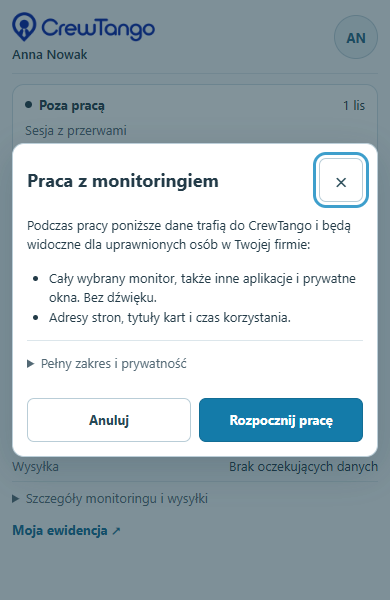
Your company defines the required scope. Before monitoring starts, you see a data disclosure and select a monitor in Chrome’s screen picker.
Including other apps and private windows visible on that display. No audio or video recording.
Without reading your full browsing history. Domain exclusions apply to website measurement, not to content visible in screenshots.
Data goes to CrewTango and is visible to authorized people in your organization.
GETTING STARTED
Install CrewTango from Chrome Web Store and pin its icon next to the address bar.
Use your company account with extension access enabled. If your account requires 2FA, confirm sign-in with a code.
If your company has enabled monitoring, confirm its scope and select a monitor in the browser picker.
Chrome 120+ on Windows or macOS. A CrewTango account with extension access. Internet access for sign-in, starting work and changing projects.
GOOD TO KNOW
Open CrewTango in the Chrome Web Store, choose “Add to Chrome” and confirm installation. Pin the extension to your browser toolbar, then sign in with a CrewTango account that has extension access enabled by your company administrator.
Yes. The extension uses your company account, available projects and CrewTango settings. Your administrator grants extension access and defines the monitoring scope. If your account requires two-factor authentication, you will be asked for a 2FA code when signing in.
Depending on company settings, the extension measures the address, title and time of the active Chrome tab or captures still images of the entire monitor selected by the employee. A screenshot may include other apps and private windows visible on that display. The extension records neither audio nor video. Excluding a domain from website measurement does not hide it in monitor screenshots.
Starting work and changing projects require a server connection. During a temporary outage, supported actions for an existing session and pending data can remain in the local queue. Screenshots and active-website logs are uploaded in three-minute batches; offline devices, sleep or server limits may delay delivery.
The extension provides time and project controls in Chrome and monitoring configured by your company. Website activity measurement covers the current Chrome profile, rather than processes in other desktop apps. Choose the CrewTango desktop app to measure time in those programs.
Closing the extension popup does not end a running work session. The extension does not run after Chrome itself closes. When you reopen the browser, you must sign in and deliberately resume monitoring; a new screen stream requires selecting a monitor again.
One CrewTango account. Convenient access right from Chrome.