MOBILE APP

Your field team's work in one app

CrewTango runs on Android and iOS. Employees track time, view schedules, complete tasks, add photos and report progress from their phones. Managers see team status in the browser dashboard and respond to exceptions sooner.

Available on Android and iOS. Features depend on role and company settings.

Android and iOSWorking timeSchedulesTasksPhotosOptional GPS
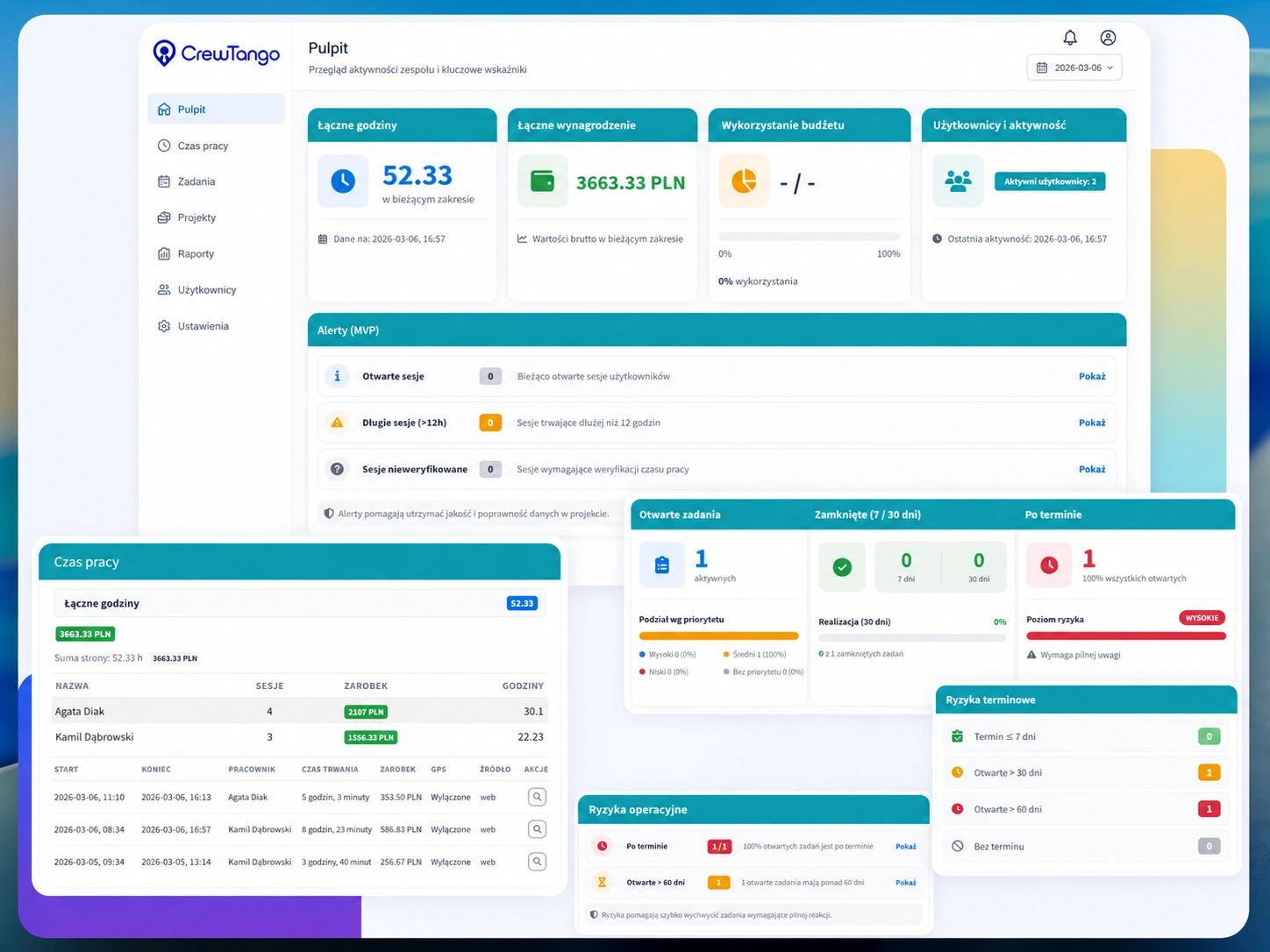
CrewTango manager dashboard in the browser Time tracking in the CrewTango mobile app
TWO WAYS TO USE IT

Choose the scenario that fits your team

A phone can serve one field employee or many people as a shared attendance terminal. Each scenario has its own screen and features.

SCENARIO 1 — EMPLOYEE'S PHONE

A simple screen for employees. A complete picture for managers.

Employees have time, schedules, tasks and documentation on their phones. Managers see the records in dashboards and reports.

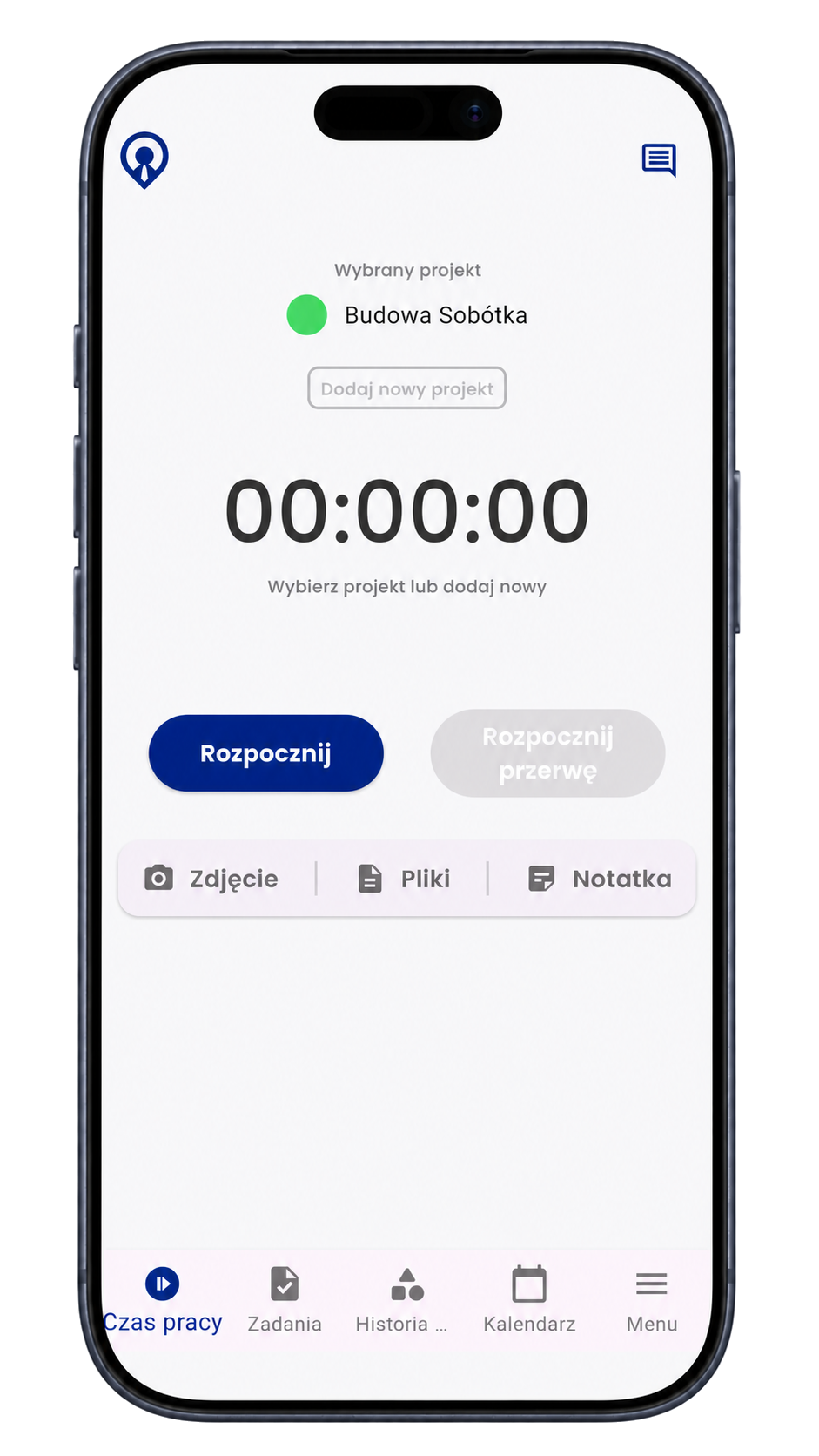
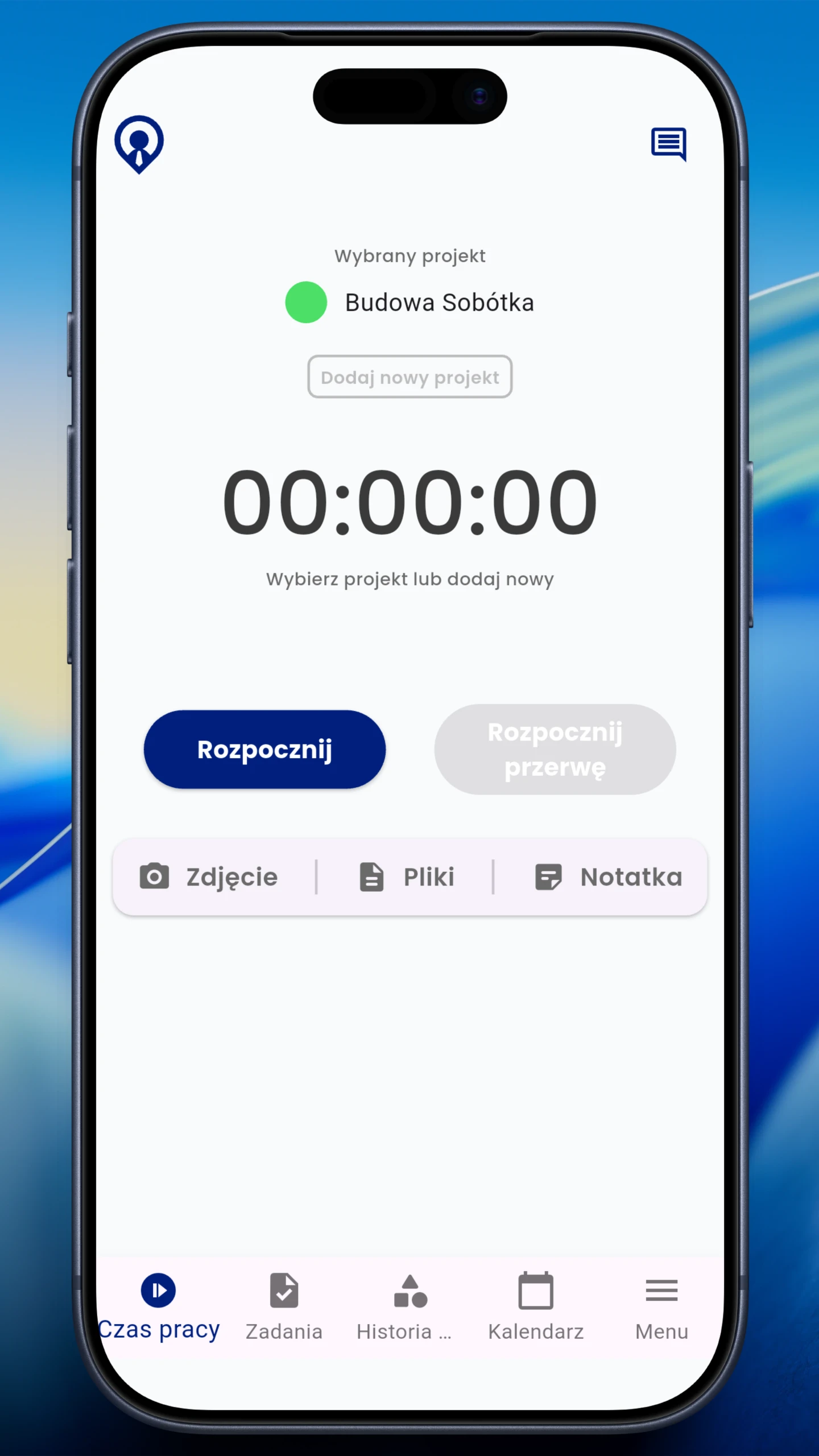
Start and stop without paper or messages

Employees start and finish work sessions in the app. Breaks, projects and tracking sources appear in reports.

Start/Stop • Breaks • Project or site

Start and stop without paper or messages

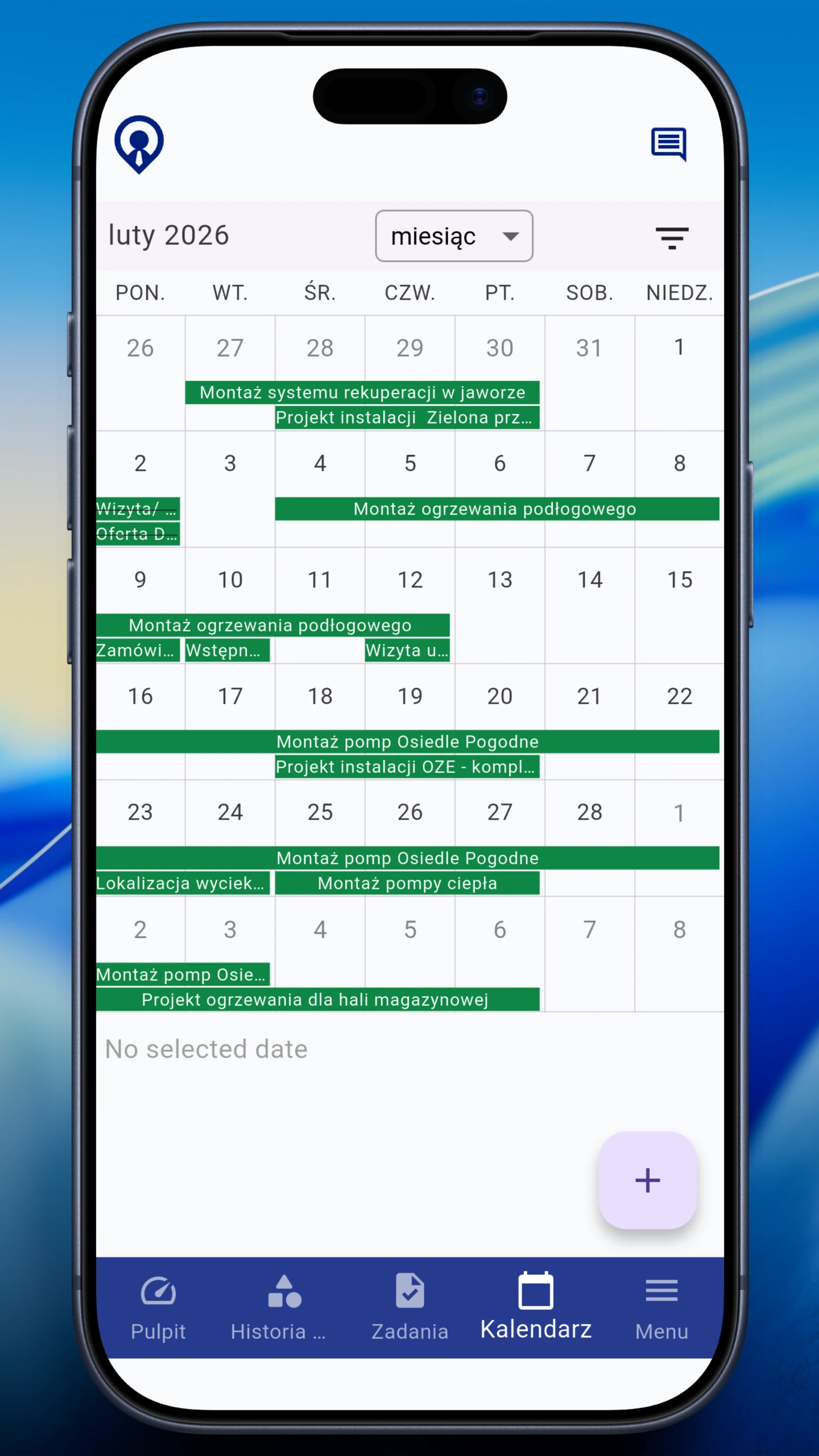
The daily plan always at hand

Employees see shifts, times, roles and locations. Fewer mistakes and calls, more clarity.

Shift • Role • Location

The daily plan always at hand

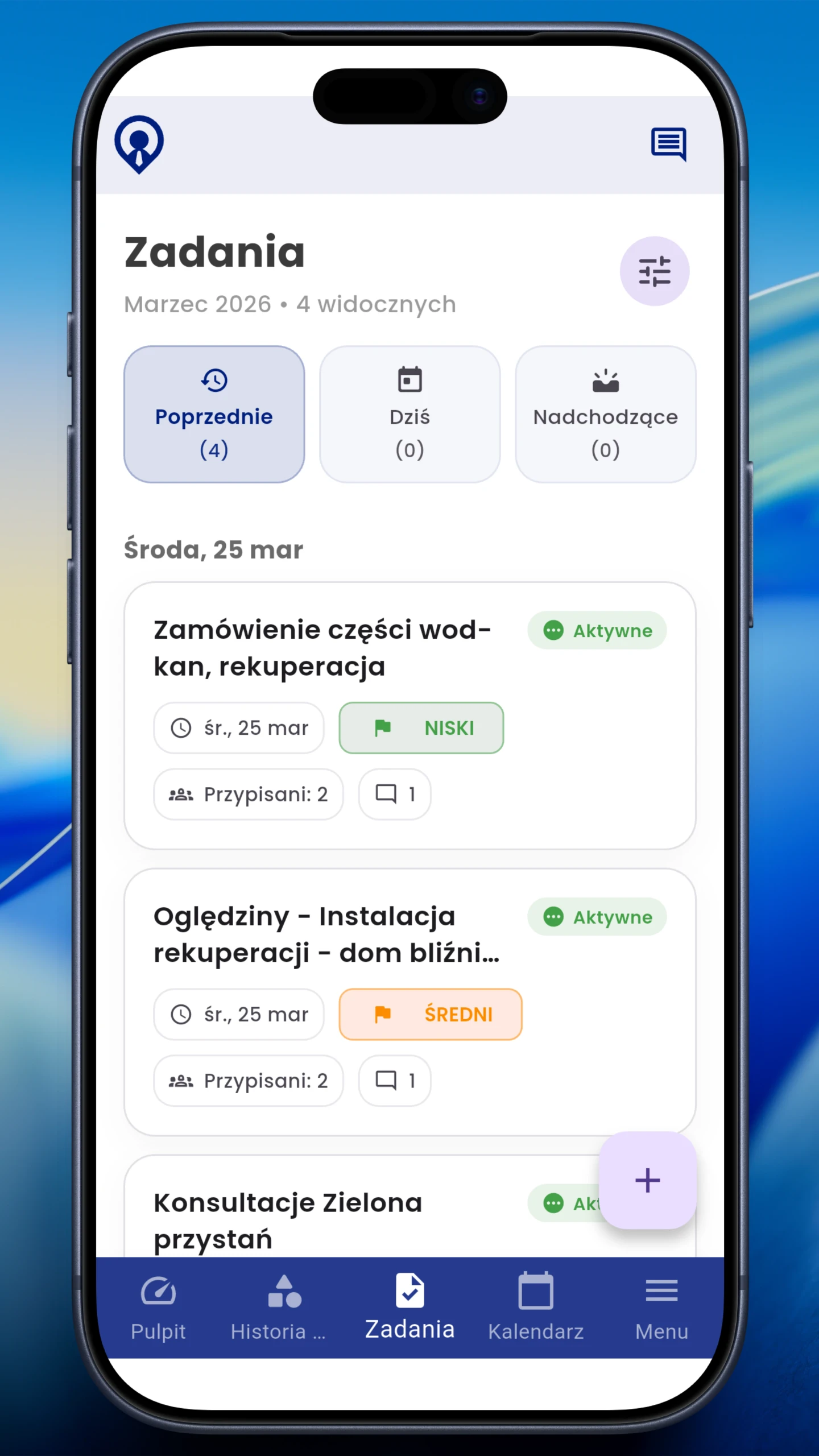
In-app tasks

Employees see tasks, priorities, statuses and job comments together.

Priorities • Statuses • Comments

In-app tasks

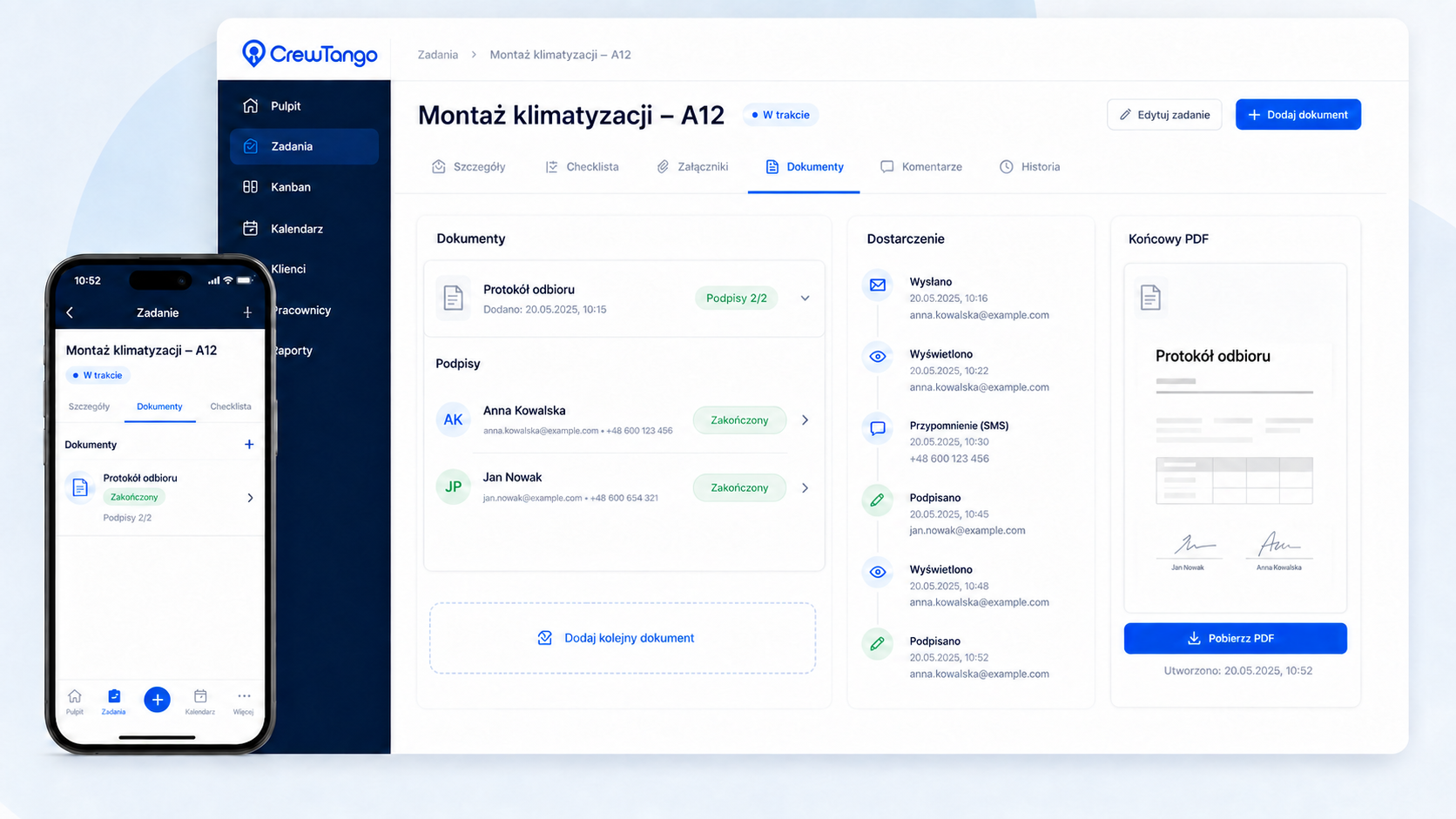
Documents and signatures linked to tasks

Employees open task documents, review PDFs, prepare drafts or sign their assigned fields. Permission settings determine whether they can invite customers.

PDF preview • Personal signature • Invitations based on permissions

See the complete document workflow
Documents and signatures linked to tasks

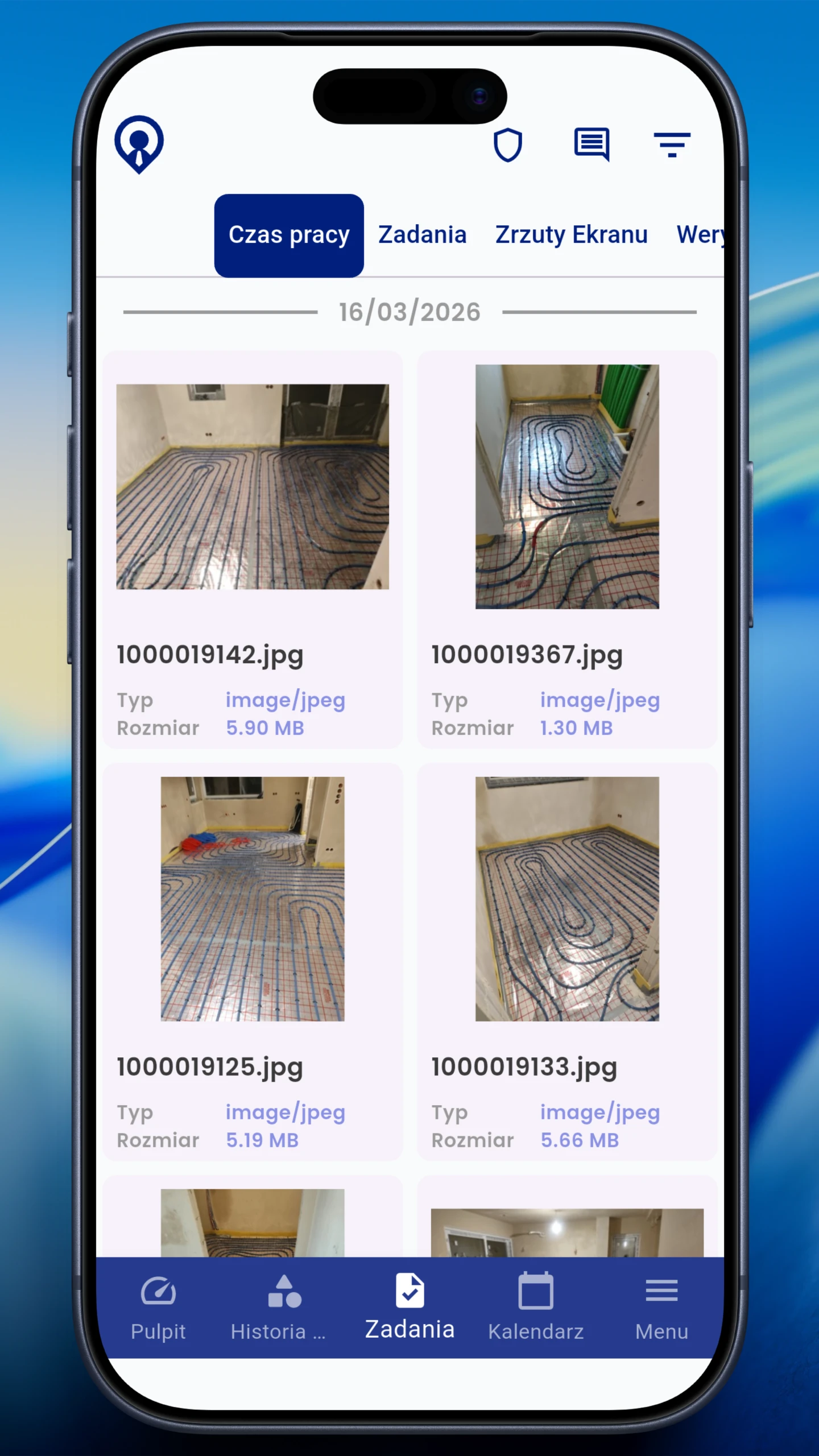
Documentation linked to the work

Photos, notes and attachments stay with the task.

Photos • Notes • Attachments

Documentation linked to the work

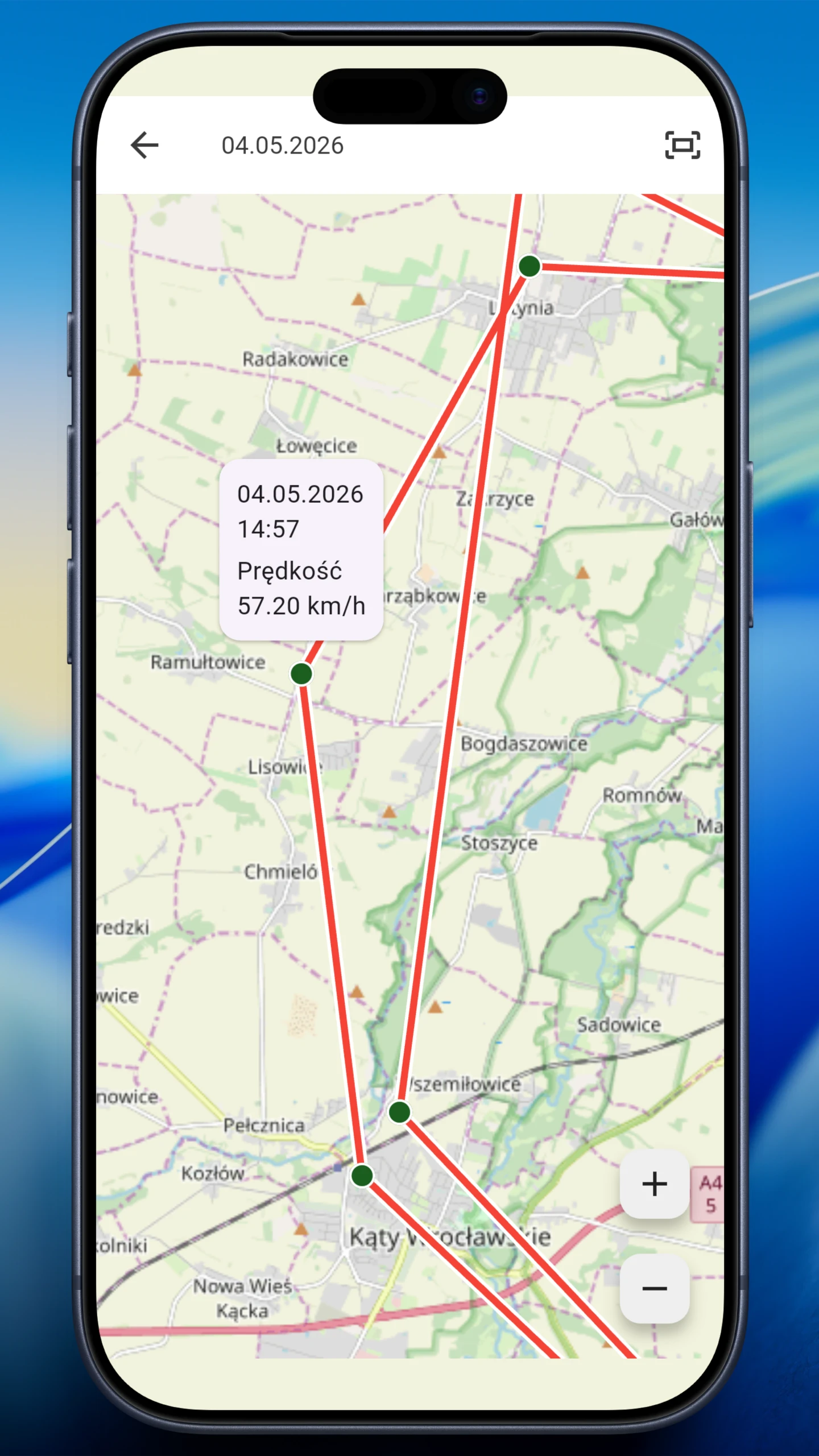
Optional attendance confirmation

GPS can help confirm site attendance and show the route during active work. Availability depends on company rules.

Optional • Transparent • For field work

Optional attendance confirmation

Employees and managers see summaries

Time, task and team views reduce the need to gather updates manually.

Time • Team • Tasks

Employees and managers see summaries
ANDROID AND IOS

Download CrewTango for Android and iOS

CrewTango is available in the official Google Play and App Store, making rollout straightforward across different phones.

  • Android and iOS
  • roles and permissions
  • employee and manager views
  • synchronisation with the browser dashboard
  • records for reports and pay calculations
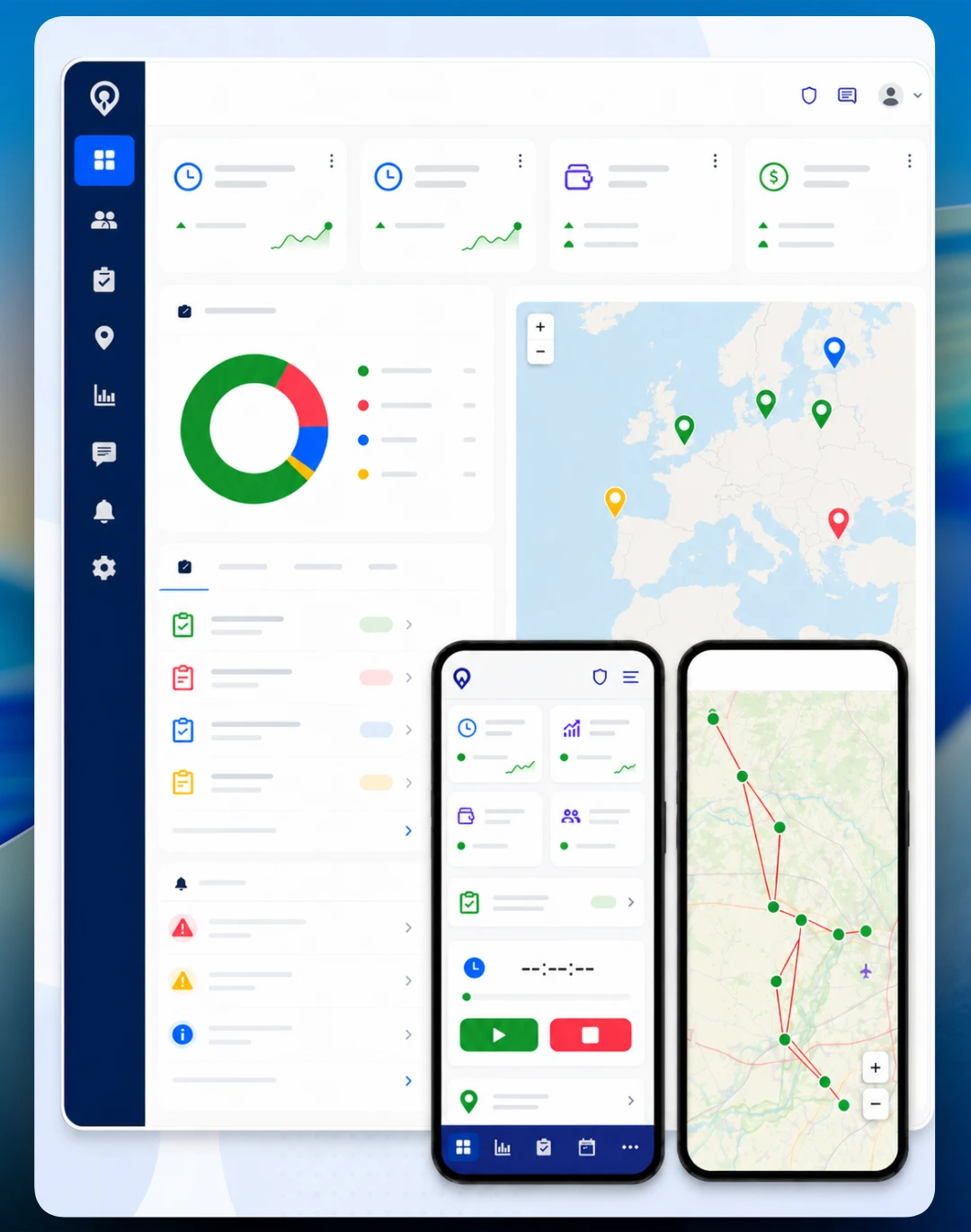
CrewTango on a phone and in the browser dashboard
HOW IT WORKS

From schedule to report without gathering updates manually

The mobile app turns daily work into clear management records: who worked, where, on which task and with what documentation.

Step 1

Managers plan the day

Create schedules and assign employees, roles, locations and tasks.

Step 2

Employees see the plan on their phones

Working hours, locations, tasks and key information appear in the app.

Step 3

Start tracking time

Tapping Start records a work session and shows active status in the dashboard.

Step 4

Report completion

Employees update task statuses and add photos, files, notes or comments.

Step 5

Managers review records

Time, tasks and documentation appear in dashboards and daily or weekly reports.

MANAGER DASHBOARD

Employees record work in the app. Managers follow it in the dashboard.

Mobile app records feed the browser dashboard, giving managers team status without phone calls.

  • who is currently working
  • who is on a break or has finished the day
  • which tasks are in progress
  • which entries need approval
  • where actual work differs from the schedule
CrewTango manager dashboard with team summary
RULES

Clear rules matter as much as the app

The mobile app should support the work process. Company rules should clearly describe data scope, GPS, photos and roles.

Scope based on role

Employees, managers and administrators can see different data.

Optional GPS

Use location where it supports field work.

Photos as documentation

Photos help confirm completion, acceptance or a work stage.

Transparent process

The team should know when the app operates and what data appears in reports.

SCENARIO 2 — SHARED DEVICE

A phone can also serve as a shared attendance terminal

Record attendance electronically on one phone or tablet. In CrewTango, this is called KIOSK mode. The device becomes a shared terminal for employee clock-ins, clock-outs and breaks.

A separate operating mode

The shared device shows a simple attendance screen

In shared device mode (KIOSK), the device shows a dedicated screen for clock-ins, clock-outs and breaks. The standard employee view, tasks, photos and schedules are not shown.

  • clocking in
  • clocking out
  • starting a break
  • ending a break
  • optional photo verification

Shared device at a glance

1 device
100+ employees
4 attendance tracking

Clock-ins, clock-outs and break starts and ends are saved in time history and reports.

Shared attendance device in CrewTango Clock in • Clock out • Break
EMPLOYEE IDENTIFICATION

PIN, QR code, NFC key fob or clock-in photo

Employees need to identify themselves quickly at a shared terminal. Choose the method that suits the workplace and shift process.

PIN

Employees enter their PIN on the shared device: a simple clock-in method for shift work.

QR code

Scanning a QR code speeds up clock-ins and clock-outs.

NFC key fob

Employees tap an NFC key fob on the device. Suitable for entrances, production facilities, warehouses and receptions.

Clock-in photo

Optional photo verification helps confirm who actually started or finished work.

BREAKS ON A SHARED DEVICE

Record breaks on the same device

Shared attendance devices also handle breaks. Employees can start and end breaks, and your company can define its own break types.

Step 1

Employees identify themselves

Using a PIN, QR code or NFC key fob.

Step 2

Choose an action

Clock in, clock out, start a break or end a break.

Step 3

The system records the event

The time and event type appear in work history and reports.

Break type Example use Effect on reports
Meal break daily break during a shift visible in daily history
Technical break stoppage, breakdown or waiting helps explain downtime
Personal time out time away for personal reasons may reduce paid time
Paid break break counted as working time visible without reducing pay
Unpaid break break excluded from working time may reduce calculated pay

What the mobile app brings together

Employees view plans, start work sessions, handle tasks and add documentation. Managers receive those records in the same dashboard.

Work sessions and breaks
start, finish and entry source
Tasks and files
statuses, comments and photos
GPS and schedules
according to company configuration
Team using the CrewTango mobile app
RELATED MODULE: WAREHOUSE

Issue and return materials directly in the app

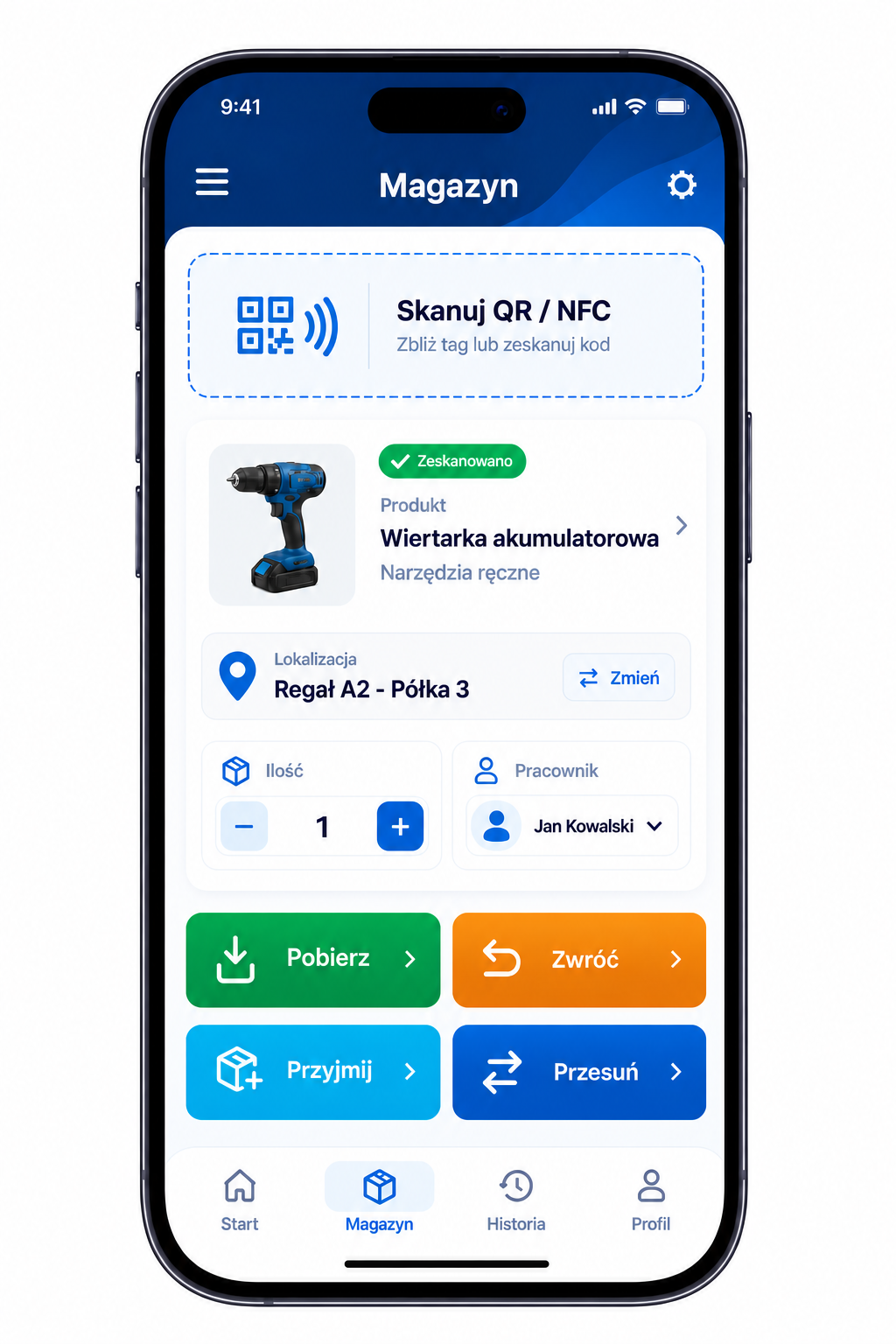
Employees scan a QR code or tap their phone against an NFC tag, choose the quantity and record an issue or return. Managers see current stock and movement history in the browser dashboard.

  • quick access to a product or location
  • issues and returns linked to the employee
  • permissions defining available operations
Explore the Warehouse module
Issuing and returning materials in the mobile app

Your phone guides you to the next action

For cleaning work, employees scan the location’s QR code or NFC tag, read the instructions and confirm the completed clean. Customers use the same QR code to leave feedback. In a care home, a bedside label or NFC wristband opens the resident’s record, letting staff record an action such as a continence care change straight away.

Frequently asked questions

Yes. CrewTango runs on Android and iOS and is available from Google Play and the App Store.

Yes. They can see shifts, times, roles and locations, depending on company configuration.

Yes. Attach photos, notes and files to tasks or sites.

No. GPS is optional and should follow clear company rules.

Yes. Mobile app data reaches the dashboard, where managers see statuses, tasks and entries needing attention.

Yes. Working time, breaks, tasks and documentation feed reports that simplify the weekly close.

Yes. Switch the mobile app to shared attendance mode (KIOSK). The device becomes a shared clock-in terminal for employees and records arrivals, departures and breaks.

Use a PIN, QR code or NFC key fob, with optional clock-in photos. KIOSK mode provides a dedicated screen for starts, stops and breaks.

Download CrewTango and get started in the field

Give employees a simple way to report work and managers one dashboard for statuses, tasks, photos and pay calculations.