Details from the app
Customer, task, location or equipment details can prefill the document.
Documents & signatures in CrewTango
Fill a document with job details, collect employee and customer signatures, and keep the completed PDF with the task. On a phone or through a browser link.
Your document template · no customer account · final PDF
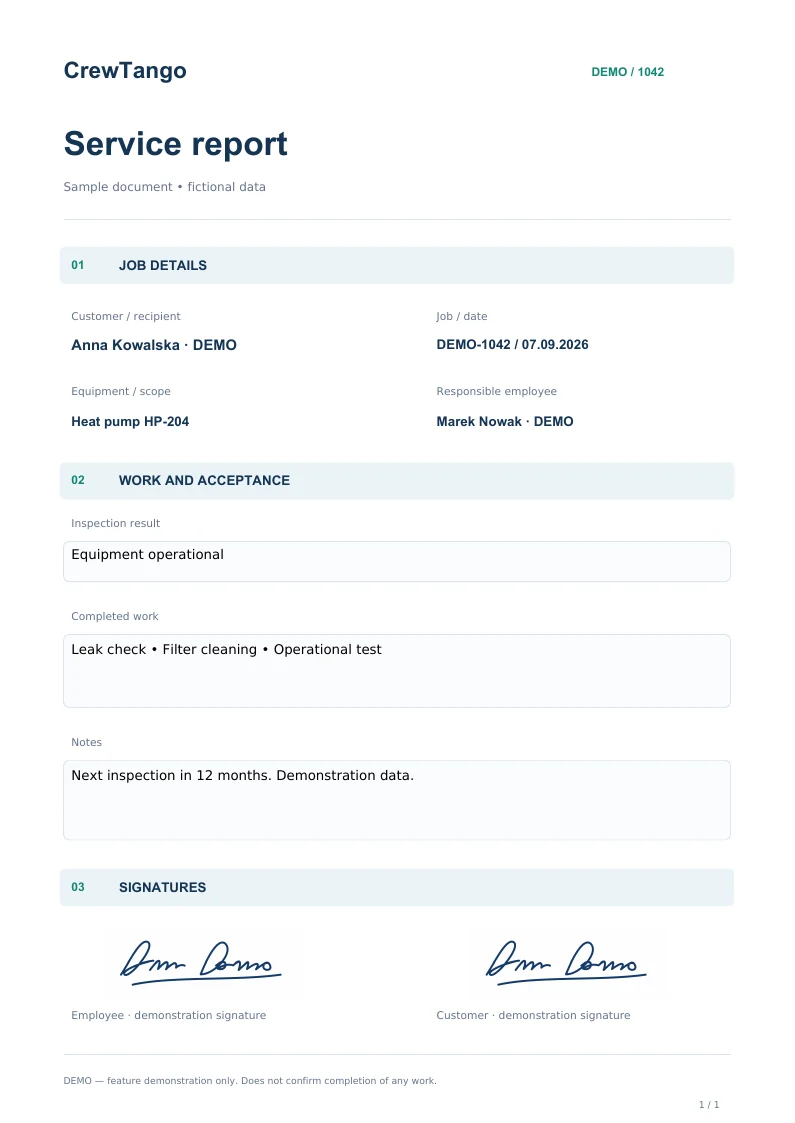
Service report
DEMO-1042
Explore both sides of the document
Try accepting a sample service visit. Go from prefilled job details to your test signature and a PDF.
This is a sample: details and signatures stay in this browser. Nothing is sent or saved in the app. Use test data only.
Start with a document you know
Upload a PDF, JPG or PNG. Position fields and signature areas, decide who completes each part and prepare a template for future jobs.
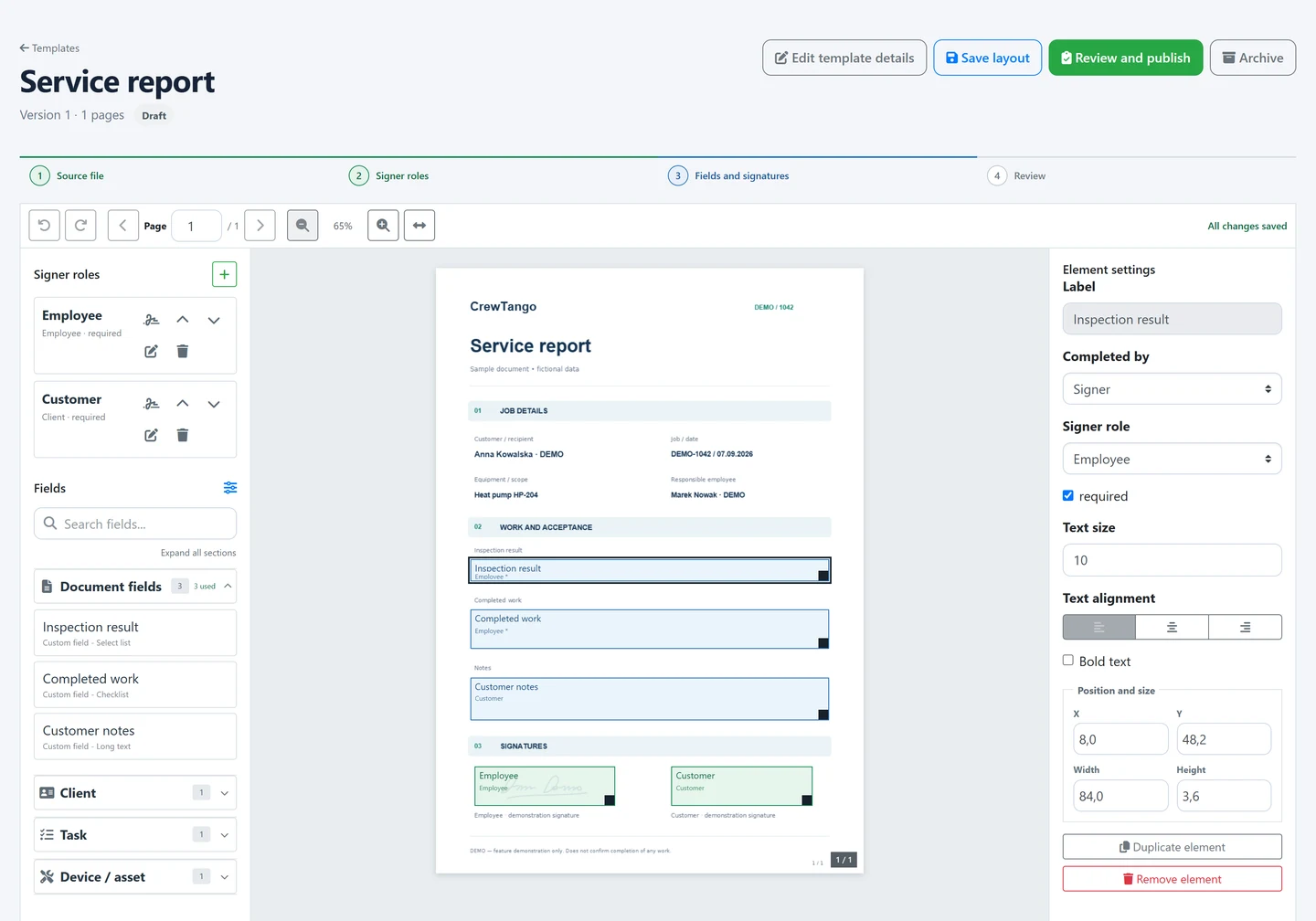
Customer, task, location or equipment details can prefill the document.
Your employee or office completes the scope, results, values and notes before sending.
The customer completes their assigned fields and signs in the designated area.

After the work is done
Check equipment details, record the work and prepare the document with the task. Your employee signs their slot in the app, and the customer receives a link to complete their part.
The field team opens the prepared draft with the job.
An employee with the relevant permission selects a template and completes the details.
Convenient for your customer
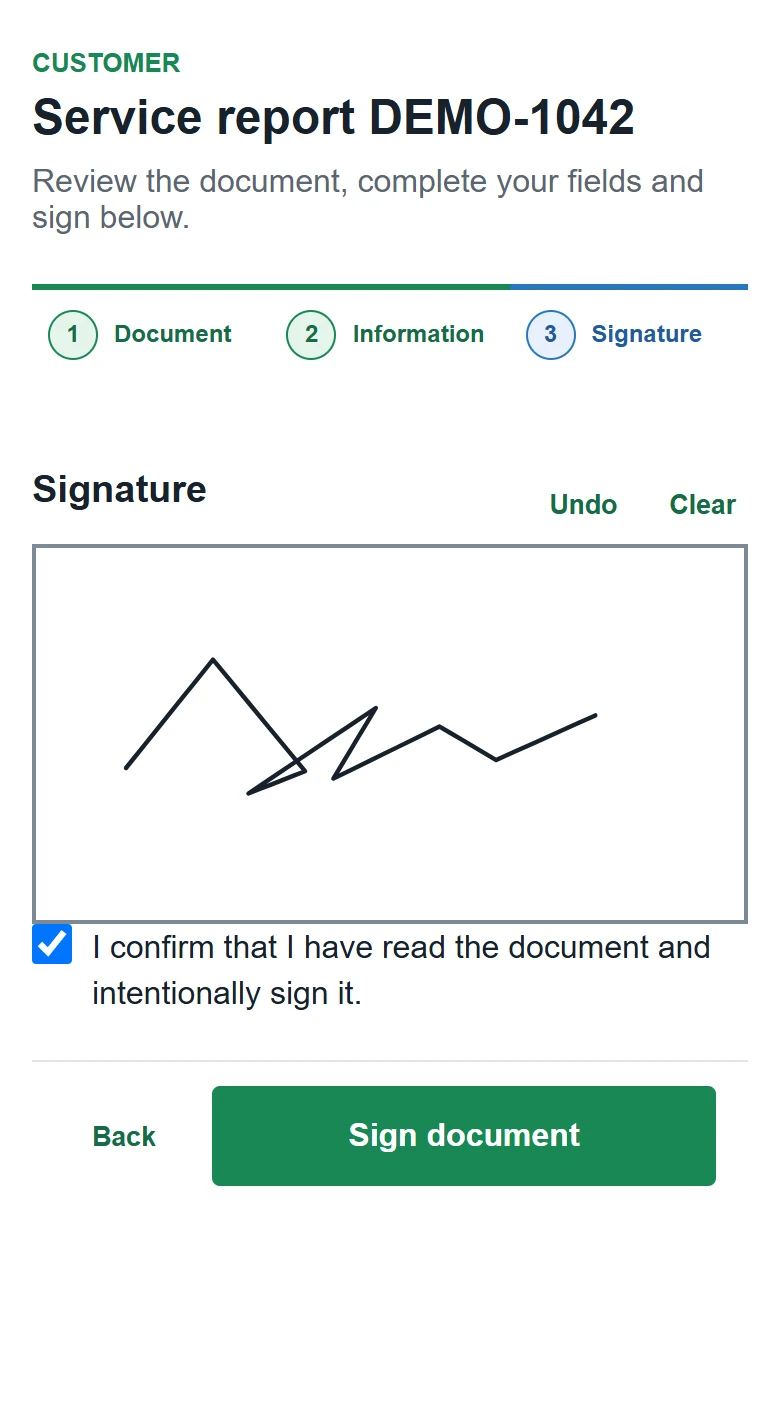
The customer opens the invitation in a browser, reads the document, completes their assigned fields and signs. No CrewTango account is needed.

Progress your team can see
See who was invited, who opened the document and whose signatures have been collected. The final PDF and history stay with the right task.
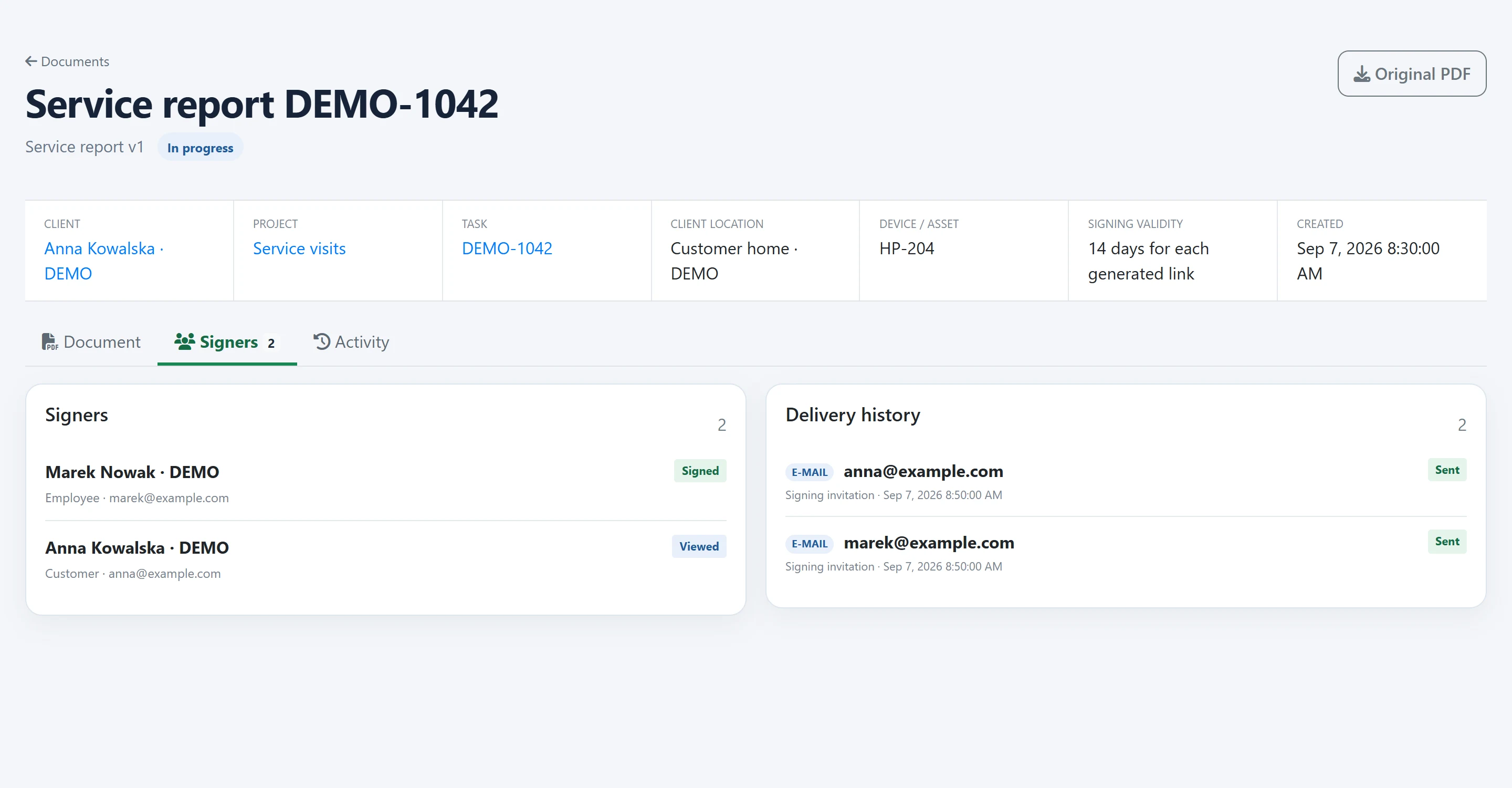
Explore the finished result
Three sample layouts with fictional data. Open a document or download the PDF without leaving your details.
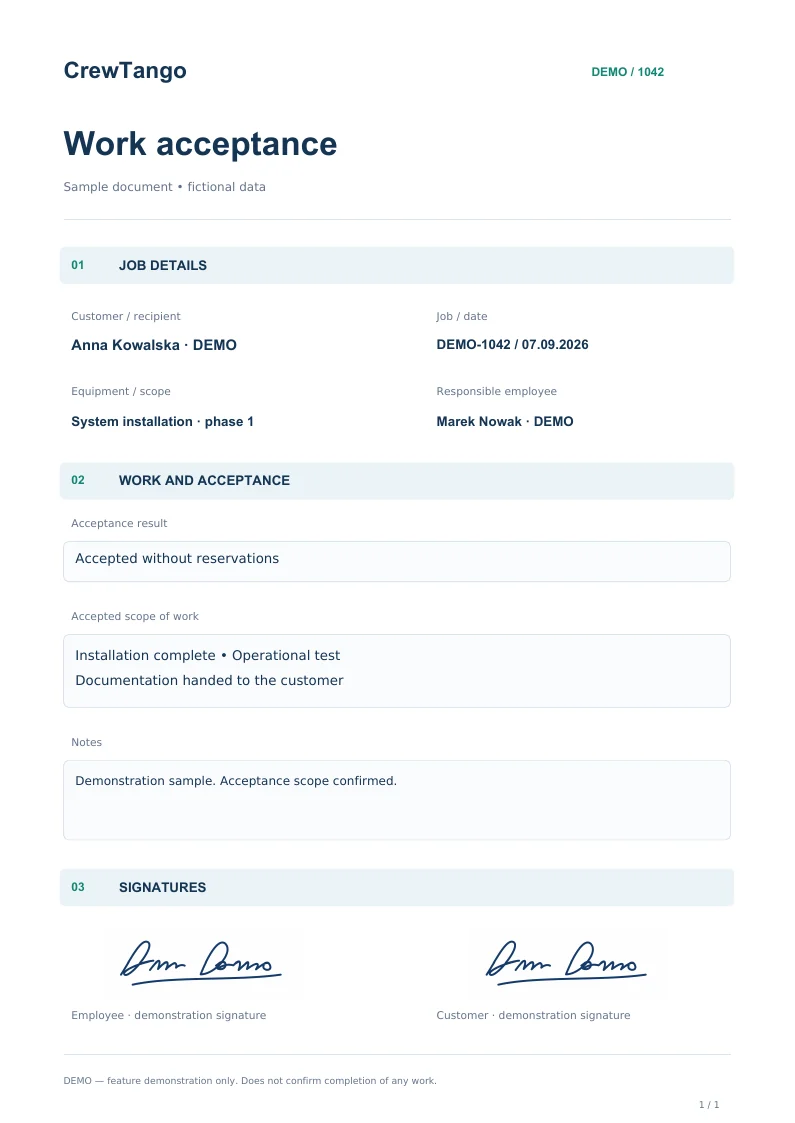
Scope of work, acceptance notes and confirmation from both parties.
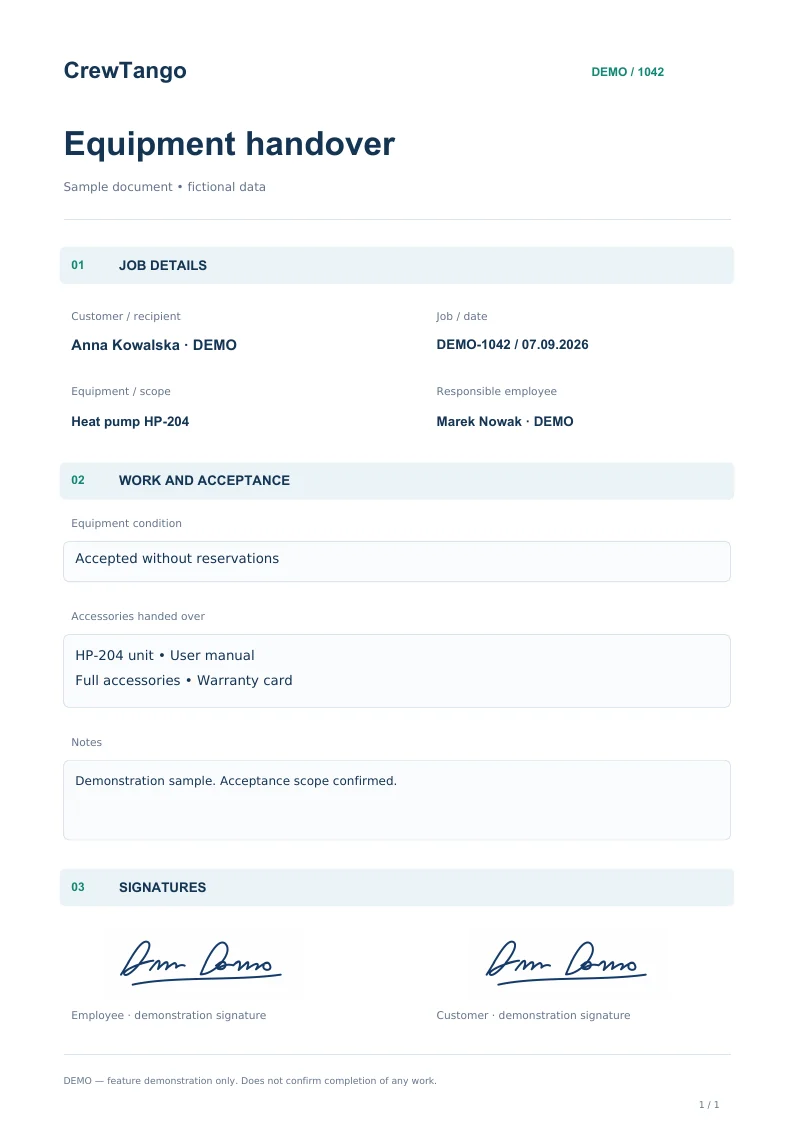
Equipment, condition, accessories and the people handing it over.
Demonstration materials. The service report includes sample values and signatures placed by the application’s PDF renderer.
Before your first document
Preparation, viewing and sending have separate permissions. Match the module’s scope to the way your team works.
Yes. Start a template from a PDF, JPG or PNG, then position fields and signatures and decide who completes them. Save Word documents in a supported format first.
Template fields can use customer, contact, location, equipment, project, task or employee data. Your team or a designated signer completes the remaining information.
No. External signers open their own link in a browser. They can review the document, complete assigned fields and sign.
Yes. Collect signatures in any order or in a defined sequence, for example the customer first and then the employee.
Check the document’s status and history. A user with sending permission can resend an invitation through an available configured channel. The signing order may affect the actions available.
After all required signatures have been collected. The document stays with the task. Final email delivery depends on available recipients and communication settings.
The module collects a handwritten signature drawn on screen and places it in the PDF. Workflow history is available in the app. The module does not provide a qualified electronic signature.
Once the customer and document modules are enabled, prepare and publish a template. Review the task details and signers, send invitations and open the final PDF after signing. We can walk through these steps using your example during a demo.
Your document. Your workflow.
We will walk through the template, form fields and signatures using your workflow as an example.