
Tasks and Kanban boards

Know who is working.
See what is
already done.

Assign tasks, set deadlines and follow each stage. From photos and comments to a checklist and signed report — documentation stays with the work it belongs to.

Your own workflow stagesList and calendarChecklists in the COMPANY plan
TASKSERVICE · SITE A
Routine inspectionPriority: medium

System inspection
in building A

Person responsibleANAnna Nowak
Due dateFriday, 14:00
Board stageIn progress
Task statusOpen
2 commentsInstructions.pdfChecklist
AN
Anna NowakInspection started. I’ll add photos and results to the task.
Illustration of task information · sample data
Clear responsibility

A person and deadline assigned to the task.

Progress the team can see

A shared board instead of repeated questions.

Completion with evidence

Activities, photos and measurements alongside the work.

Stages that fit your workflow

What’s waiting, what’s underway,
what needs checking.

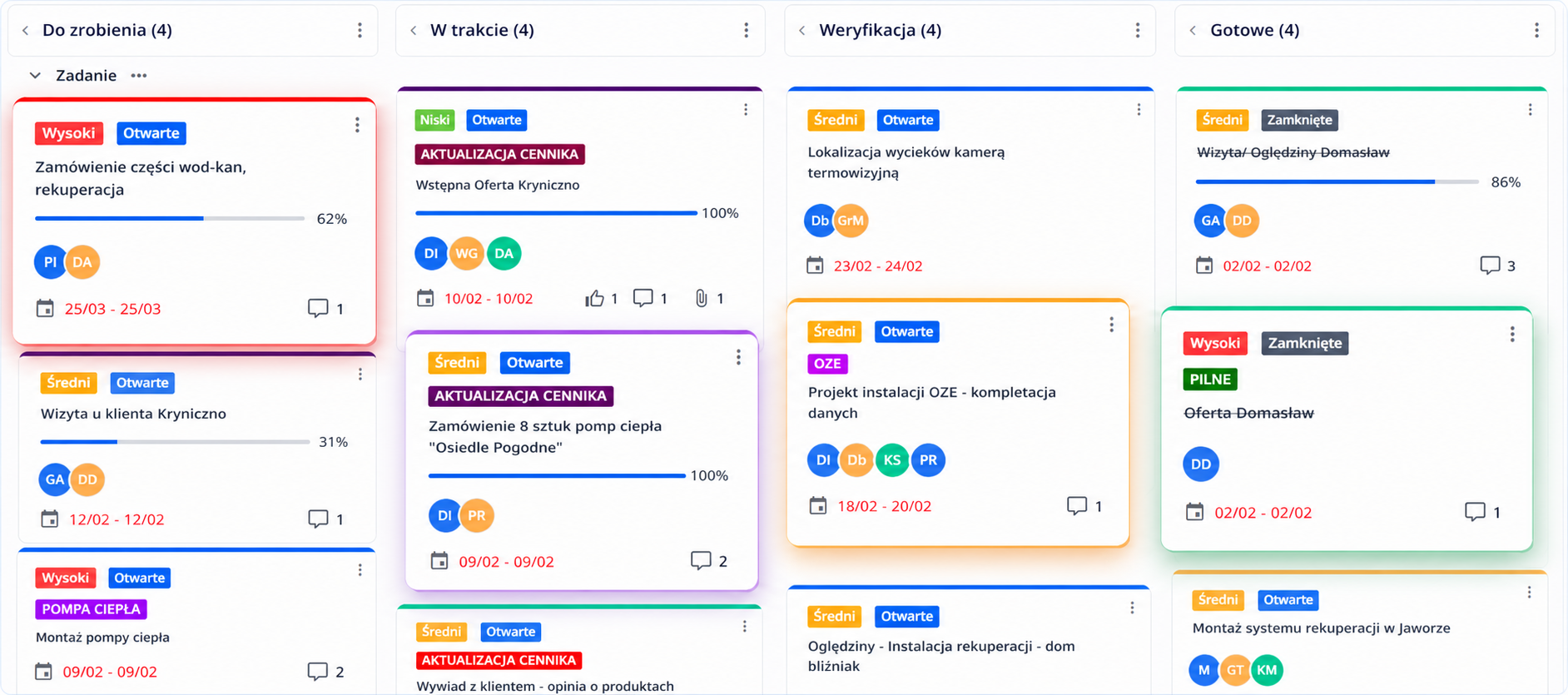
See where tasks stand on a single board. Create your own columns and groups, and move cards as work progresses.

Kanban board with To do, In progress, Review and Done columns. Cards show priorities, people, deadlines and a separate open or closed status — Polish interface.
CrewTango task boardPart of the CrewTango task boardThe board stage and open/closed task status are set separately.

Product preview shown in Polish.

Your process, your columns

Separate boards for teams, projects and different ways of working.

The essentials on the card

Assignees, priority and deadline without searching through messages.

Context alongside the task

Descriptions, comments, photos, files and custom labels where they’re needed.

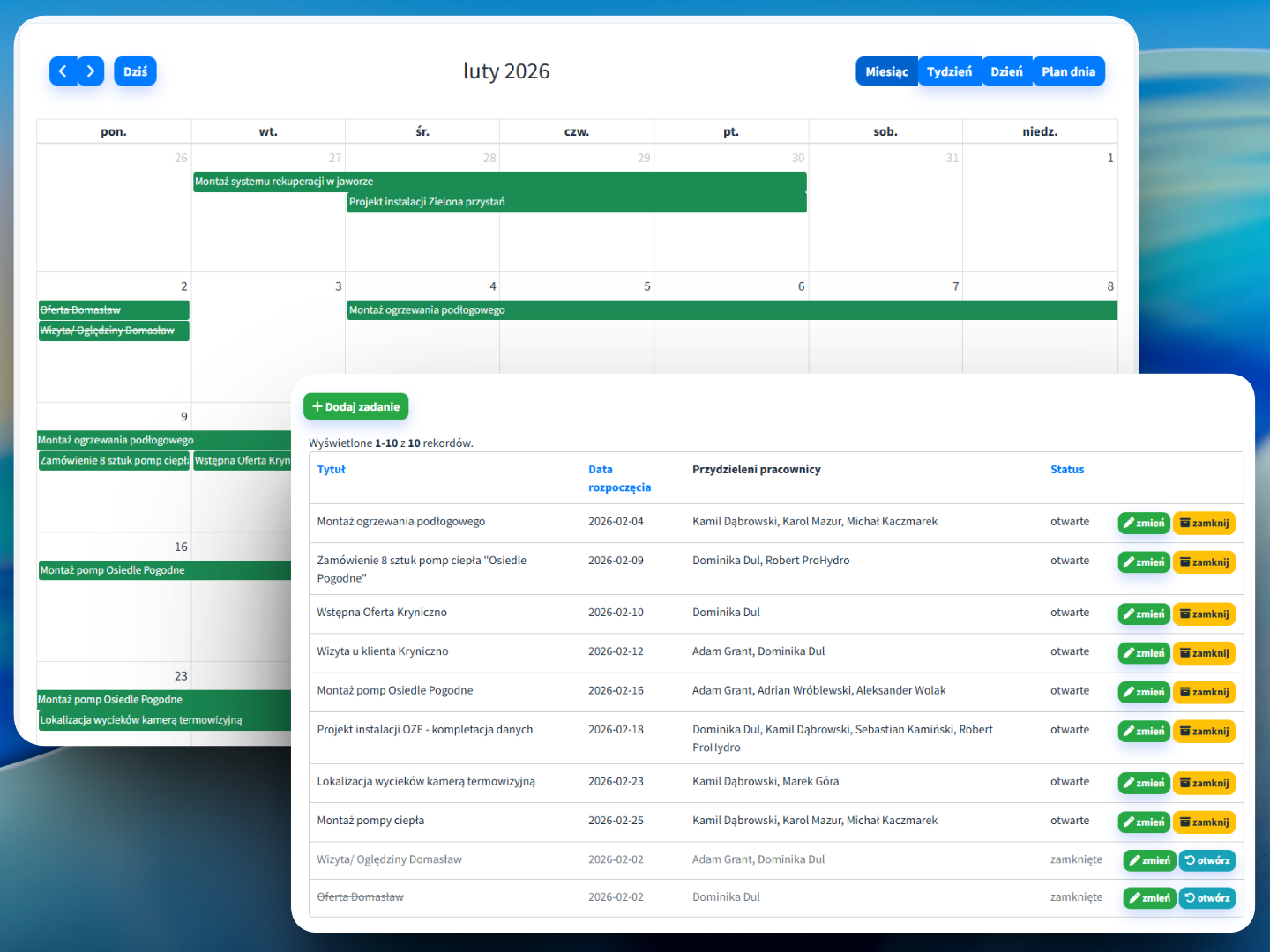
Calendar with deadlines and a task list showing dates, assigned employees and statuses — Polish interface.
The same tasks. A view that fits what you’re checking.

Product preview shown in Polish.

From a plan to a clear deadline

The list organises tasks.
The calendar shows deadlines.

Plan work and check what’s due on a given day. Switch views without copying tasks between tools.

  • Assign people and set dates.
  • Organise tasks by priority.
  • Link them to a project, customer or location.
  • Define relationships and dependencies between tasks.
TASK · SYSTEM INSPECTIONMaterials from completed work
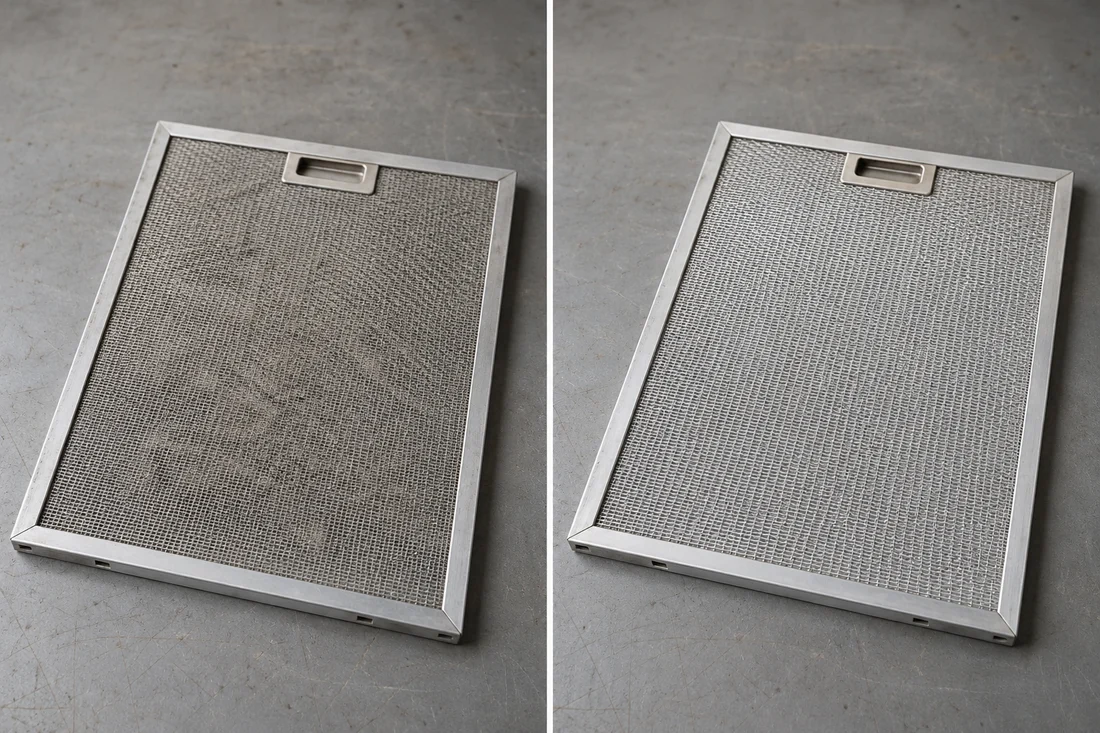
Illustrative photos of the same filter cassette: before cleaning on the left and after cleaning on the right.
Before cleaningAfter cleaning
AN
Anna Nowak · task commentFilter cleaned. I’ve attached photos from before and after the work.
Inspection_instructions.pdf Attachment
Sample task materials · illustrative photos

Photos, comments and attachments

Documentation stays
with the work it belongs to.

A phone photo doesn’t have to end up in a private gallery. Add it to a task comment and keep it with the description, files and team discussions.

Show the before and after

Attach separate photos before work starts and after it’s finished. Explain the work completed more easily during handover or a complaint.

Add what the photo can’t show

Record a result, an issue or a customer agreement in a comment. Materials keep their task context.

Give the team the files they need

Instructions, specifications and attachments are available alongside the same work, according to permissions.

PhotosCommentsInstructionsFiles
CHECKLISTS · COMPANY PLAN

“Done” should come
with evidence.

Define the activities to complete and what needs documenting. Employees work through the checklist, add measurements and photos, and you see the results alongside the task.

  • Activities that need confirmation.
  • Measurements and photos required for handover.
  • Issues to resolve before closing.

A mandatory checklist blocks task closure until the checklist is completed and its reported problems are resolved.

SYSTEM INSPECTION · DEVICE A12

What’s left to do?

Mandatory checklist3 of 4 items
  • Check the device’s conditionCompleted · no issues
  • Clean the filtersCompleted
  • Measure supply air temperatureResult: 12°C
  • Photo after completionRequired · awaiting completion
The task remains openA photo is missing from a required checklist item.
Illustration of a checklist rule · sample data

01Set the standard once

Create your own templates and instructions. Assign them automatically to the relevant task types so the team follows the same standards.

02Collect complete results

Define required answers, measurements and photos. For multiple devices, keep separate results and a history of completion and corrections.

03Prepare the report

Use completed checklists in a work sheet or PDF report. The customer version excludes internal notes and items marked as internal.

Optional checklists do not block task closure. Employee or customer signatures are collected in the next stage of the document workflow.

Documents and signatures alongside the task

From completed work
to a signed report.

A service report, work acceptance or consent form can stay with the task. Prepare the document, collect signatures and keep the final PDF with the work history.

  1. 01

    Choose your own template

    Start with a PDF, JPG or PNG. Add fields and signature areas, and specify who fills in the information. The office can prepare the document before the visit.

  2. 02

    Fill in the job details

    Fields can use data from the task, customer, project, location or device. The report can also use completed checklists.

  3. 03

    Collect employee and customer signatures

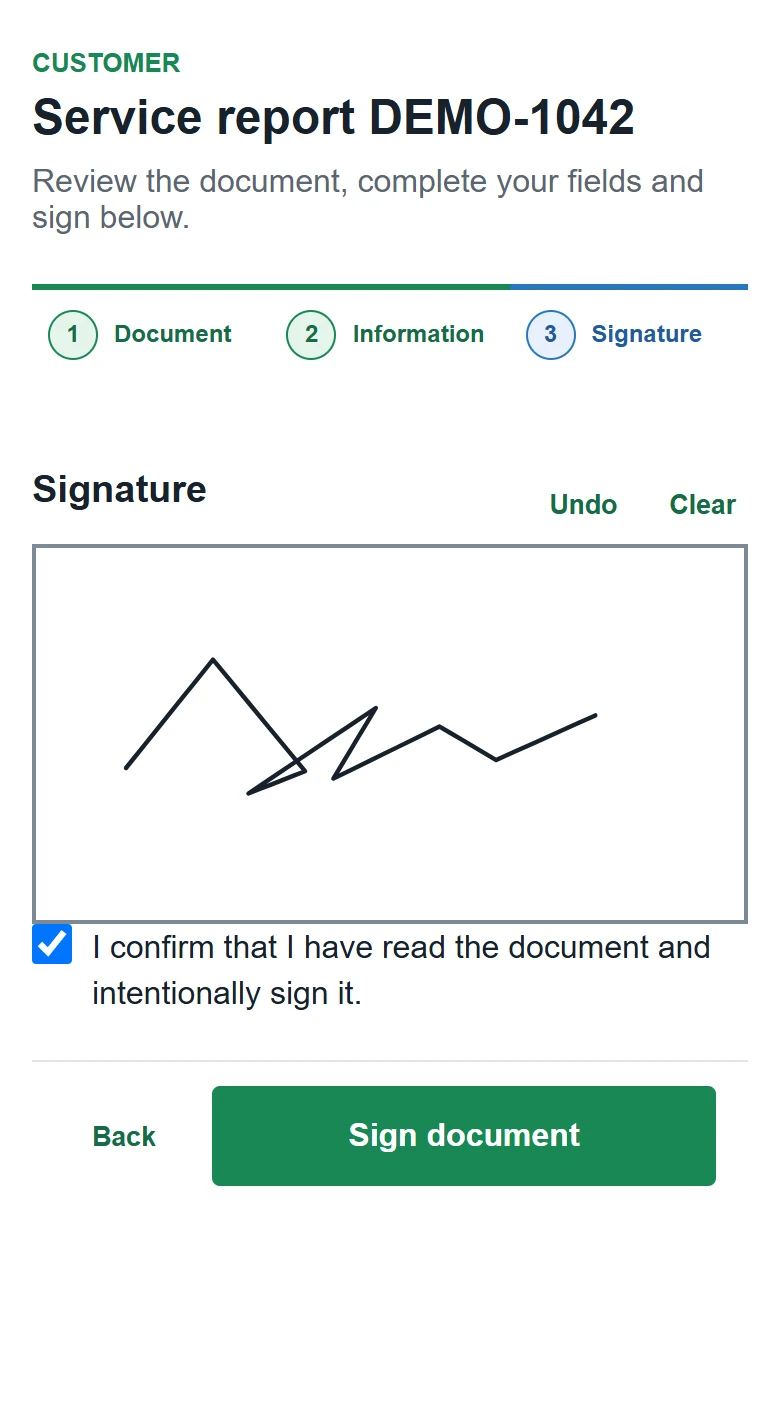
    Employees sign their assigned area in the app. Customers open a browser link, review the document and sign without creating an account.

  4. 04

    Keep the final PDF

    The final document is created once all required signatures have been collected. The PDF and history stay with the relevant task.

An order that fits your process

Collect signatures in any order or according to a defined sequence.

Your own fields and answers

Text, numbers, dates and choice lists. Your team or the designated signer fills them in.

Illustrative photo of a technician and customer reviewing a document on a phone after a service visit.
Actual customer document signing screen in a browser: document review, fields and an on-screen signature.
On site or after the visit.Customers read and sign the document on their own phone.

Illustrative photo. The signing screen comes from the app and contains demonstration data.

A workflow the team can follow

Know whose signature you’re waiting for.

Check whether an invitation was sent, the document was opened and signatures were collected. An authorised person can resend the invitation through an available, configured channel.

SERVICE REPORT · SAMPLE WORKFLOW
Marek NowakEmployee
Signed
Anna KowalskaCustomer
Document opened

Final PDF: once all required signatures have been collected.

Preparation, viewing and sending depend on enabled modules and permissions.Explore documents and signatures

Email and push notifications

A change in the task.
An update for the team.

Not everyone needs to watch the board all day. Notifications help people return to the right task when something important changes.

  • New comment or attachment
  • Task status change
  • Person assigned
  • Deadline information
As it happens

An update after the event, according to company settings.

In a digest

Grouped messages when that rhythm suits your team.

Set channels and delivery preferences for your company. A notification link does not bypass task permissions.

CrewTangoApp notification
now

New comment on a task

System inspection — building A
Anna Nowak: “The photos after completion are now attached.”

The comment and materials alongside the same task
Changes at a glanceEmail message
  • 01
    System inspection
    Attachment added: a photo after completion.
  • 02
    Work acceptance — site B
    The due date was changed.
Illustration of notifications · sample data

Responsibility and history

Clear access rules.
A clear record of changes.

Define who can view, edit and close tasks. When there’s a question about a deadline or completion, check the history instead of piecing together conversations.

Each role has its own scope

Match visibility of selected boards, projects and views to your company structure.

Administrator

Manages settings, boards and access.

Supervisor

Works with the boards and sections they have permission to access.

Employee

Completes tasks within their assigned scope, with defined rules for editing and closing.

This is an example of role allocation. Task assignment does not grant access to all company data. Editing and closing permissions are defined separately.

Who changed the deadline or stage?

History covers key task fields and the authors of comments and attachments.

  1. 10:42 · Jan KowalskiBoard stage changed

    In progress → To review

  2. 11:15 · Anna NowakAttachment added

    photo_after_completion.jpg

  3. 12:03 · Dawid ZielińskiDue date changed

    Friday, 14:00 → Friday, 16:00

Illustration of task history · sample data

Tasks within your business processes

One task.
The right context for the work.

Connect delivery with a project, customer and work location. The team knows what the work is about and where to find related information.

Projects, customers and locations

Links help organise tasks within jobs and the sites you service.

Files and reports

Task materials and information remain part of CrewTango workflows.

API integrations

Authorised systems can exchange task data through the integration interface. This is an optional part of implementation.

Explore integrations

Before your first board

Good to know.

Tasks, documentation, signatures and teamwork — answers before implementation.

Do I have to use a Kanban board?

No. You can work with the task list and calendar. The availability of tasks and boards depends on company settings.

Can I create my own stages and multiple boards?

Yes. You can create your own columns and groups, organise cards and maintain separate boards for different teams or processes.

Does the “Done” column close a task?

No. The board stage and task status are separate settings. After the work is completed, check its evidence and set the status to “closed”, according to your permissions.

Where do photos and files from completed work stay?

Materials added in comments and attachments stay with the task. You can also store materials alongside a recorded work period, depending on your process. This does not mean files are automatically transferred between these places.

What do checklists in the COMPANY plan include?

Custom templates, instructions, required activities, measurements, photos, completion and correction history, and preparation of work sheets and PDF reports. Separate results can be collected for multiple devices.

When does a checklist block task closure?

A mandatory checklist must be completed and its reported problems resolved. An optional checklist does not block closure.

Can a customer sign a report without an account?

Yes. They open their link in a browser, review the document, fill in their assigned fields and sign on screen. Signatures are collected through the document workflow after the report is prepared.

Can I use my own report template?

Yes. Start a template from a PDF, JPG or PNG and add fields and signature areas. Document preparation and handling depend on enabled modules and permissions.

Will the customer see internal checklist notes?

The report version intended for the customer excludes internal notes and items marked as internal.

Can I reduce the number of notifications?

Yes. Company settings let you configure email and push channels and delivery: as events happen or in a combined digest.

Who can edit and close tasks?

This depends on roles and permissions. Access can be adjusted for authors, assignees or supervisors. A notification link does not grant additional access.

Start with one process

Fewer questions about progress.
More work brought to completion.

Create a trial account or let’s talk about the tasks you want to organise for your team.