Field employees use their phones, office employees use the desktop app, and managers use the browser dashboard. Each gets a simple view suited to their role, with information feeding shared tasks, schedules and reports.
Everyone works in their own way while the team uses the same data.
CrewTango guides each person through their everyday tasks.
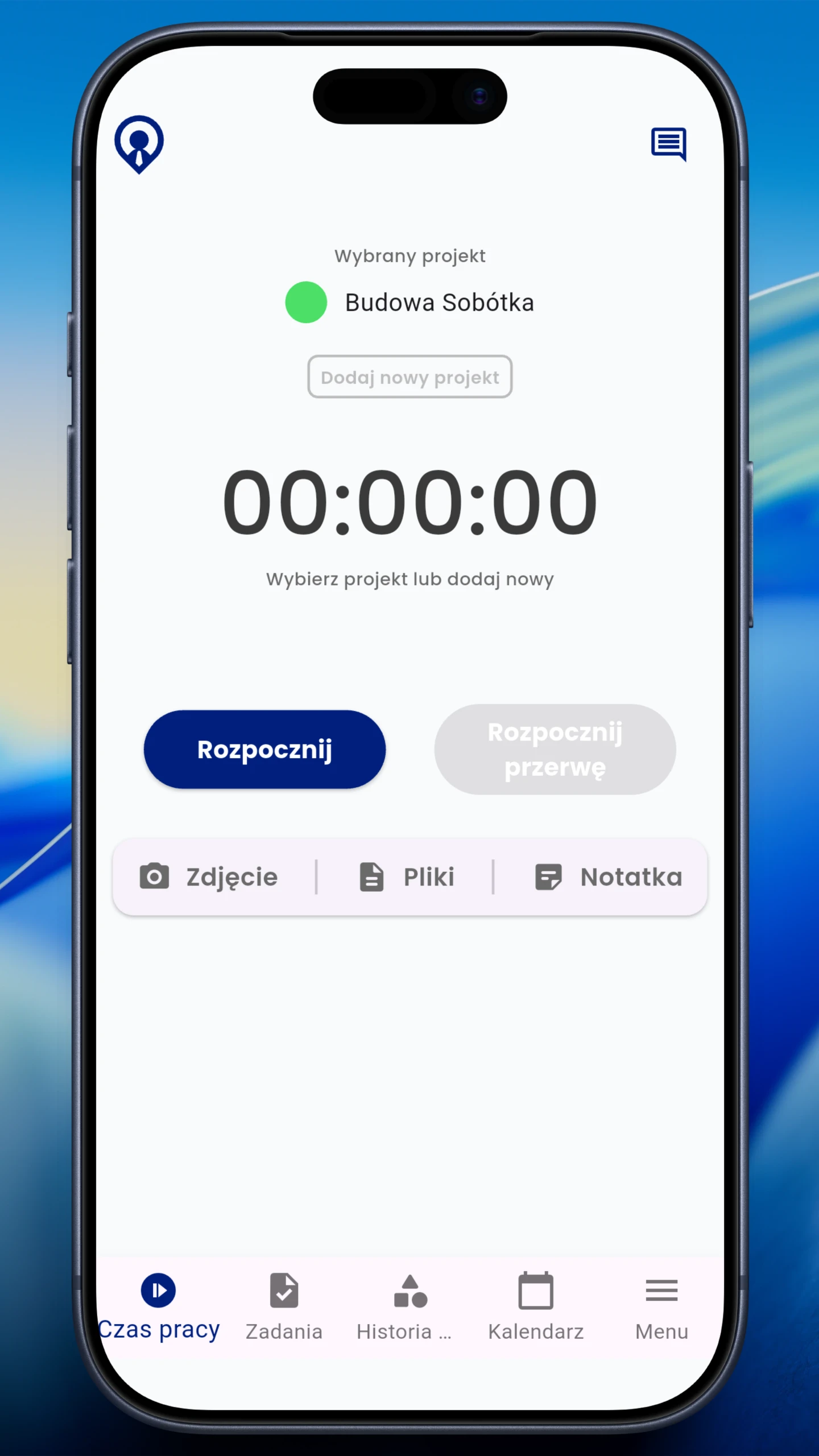
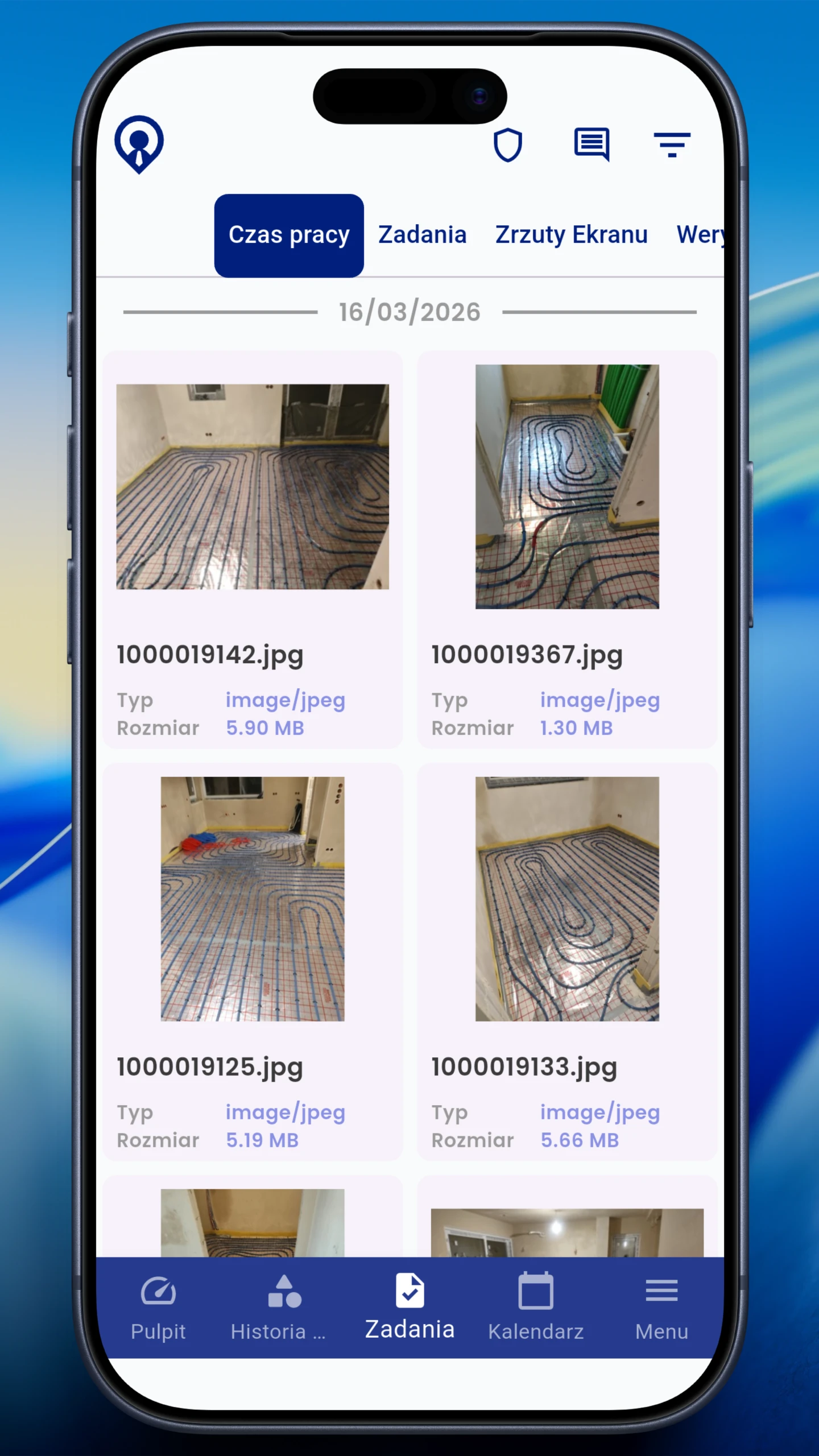
Starts the timer on a phone, checks schedules and tasks, and adds completion photos.
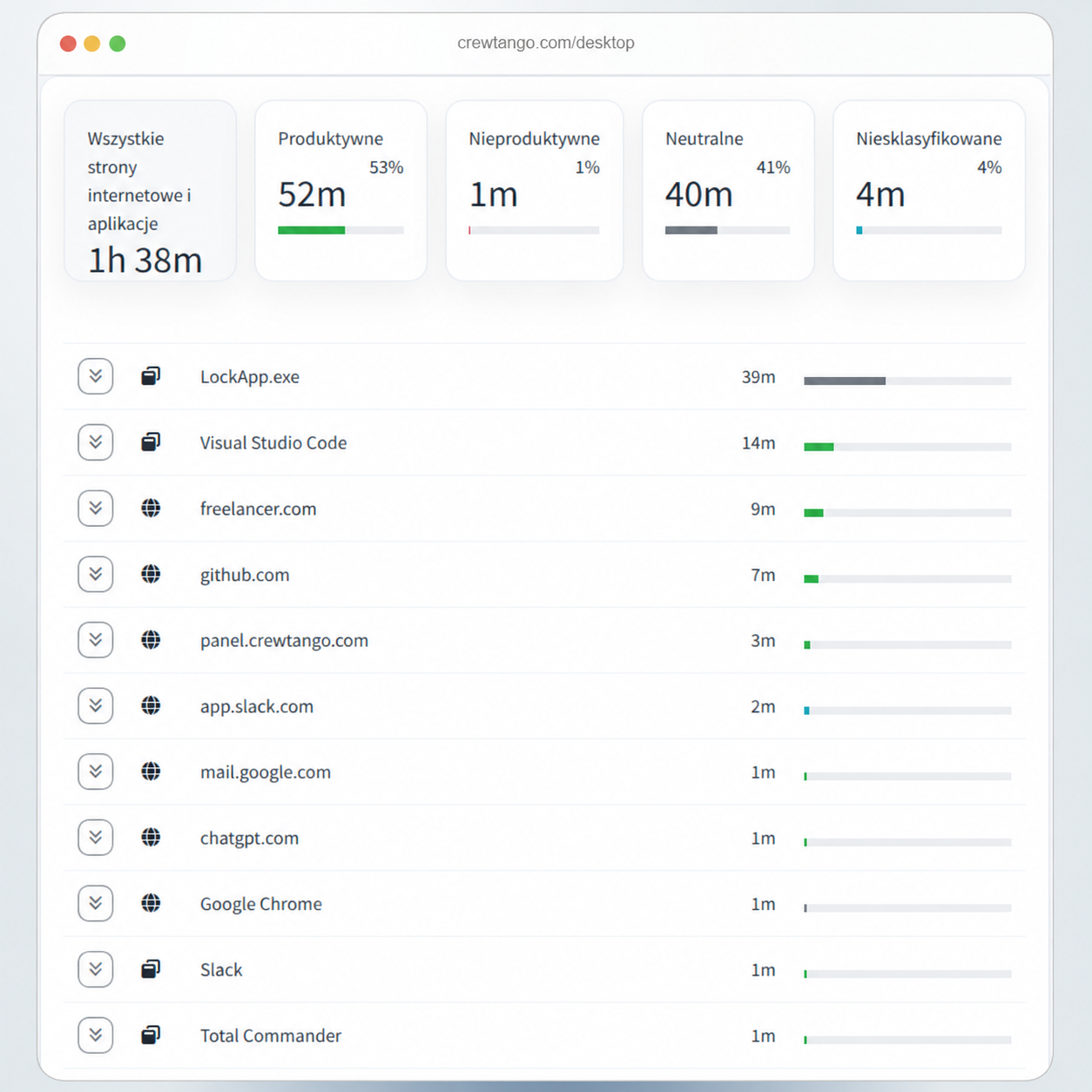
Tracks time in the desktop app. The company can add app and website usage to the report.
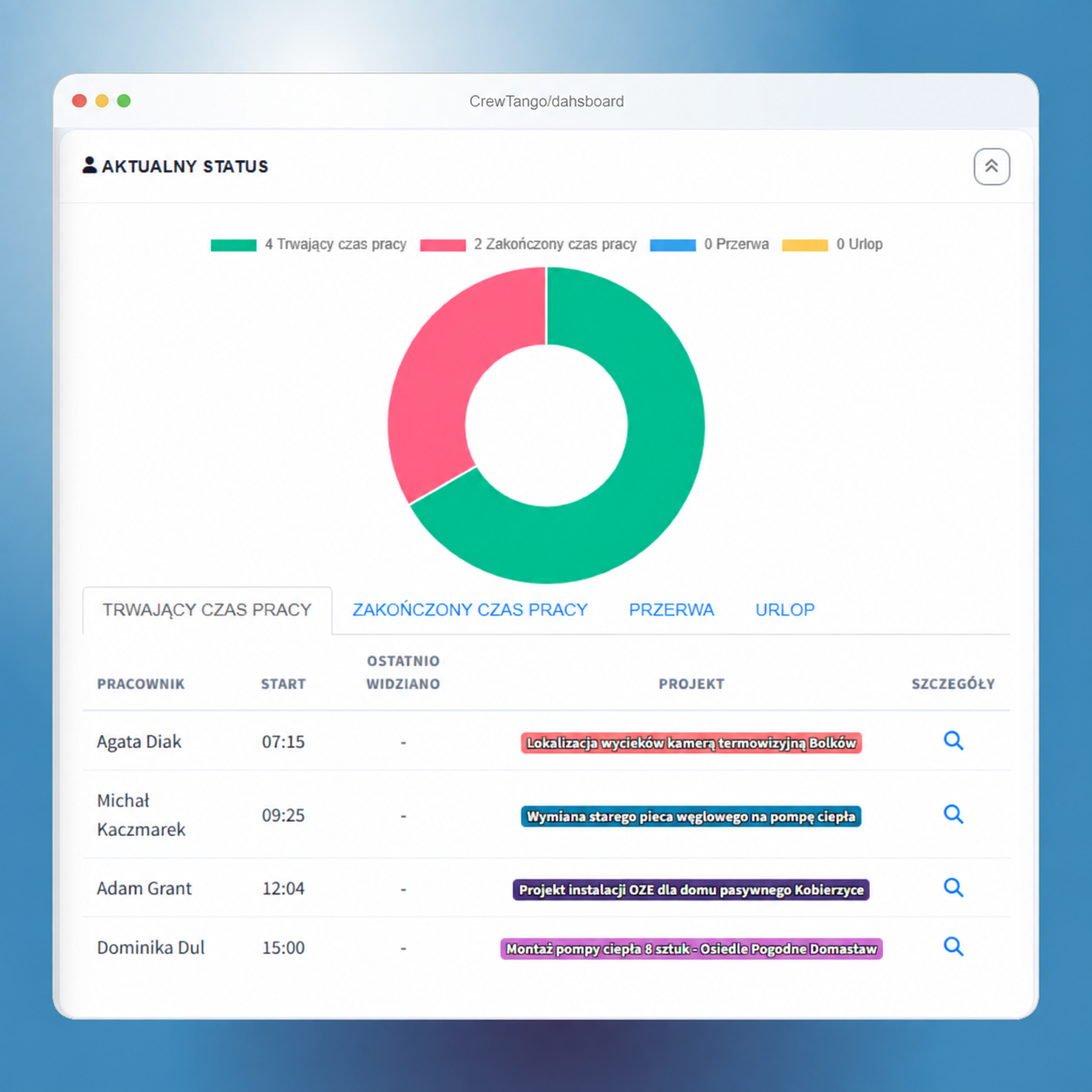
Sees the team in the browser dashboard, approves exceptions and reviews tasks, schedules, time and costs.
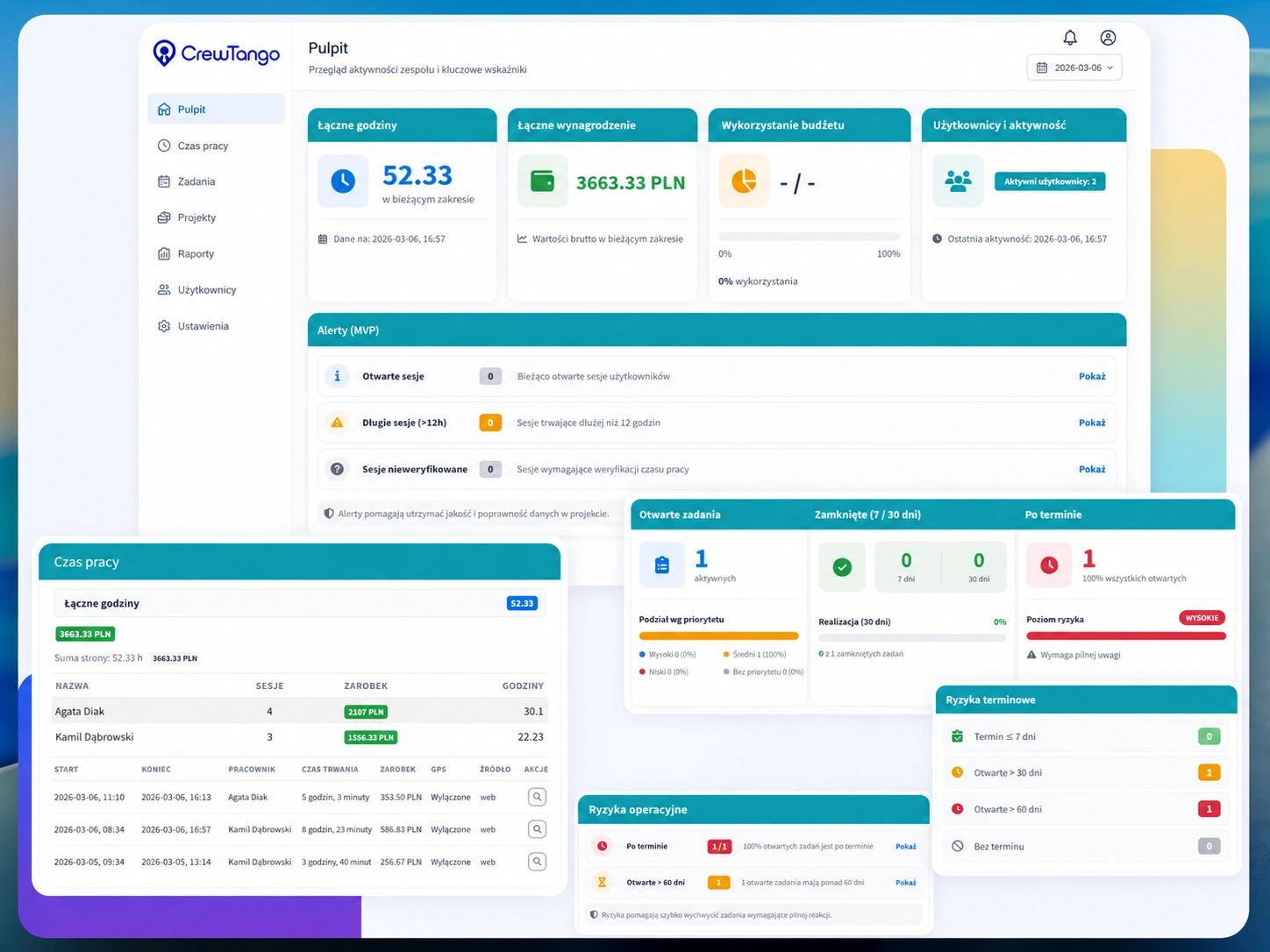
Employee records feed a shared dashboard. Managers can see who has an active timer, who is working on tasks and what needs attention without asking everyone separately.
Information is recorded in one place while each person uses the view that suits their work.
Checks the daily plan on a phone, starts time on the right project and adds photos to the task.
Starts the desktop app and works on assigned tasks. Time and the agreed data scope are recorded automatically.
Reviews actual work, tasks and exceptions in the browser dashboard, then approves records for reporting.
Choose a role to see how they use CrewTango each day.
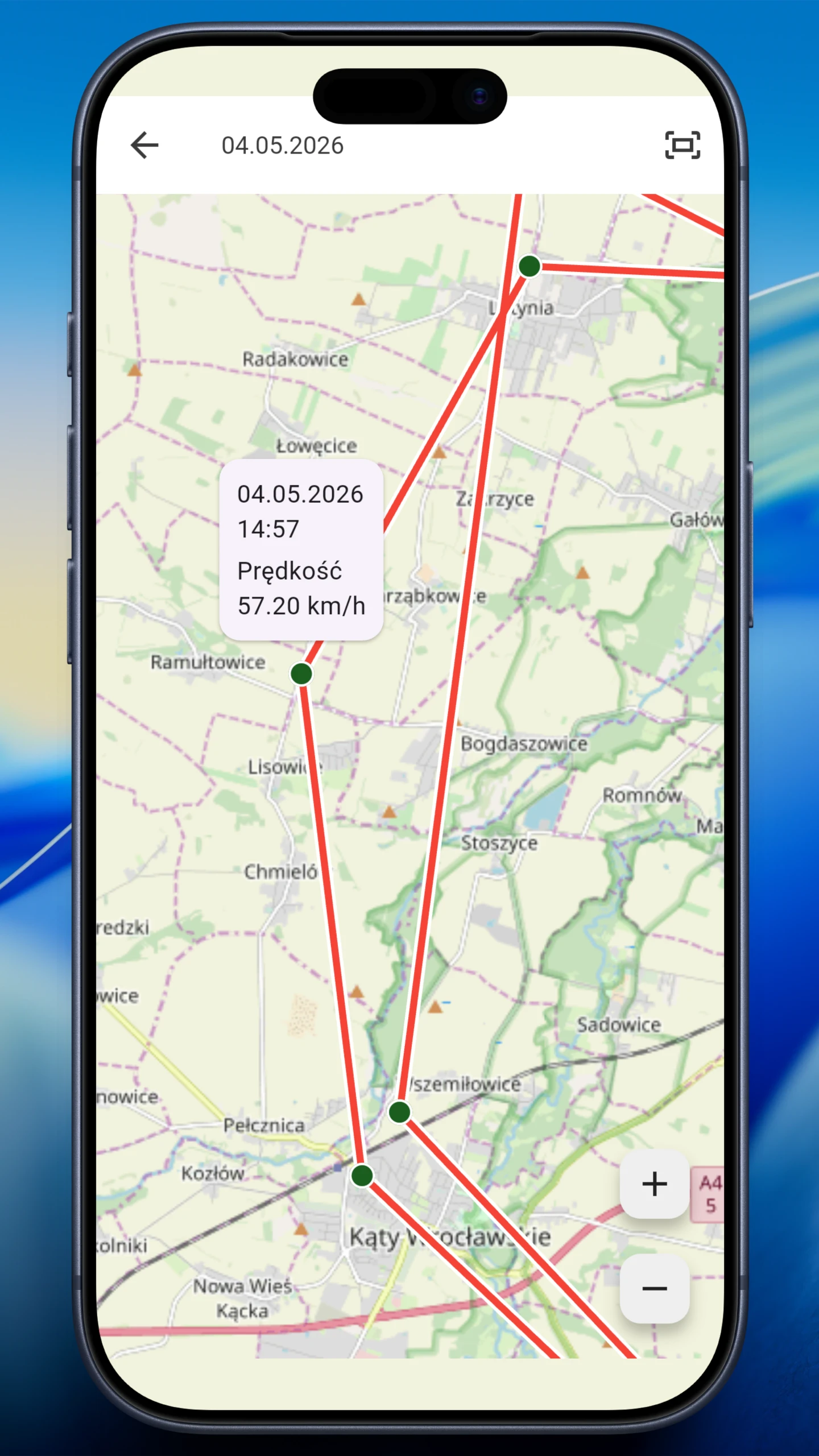
Employees start the timer, view schedules and tasks, add photos and, if needed by the company, record location during work.
Time • Schedule • Tasks • Photos
Employees track work on Windows or macOS. Reports can show apps, websites, activity and optional screenshots.
Time • Apps • Websites • Screenshots
Managers review active timers, tasks, schedules, deviations and reports in one place.
Team • Tasks • Schedules • Reports
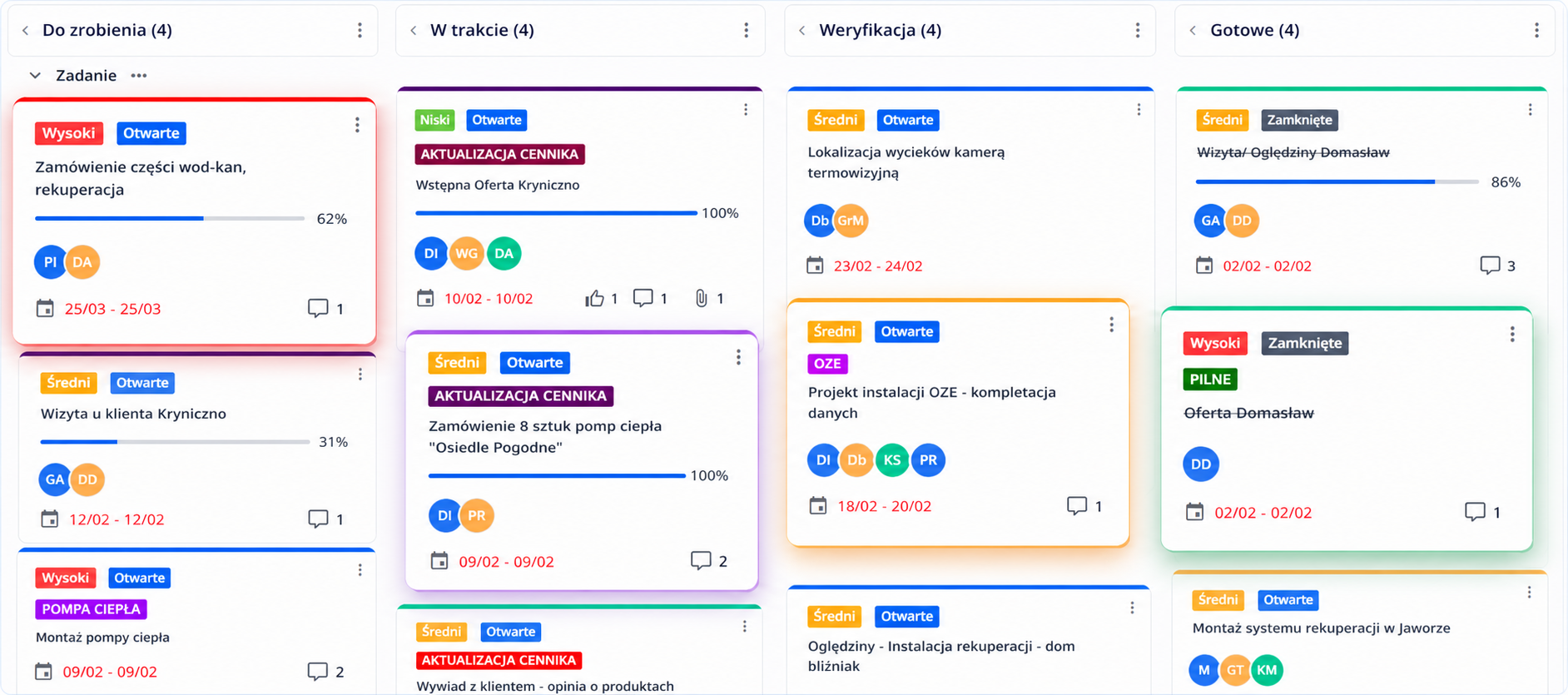
CrewTango boards and tasks provide a shared home for priorities, statuses and responsibilities.

Managers can check each task's current status on the board.
Every task has an owner, priority and deadline.
Comments, notes, files and time stay with the task.
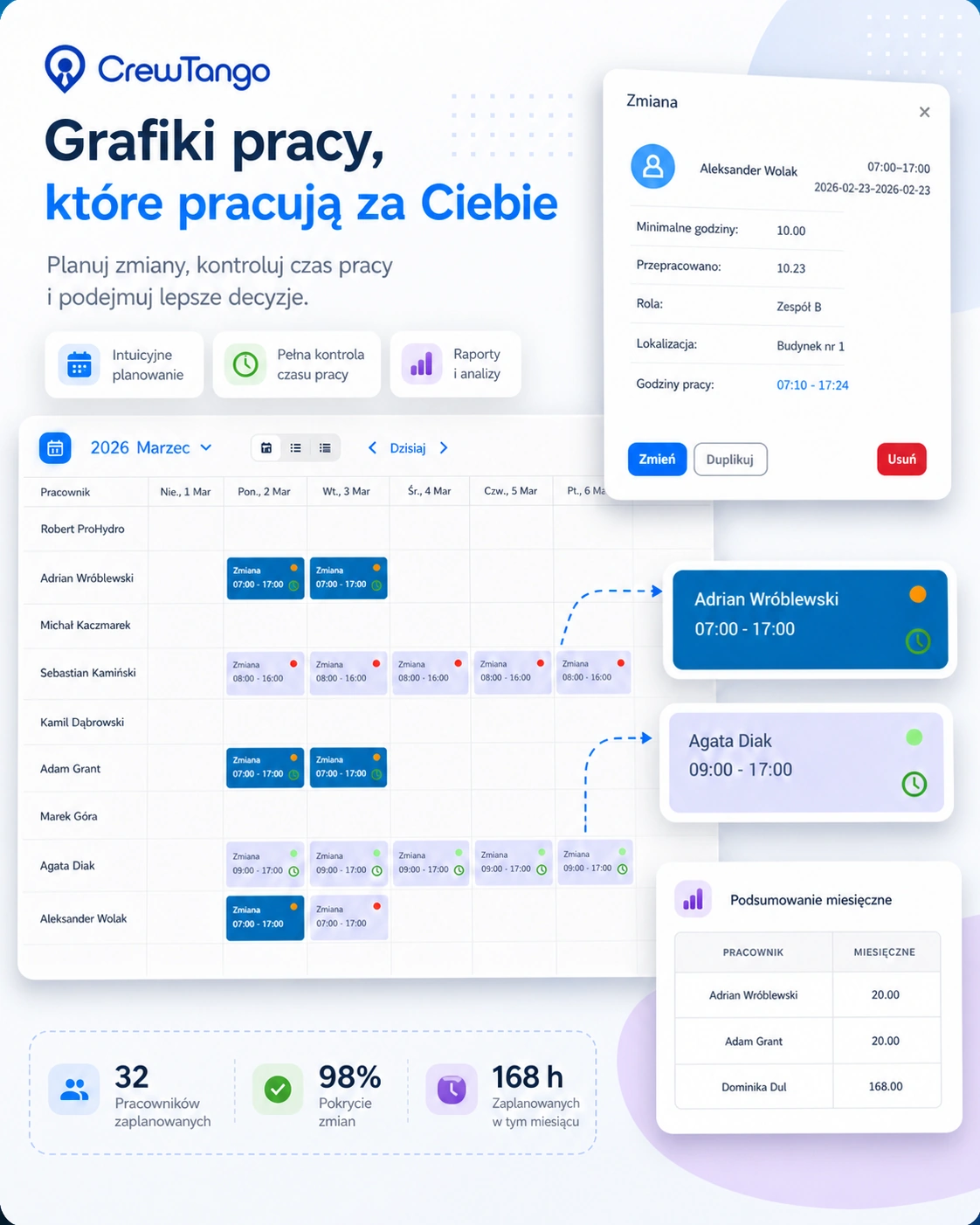
Create schedules, assign roles and locations, and compare planned shifts with recorded time in CrewTango.

| Employee | Source | Planned | Recorded time | Status |
|---|---|---|---|---|
| Anna Kowalska | Desktop app | 09:00–17:00 | 7 h 48 min | recorded |
| Marek Nowak | Mobile app | 08:00–16:00 | 6 h 55 min | for review |
| Karol Zieliński | Mobile app | 10:00–18:00 | no recorded work session | not clocked in |
| Ewa Wiśniewska | Browser dashboard | flexible | 4 h 20 min | manual entry |
For computer-based work, CrewTango can show apps, websites, keyboard and mouse activity, screenshots and productivity based on company categories.
The report includes apps used and websites visited.
Apps and websites can be productive, neutral, unproductive or uncategorised.
Keyboard and mouse data can appear alongside a work session.
Optional work context, according to company policy.
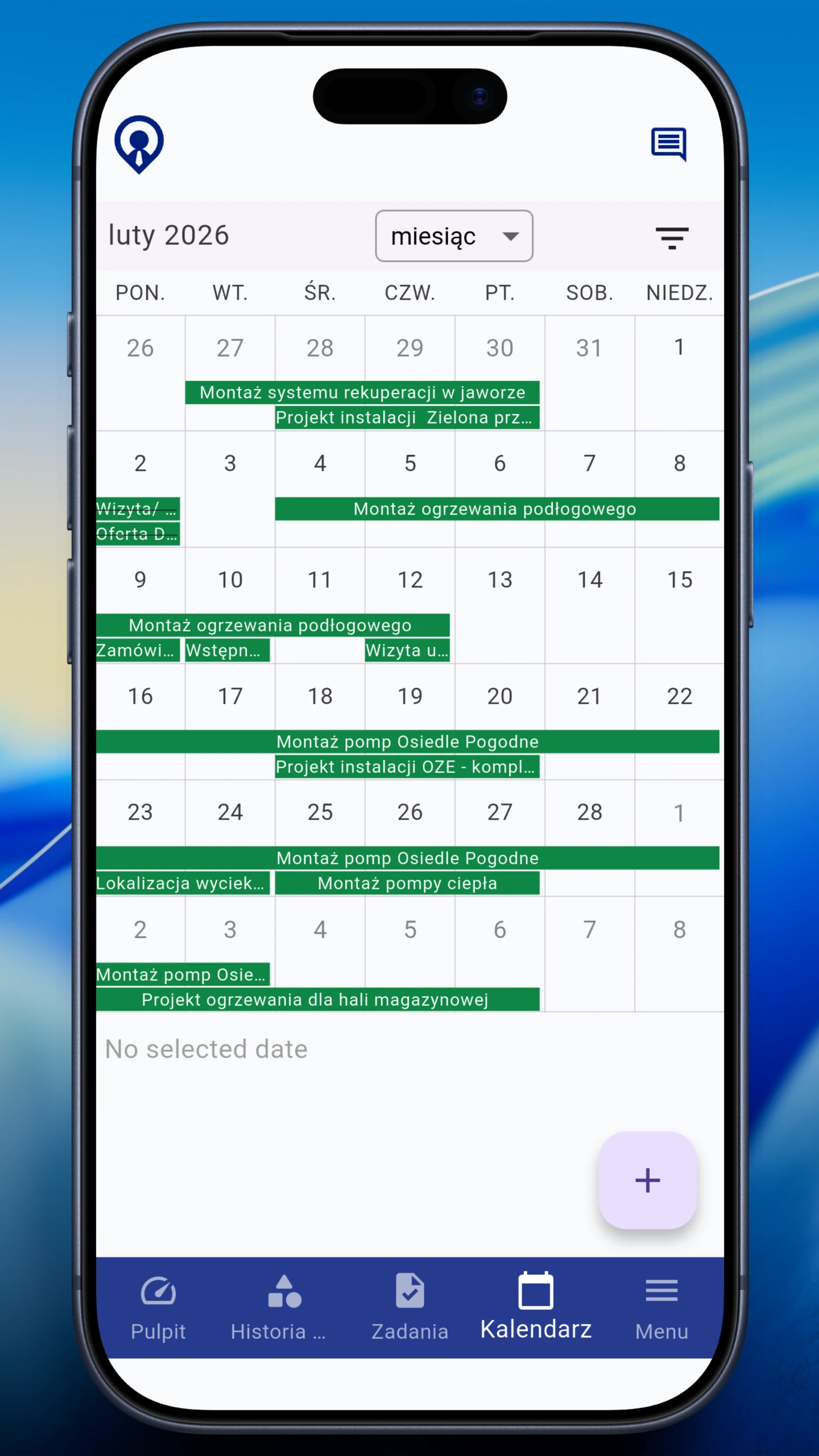
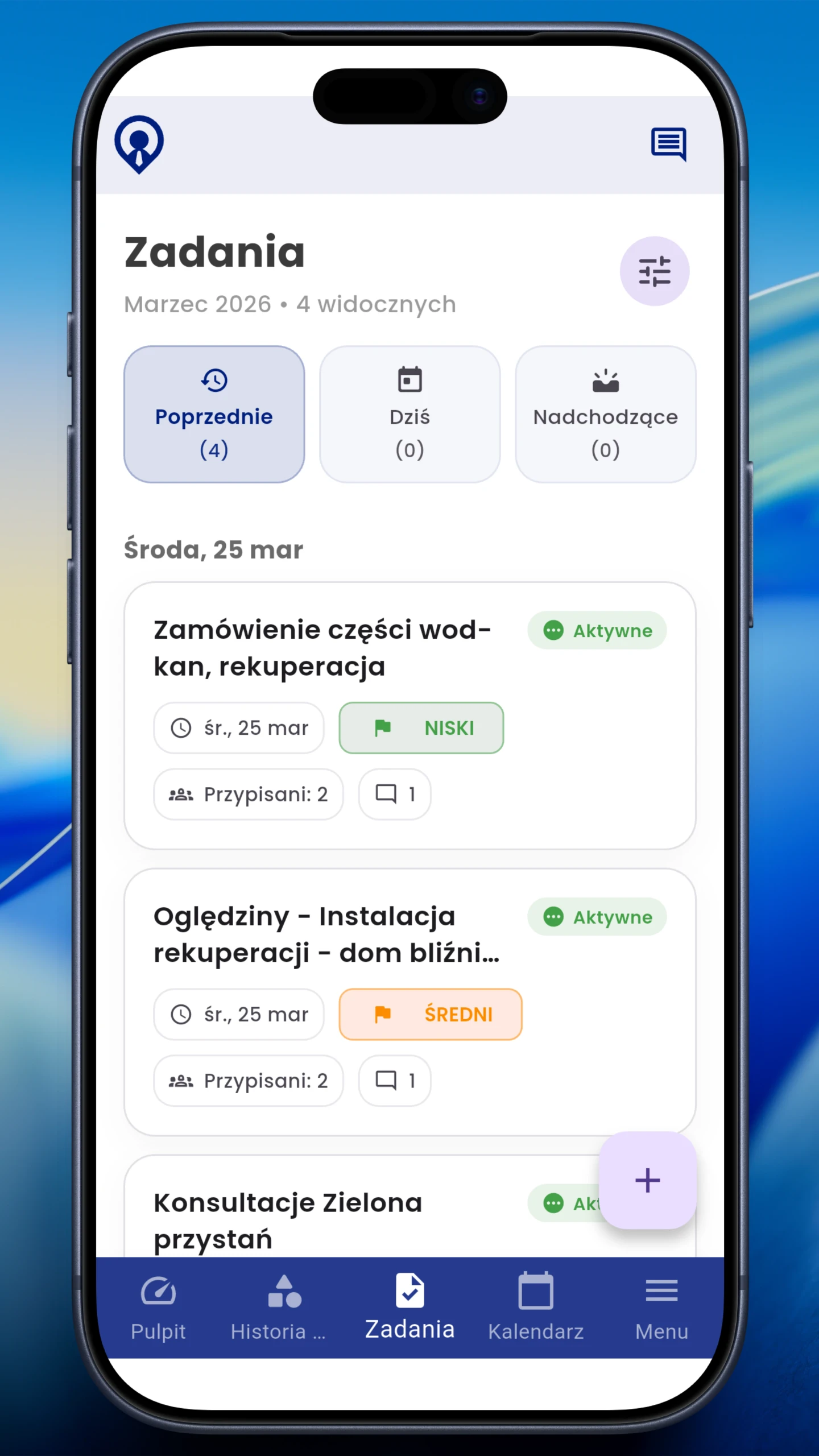
Track time in the mobile app, manage tasks, add photos and check schedules in CrewTango.


Work sessions from mobile and desktop apps appear in the dashboard with their tracking source.
Mobile time entries, desktop activity, schedules, tasks and pay calculations form a shared summary. See where hours are lost, which projects are overloaded and where overtime occurs.
Mobile app, desktop app, browser dashboard and manual entries in one report.
Schedule compared with actual working time.
Hours, allowances, overtime and labour costs.
Each role needs a different scope of information. CrewTango lets you adapt visibility and permissions to roles and company policy.
Sees personal time, tasks, schedules and files needed outside the office.
Tracks computer work and sees personal summaries.
Sees the team, statuses, deviations, approvals and tasks.
Configures roles, reports, productivity categories and rules.
The shared dashboard connects different ways of working without manually assembling separate summaries.
Everyone gets the right view while the team works with shared tasks, schedules and reports.