IN THE FIELD
Mobile app
Start work, choose a project and record a break. Photos and optional GPS add context to a visit.
Explore the mobile appTIME TRACKING & APPROVALS
Employees record time and breaks on their phone, computer or in a browser. Managers review entries, approve hours and prepare them for payroll.
A sample working day · no account needed
EMPLOYEE’S DAY
08:00— 16:00Service AApproved by the manager
EXPLORE A SAMPLE DAY
Explore both the employee’s and manager’s view. A few clicks show how a working day becomes a complete time entry.
Example day timeline
Start this example day at 08:00. Each button moves to the next stage, without waiting for time to pass.
Fictional data and preset hours. This example does not save a time entry or require an account.
DIFFERENT WORKPLACES. ONE TIMESHEET.
Choose the tools that suit your team. Entries from the sources you enable come together in one dashboard.
IN THE FIELD
Start work, choose a project and record a break. Photos and optional GPS add context to a visit.
Explore the mobile appAT YOUR DESK
Track time at your computer. Additional app and website activity depends on your company’s settings.
Explore the desktop appIN YOUR BROWSER
Record time in the dashboard. Authorised people review entries, make corrections and approve hours.
See how to get startedIllustrations of recording methods. Choose the available sources in your company settings.
ACCURATE RECORDS
Add or edit time where needed. The system checks for overlapping entries and work session limits, keeping records consistent and ready for approval.
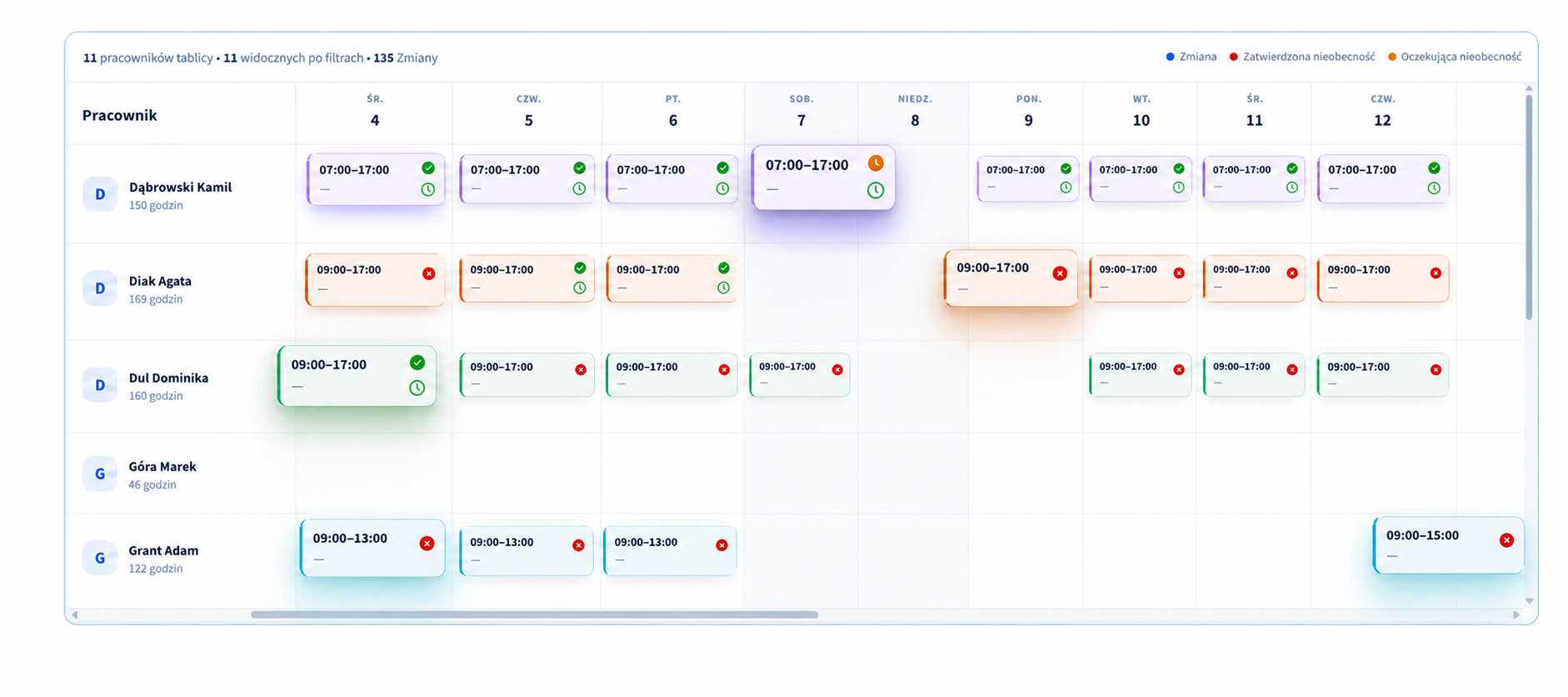 Enlarge the full view
THE MANAGER’S VIEW
Review start and finish times, breaks, the project and the entry source. Make any necessary corrections and approve hours according to your permissions.
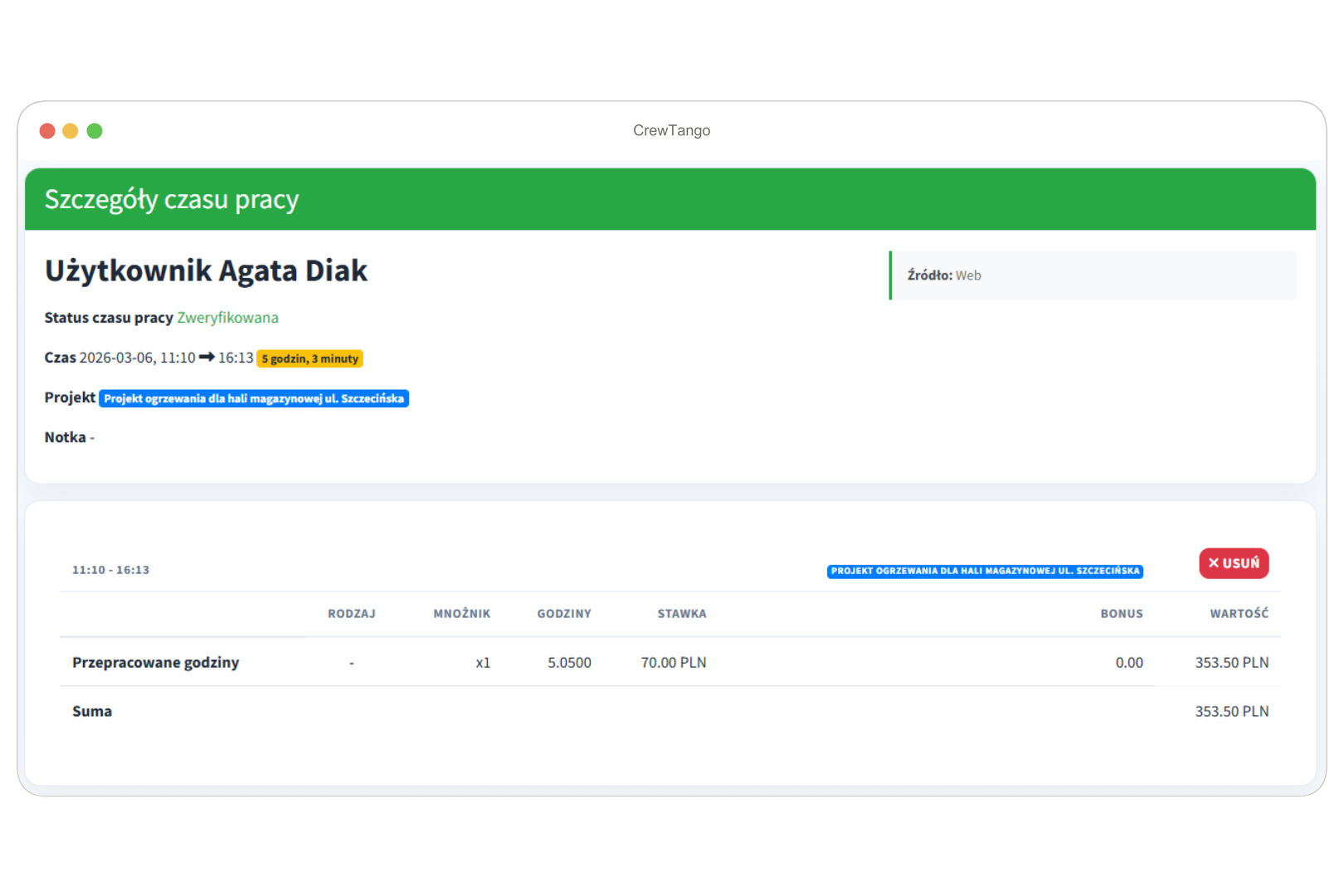 Enlarge the preview
Hours, breaks and the project stay together. See which source recorded the time.
Authorised people correct entries. The system checks consistency and overlapping times.
Distinguish pending, approved and rejected entries before preparing payroll.
YOUR TEAM. YOUR WORKFLOW.
We’ll show time tracking, breaks and approvals using your company’s workflow, and help you choose where to start your trial.
Leave your details — we’ll arrange the scope and time.
HOURS YOU CAN COMPARE
Review time by person, day and project. Compare totals, check the underlying entries and use the same records for payroll.
CONTEXT WHEN YOU NEED IT
Add work context to a time entry. GPS and screenshots are optional. Access to information depends on company roles and settings.
Explore privacy settings →GPS in the mobile app when the workflow needs it.
Supporting material attached to the work and job.
Apps, websites and optional screenshots, based on your settings.
BEFORE YOUR FIRST DAY
Breaks, corrections and forgotten timers — the essentials in one place.
Yes. Employees start and stop time tracking in the mobile app, desktop app or browser dashboard. Available sources depend on company settings.
Breaks are recorded during work. Your company can define their types and whether they are paid. In our example, eight hours between start and finish with a 30-minute unpaid break gives seven hours and 30 minutes for payroll.
Yes. You can switch projects while tracking time. Time is allocated to the relevant project without manually splitting entries.
Your company can configure automatic stopping at midnight, after 24 or 48 hours, or after a period of inactivity. This is a safeguard for forgotten timers; employees normally stop their own time tracking.
This depends on company permissions. Authorised people can make corrections and approve or reject entries. The system checks consistency and overlapping time.
No. They are optional. Your company chooses which data is collected and who can see it.
Add an employee, choose a recording method and record the first day. Then review the entry in the dashboard and approve the hours. You can also book a demo of your workflow.
START WITH ONE DAY
Invite an employee, record time and review the result in your dashboard.