FOR MOBILE TEAMS

Manage field crews without constant calls and guesswork

When teams work across locations, keeping a clear picture of the day is challenging. CrewTango connects schedules, time, tasks, photos and reports, so managers know who is working, where crews are and what has been completed.

Mobile app for field employees. Browser dashboard for managers and administrators.

In-app time trackingSchedules and locations Tasks and photos
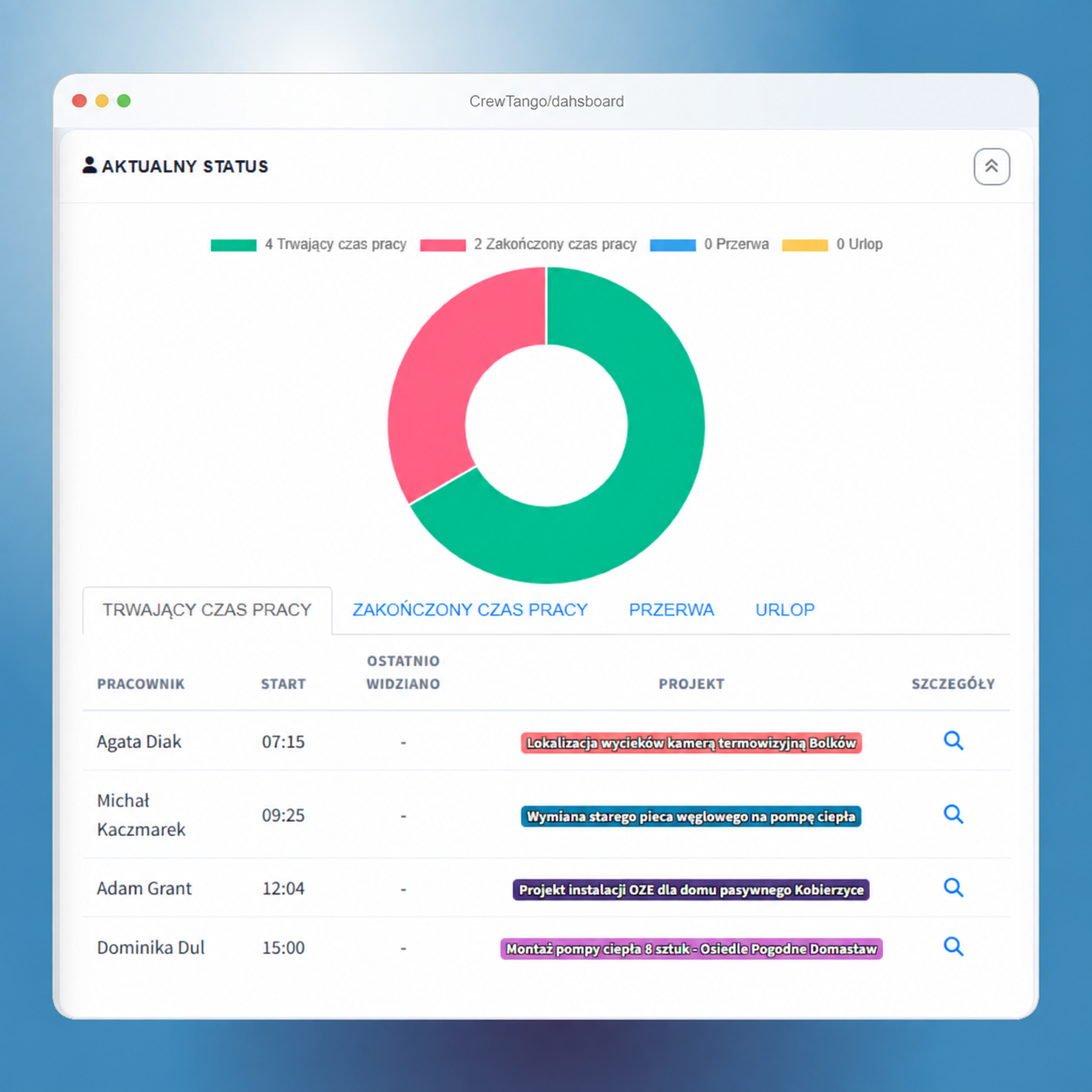
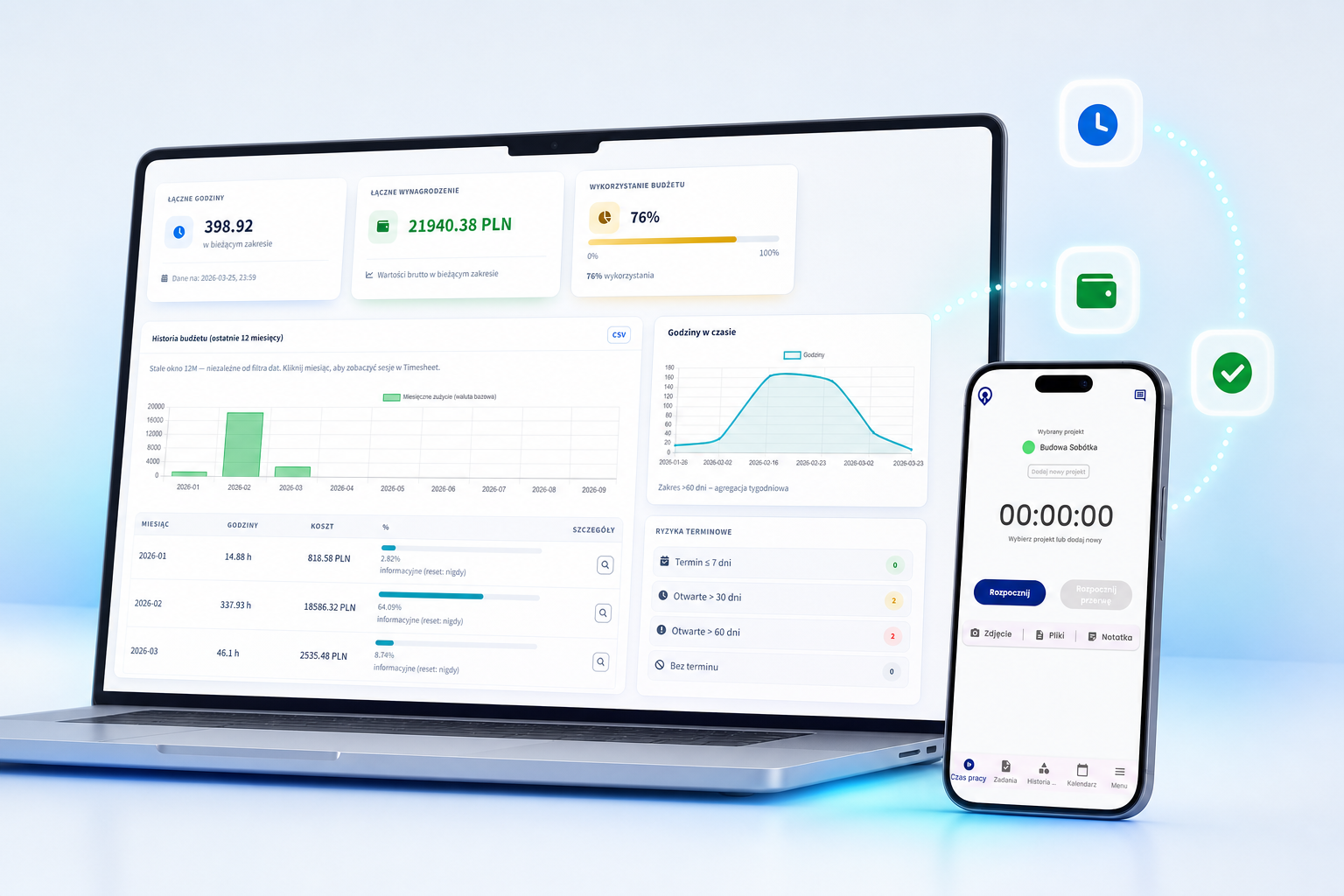
Field team summary dashboard
THE CHALLENGE

Field work gets confusing when updates stay in phone conversations

More crews, sites and jobs make coordination harder. Without a shared process, managers gather updates manually and calculate pay afterwards.

Too many status calls

Managers call, employees stop working, and information still gets lost between conversations.

Hours reconstructed from memory

Starts, breaks and finishes are entered afterwards, leading to errors and disputes.

Unclear whether the crew attended the site

Across multiple locations, attendance and delays are hard to check quickly.

Tasks scattered across messages

Instructions are in texts, photos on phones and comments in chats.

The schedule does not show actual work

Plans and recorded time are separate, so comparisons must be made manually.

Missing evidence for work acceptance

Without photos and notes, it is harder to confirm the work scope or resolve a complaint.

CONTROL CENTRE

Managers see current status and recorded team data

The browser dashboard shows who has an active timer, along with breaks, tasks, locations and entries awaiting approval. The view depends on the manager's role and permissions.

  • employees with an active timer
  • completed and interrupted work sessions
  • current and upcoming tasks
  • optional location of field employees
  • project time, costs and budget usage
CrewTango dashboard showing team and project summaries
HOW IT WORKS

From schedule to report without assembling data manually

CrewTango connects field work in a simple process: plan the day, let employees view tasks on their phones, record time and add documentation, then give managers records ready for approval.

Step 1

Set the schedule and location

Create a shift and assign the person, role and workplace.

Step 2

Employees see the plan in the app

Times, locations, tasks and essential details are on their phones.

Step 3

Start tracking time

Start and stop with one tap. Breaks and project changes are saved in the history.

Step 4

Add statuses, photos and notes

Work evidence stays with the job or task instead of a personal photo gallery.

Step 5

Managers approve records and calculate pay

Hours, overtime, allowances and actual work are ready for reporting.

MOBILE APP

A simple view for employees. A fuller picture for managers.

Field employees need a clear plan, a Start button and a quick way to report completion. The information reaches the manager's dashboard.

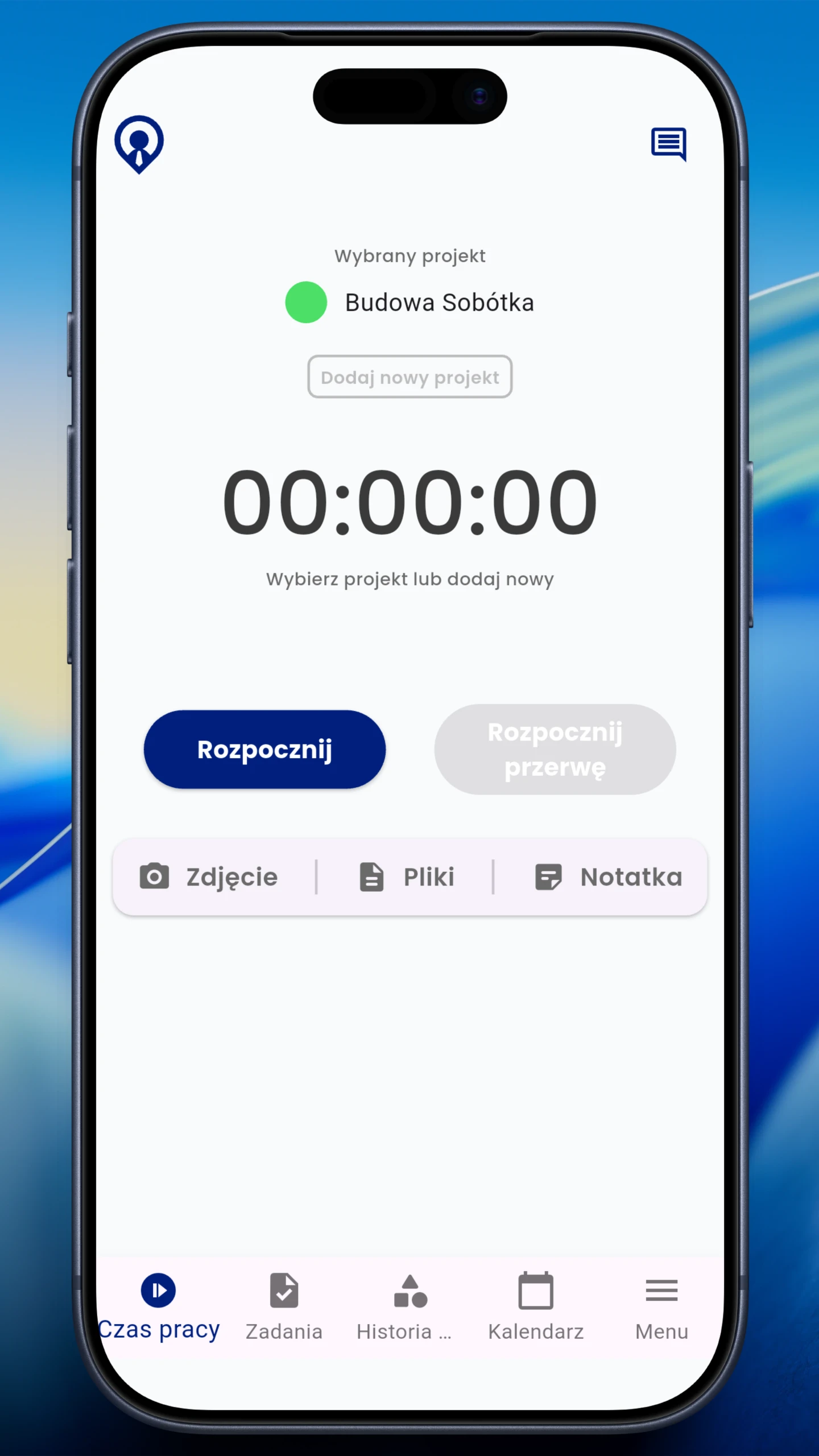
Start and stop without paper or text messages

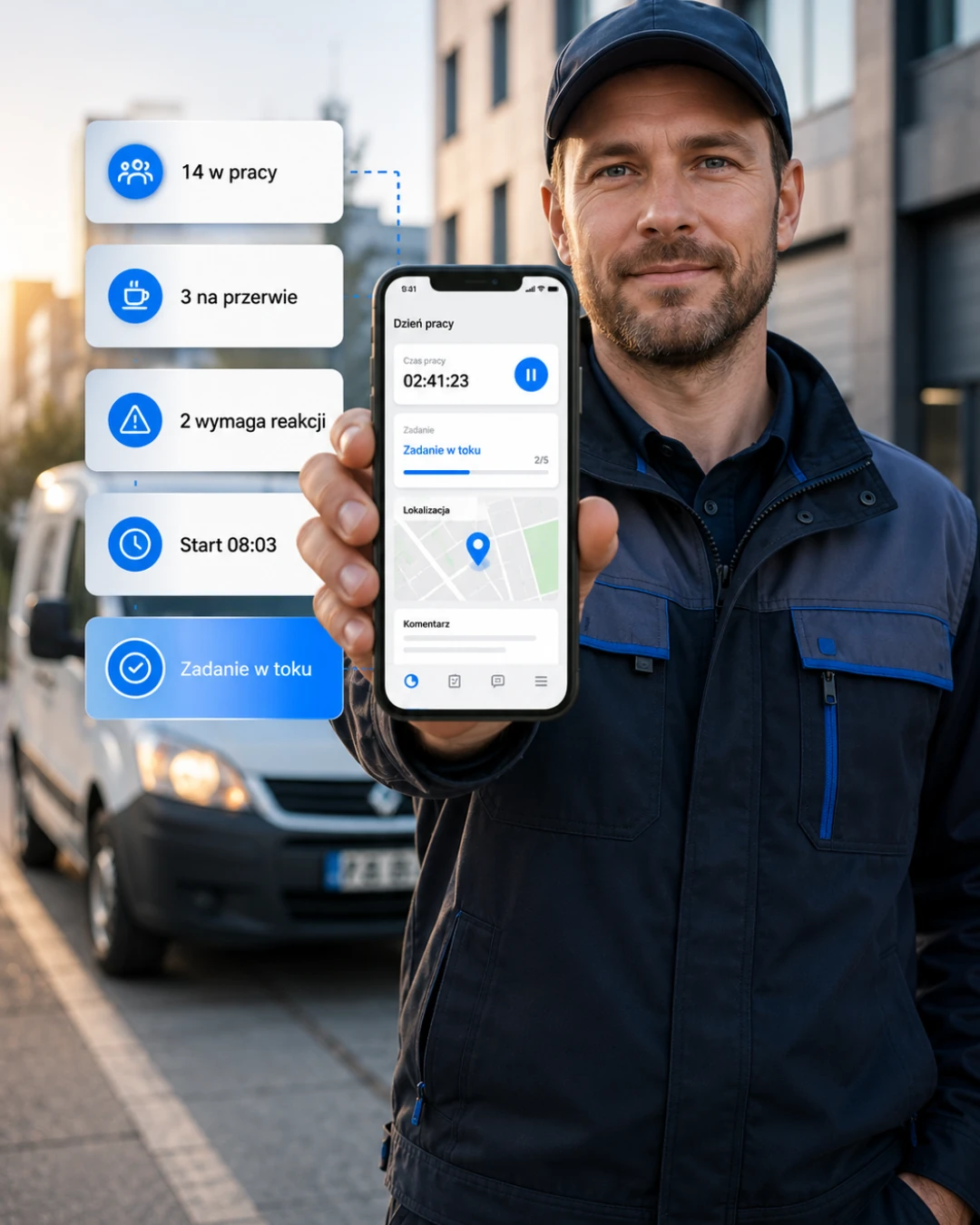
Employees start and finish work sessions in the app, and managers see their active status in the dashboard.

Start/Stop • Breaks • Project or site

Start and stop without paper or text messages

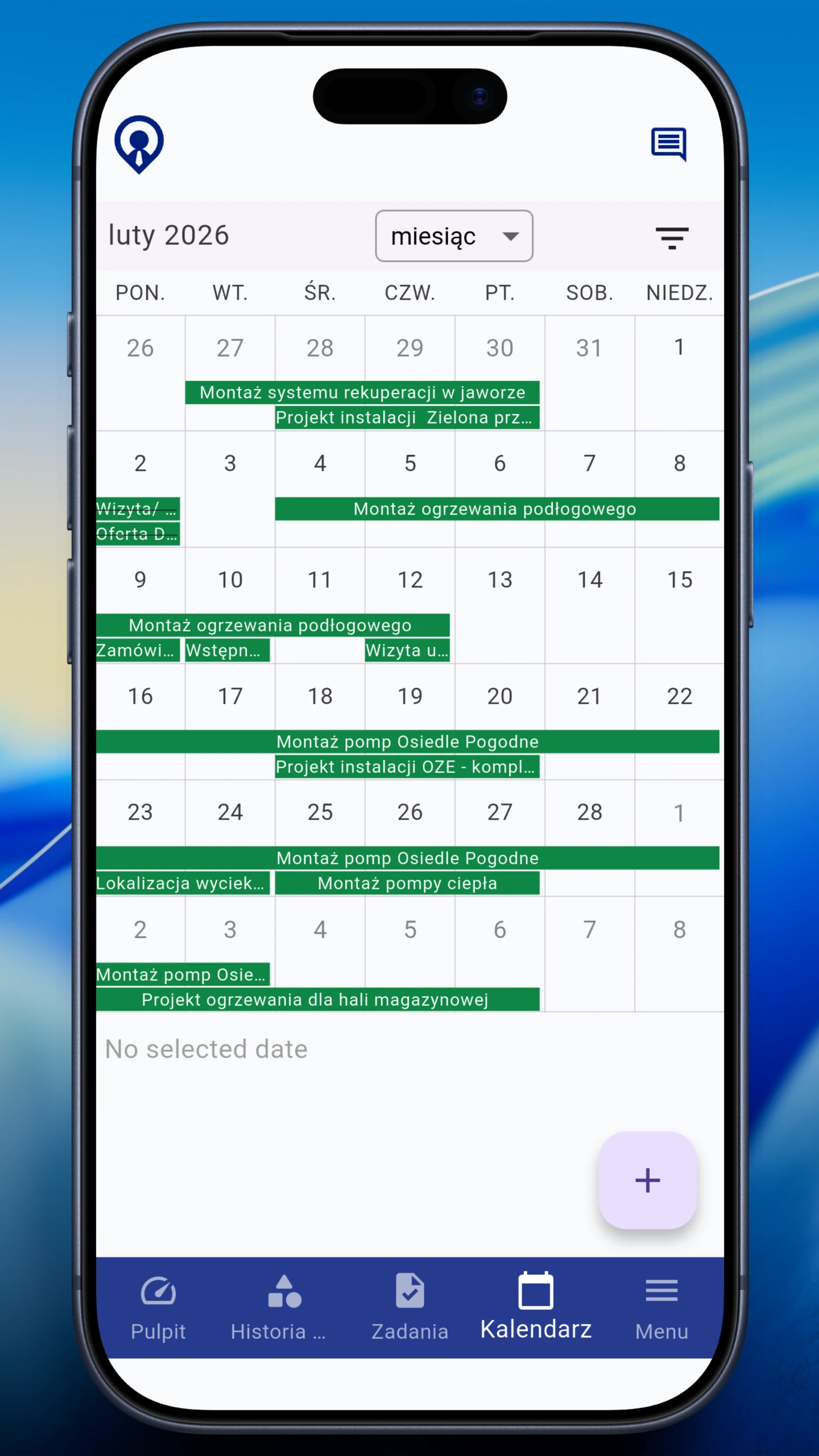
The daily plan always at hand

Shift, role and location appear on the phone, so employees know where to be and when.

Shift • Role • Location

The daily plan always at hand

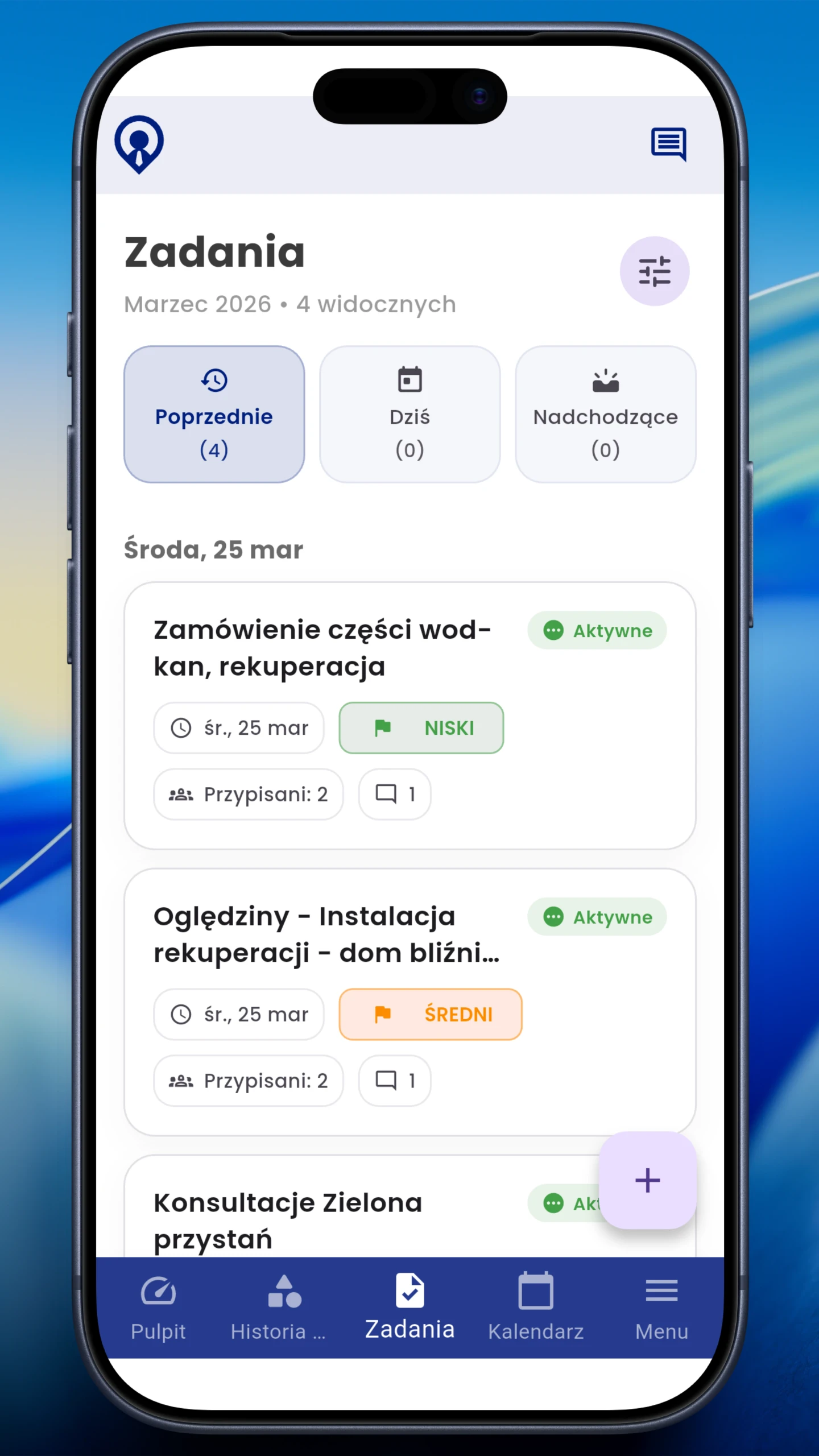
Keep tasks and checklists organised

Employees see task lists, statuses and job comments instead of asking in a chat.

Statuses • Checklists • Comments

Keep tasks and checklists organised

Documentation linked to the work

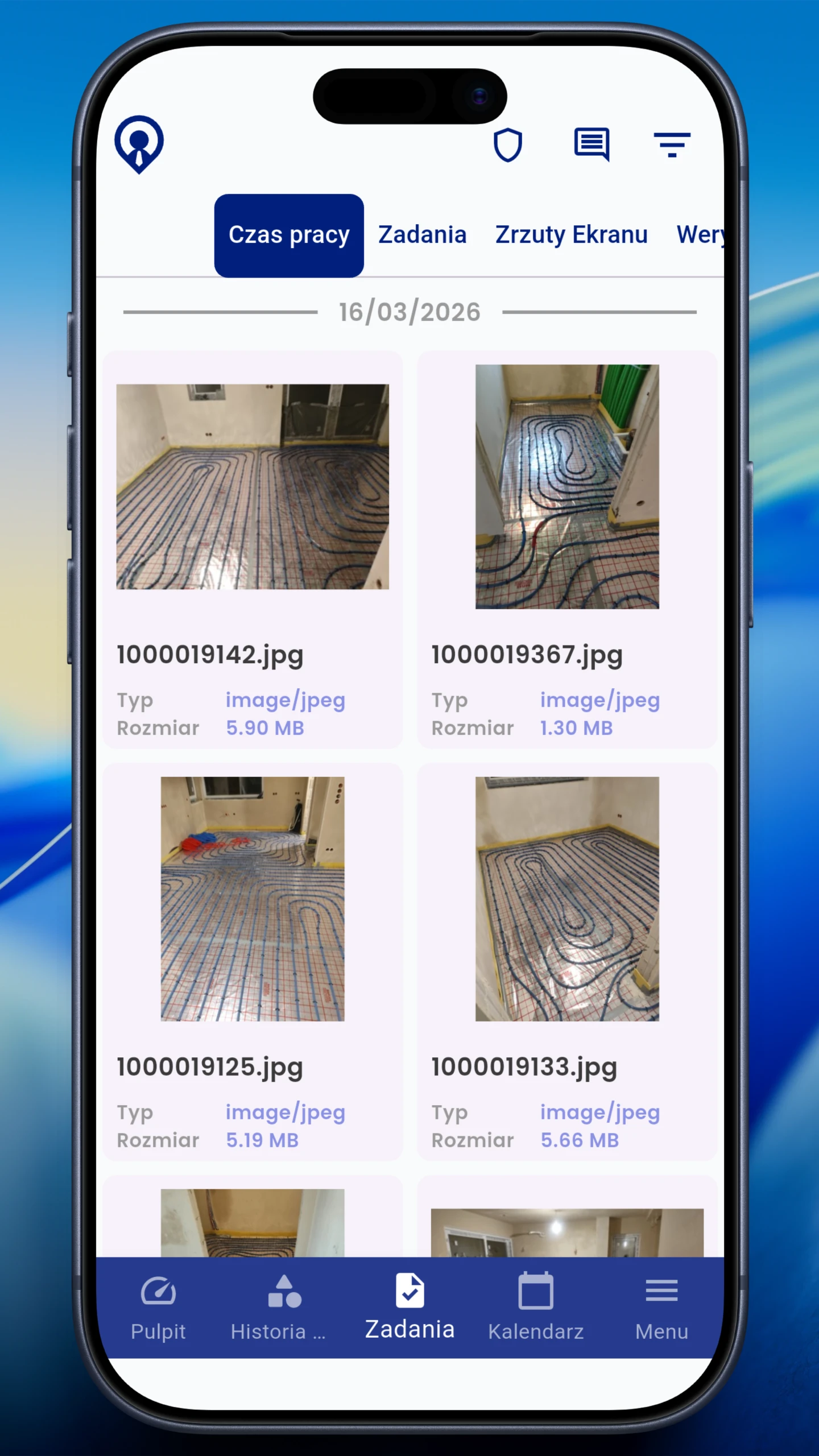
Before-and-after photos, notes and attachments stay with the task or site instead of a personal gallery.

Photos • Notes • Attachments

Documentation linked to the work

Supporting attendance confirmation

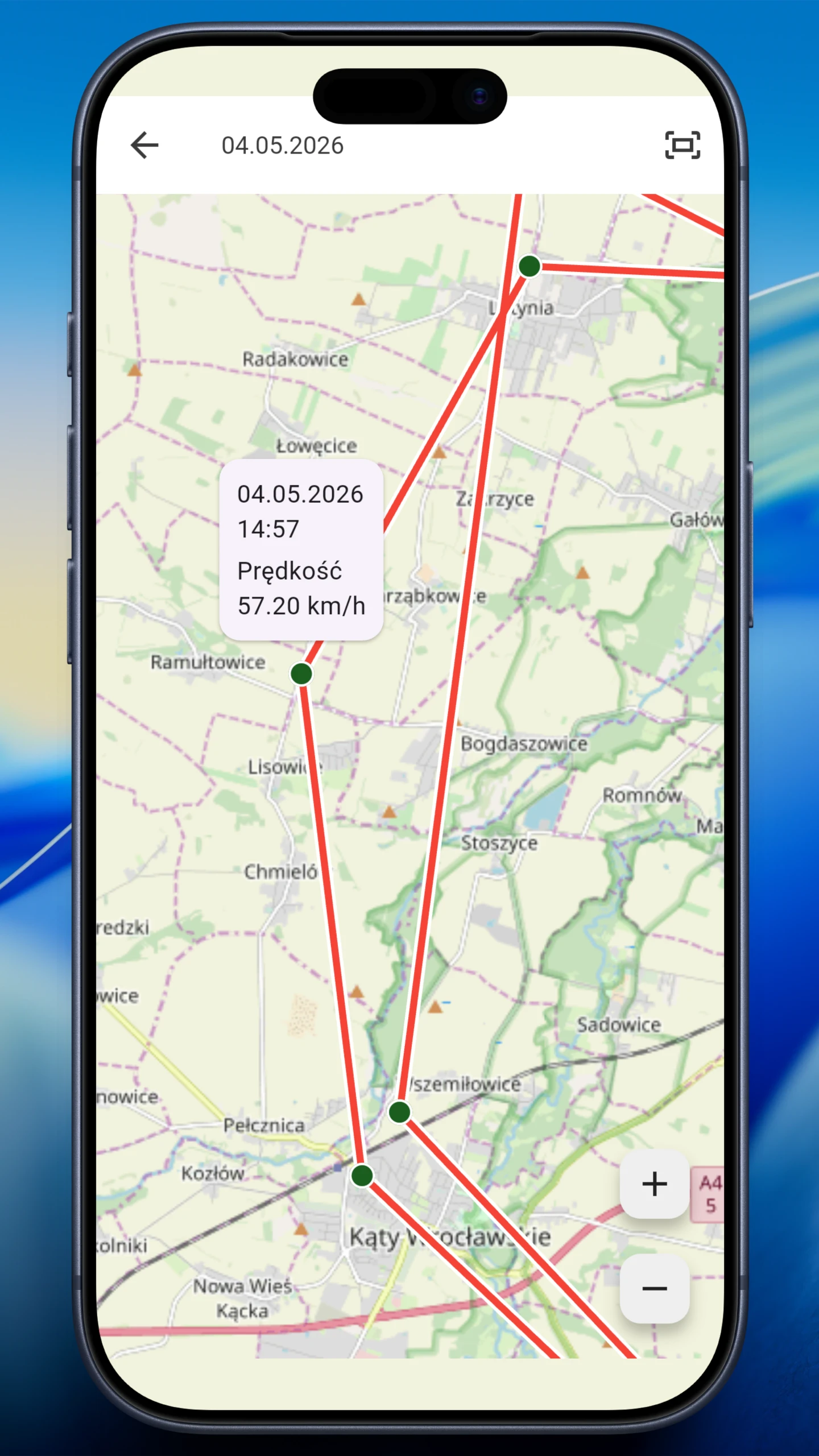
GPS can help confirm site attendance and explain delays. It is optional and depends on company rules.

Optional • Transparent • For field work

Supporting attendance confirmation
WORK SCHEDULES

Plan crews, roles and locations in one view

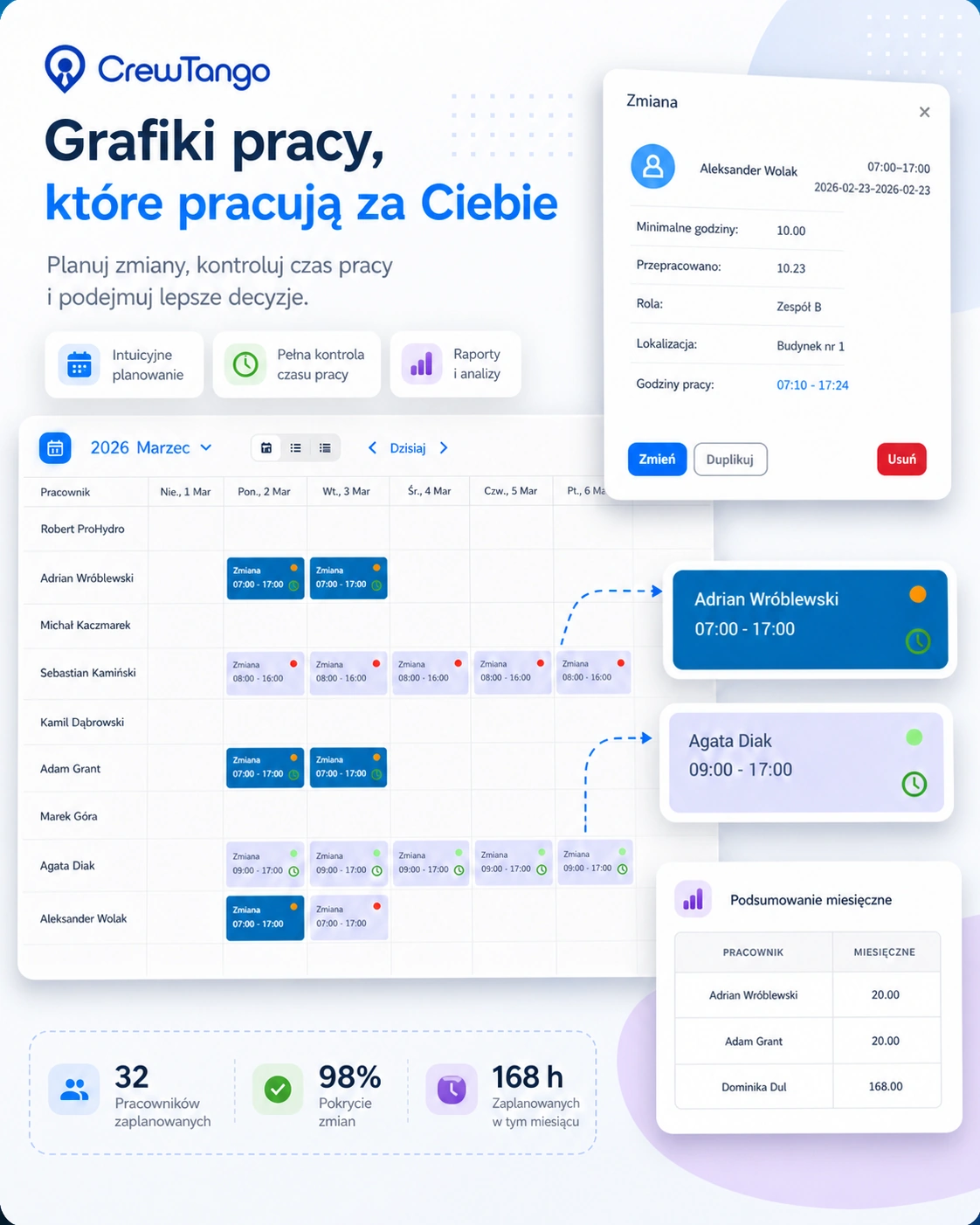
Field schedules need to show more than who works when. They should also show where, in what role and whether the planned work took place.

  • multiple schedules for crews and sites
  • shift roles
  • work locations
  • night shifts and work across midnight
  • printed schedules and mobile app access
Schedule preview
EmployeePlannedActualStatus
Adam Nowak08:00–16:007 h 52 minOK
Marek Wiśniewski09:00–17:006 h 40 minbelow minimum
Karol Zieliński07:00–15:00not clocked inneeds attention
TASKS AND DOCUMENTATION

See whether the crew attended and what they completed

Time records show attendance. Tasks, statuses, photos and comments document work without sending files through private chats.

Time tracking and adding files in the mobile app
Task list in the mobile app
Work photos saved in the mobile app
Location history from an active work session

Task • project or client • deadline • assignees • photos • comments

Schedule • role • location • session start and finish • breaks • time report

Task status • comment • attachments • change history • records for approval
MOBILE APP AND WAREHOUSE

Record materials where the crew uses them

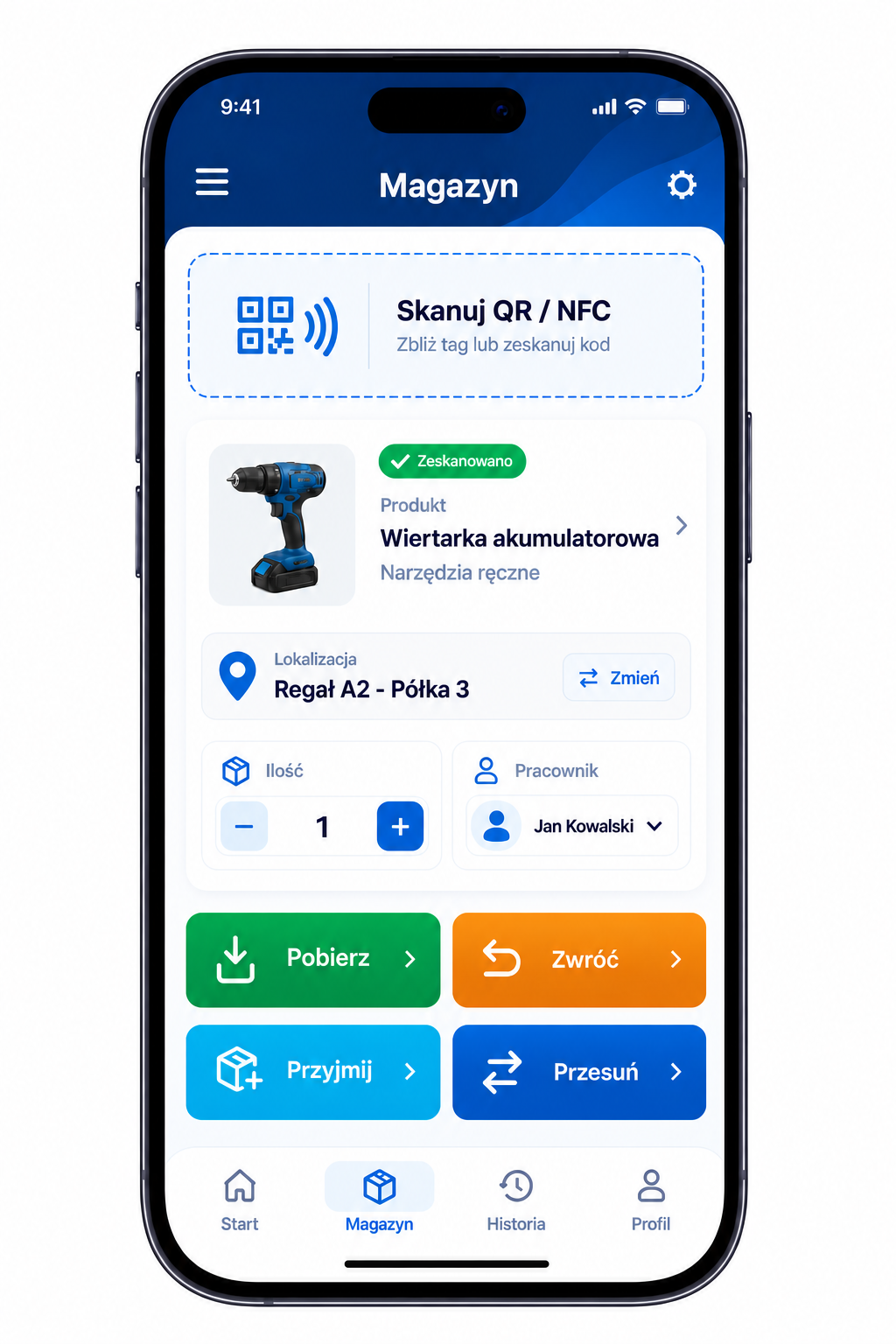
Employees scan QR or NFC, take an item and record its return after work. Managers see current stock and movement history in the dashboard.

products and locationsissues and returnslow stock levels
Explore the warehouse module
QR and NFC warehouse operations in the mobile app
GPS AND TRANSPARENT RULES

Location helps field work when used clearly and responsibly

GPS should not mean hidden monitoring. In CrewTango, it is an optional supporting feature for field teams: confirm attendance, explain delays and plan future work more effectively.

Attendance confirmation

Check whether the crew attended the correct site.

Understanding delays

Check whether travel, site issues or a missing clock-in caused the problem.

Better planning

Field data helps build more realistic schedules.

Optional features

The data scope depends on role, process and company settings.

REPORTS AND PAY CALCULATIONS

Field records feed into shared summaries

Working time, schedules, tasks, locations and documentation feed the dashboard and reports. Analyse hours, project costs and entries needing approval.

Time by project

Hours assigned to projects and employees.

Planned vs actual

Schedule compared with recorded working time.

Pay calculations

Overtime, allowances, rates and data export.

Mobile app data connected to the current project time, cost and budget report

The same project on the employee's phone and in the manager's report.

ROLES

Everyone sees what they need for their work

Employees get a simple daily view. Managers see teams and exceptions. Administrators see the company overview and reports.

Mobile employee

Schedule, tasks, start/stop, photos and personal summaries.

Manager

Live team status, deviations, approvals and the daily plan.

Administrator

Company dashboard, reports, role settings and cost control.

MOBILE APP AND BROWSER DASHBOARD

Two views of the same process

Employees use their phones to track time, check tasks and add files. Managers work with the same records in the browser dashboard, according to their role.

Time
work sessions, breaks and projects
Tasks
statuses, photos and comments
Reports
approvals, costs and export
Employee task list in the CrewTango mobile app

Frequently asked questions

Yes. Plan locations, assign tasks, record time and analyse work across multiple sites.

Yes. Employees can see their shifts, roles, locations and tasks, depending on company configuration.

No. GPS is optional and should be used under a clear company policy.

Yes. Attach photos, comments and files to a task or site.

Yes. Connecting schedules with working time reveals differences from the plan.

Yes. Reports show hours, sites, overtime and the data needed for pay calculations.

See what is really happening in the field

Connect schedules, working time, locations, tasks and documentation in one system for mobile crews.