Work photo documentation that stays with the job
Keep photos, notes and files with a task or work session. CrewTango connects files with their context, saving the team time searching personal galleries.
Why does documentation often fall short?
Taking field photos is easy. Finding them later, linking them to the job and using them for acceptance is the challenge.
Photos on personal phones
After a week, organisation and context are missing.
Files without a job reference
It is unclear which site a file belongs to.
Complaints without evidence
Work scope and quality are difficult to demonstrate.
Time wasted resending photos
Coordinators and customers request the same files repeatedly.
A simple way to document work
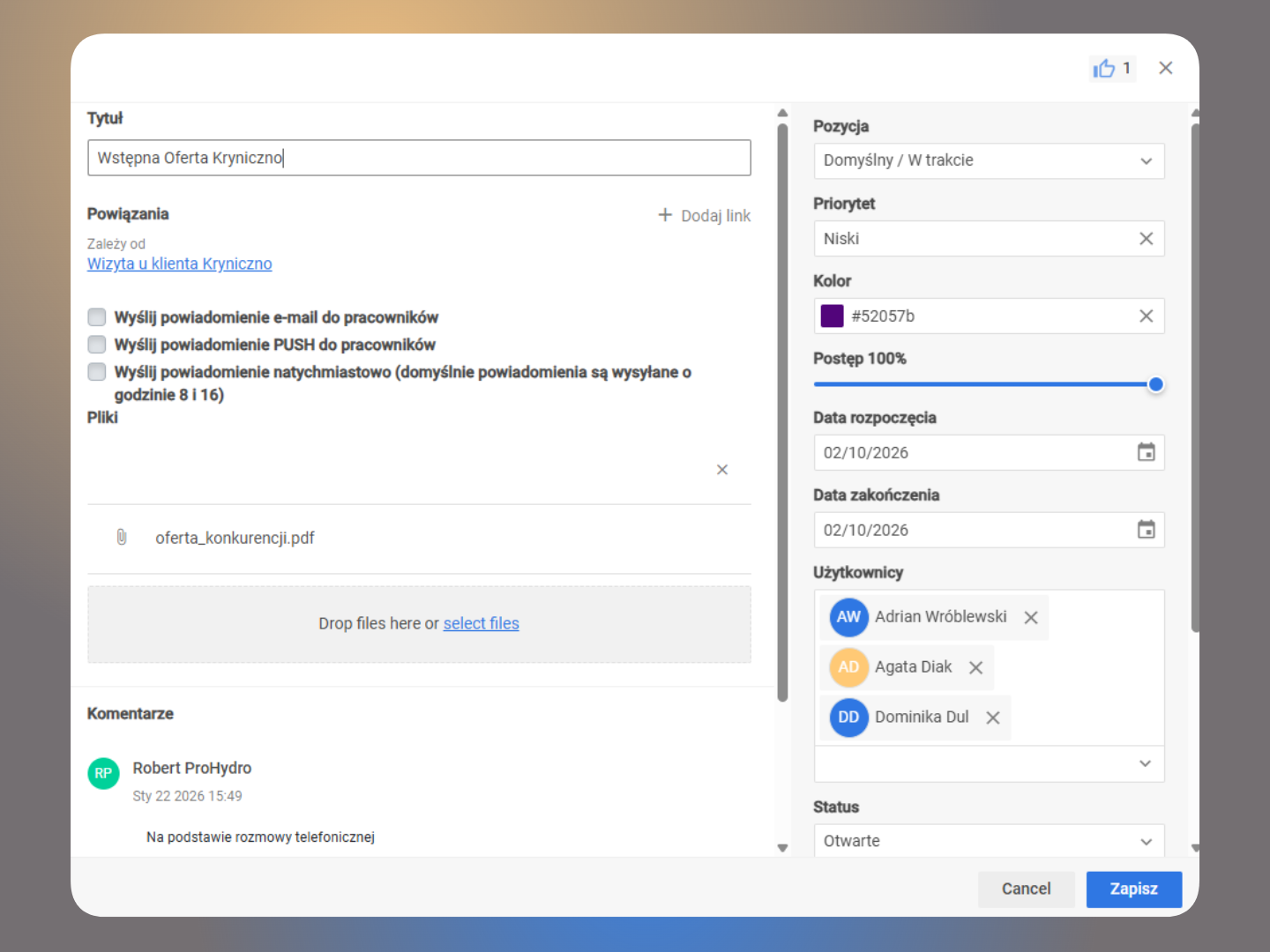
Each job has a description, owner and space for photos. Files go straight to the appropriate task.
The job as a task
Each job has assignees, a description and a deadline.
Description, priority and deadline
The team sees the task scope, importance and due date.
Photos and notes from the mobile app
Add files during a work session or to a task comment, depending on the process.
Acceptance and archive
Keep completion evidence and quick access to history.
Field documentation in one place
Before-and-after photos, files and comments retain the context of their task or project-linked work session.
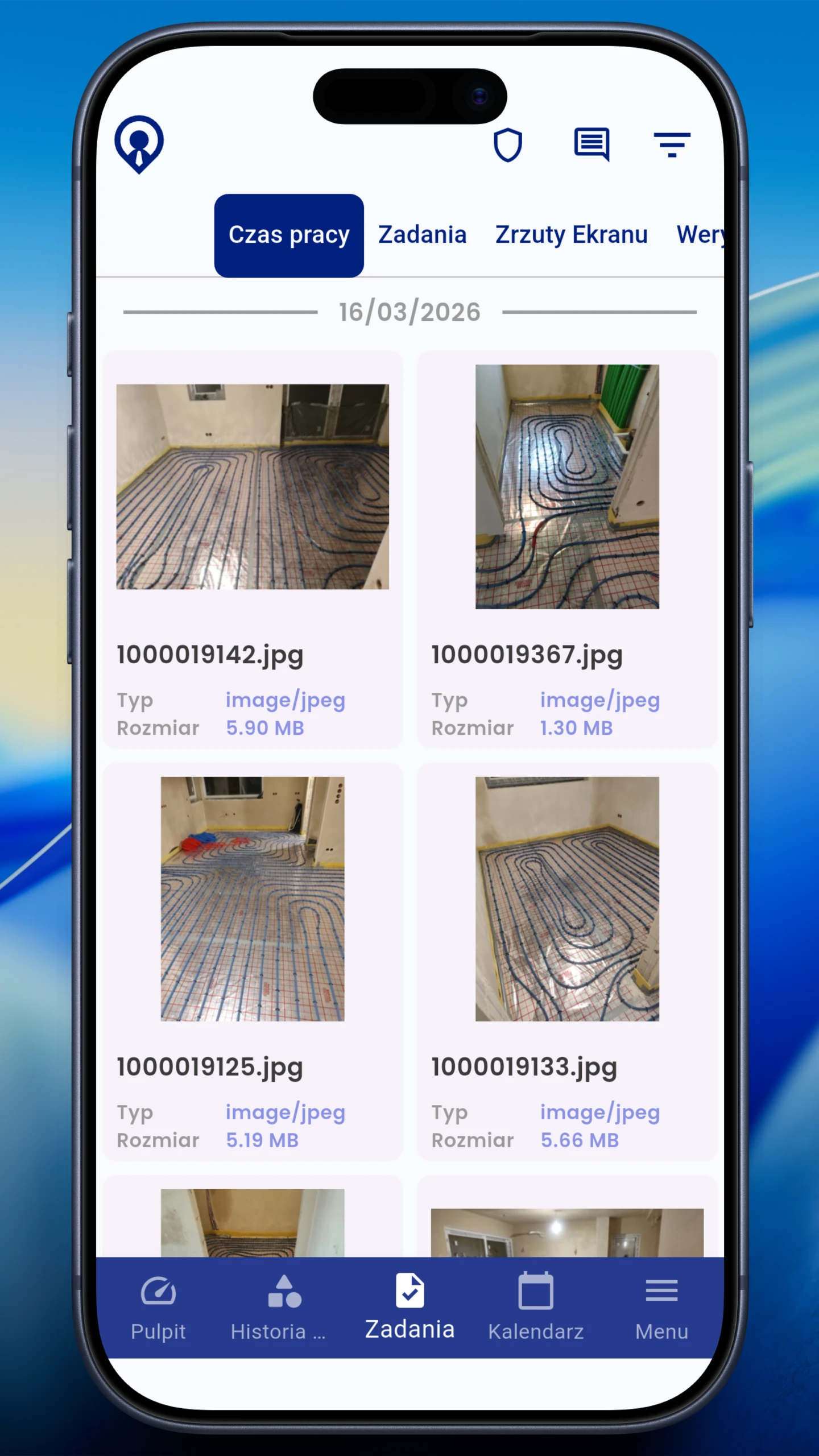
Adding a photo or file during a work session
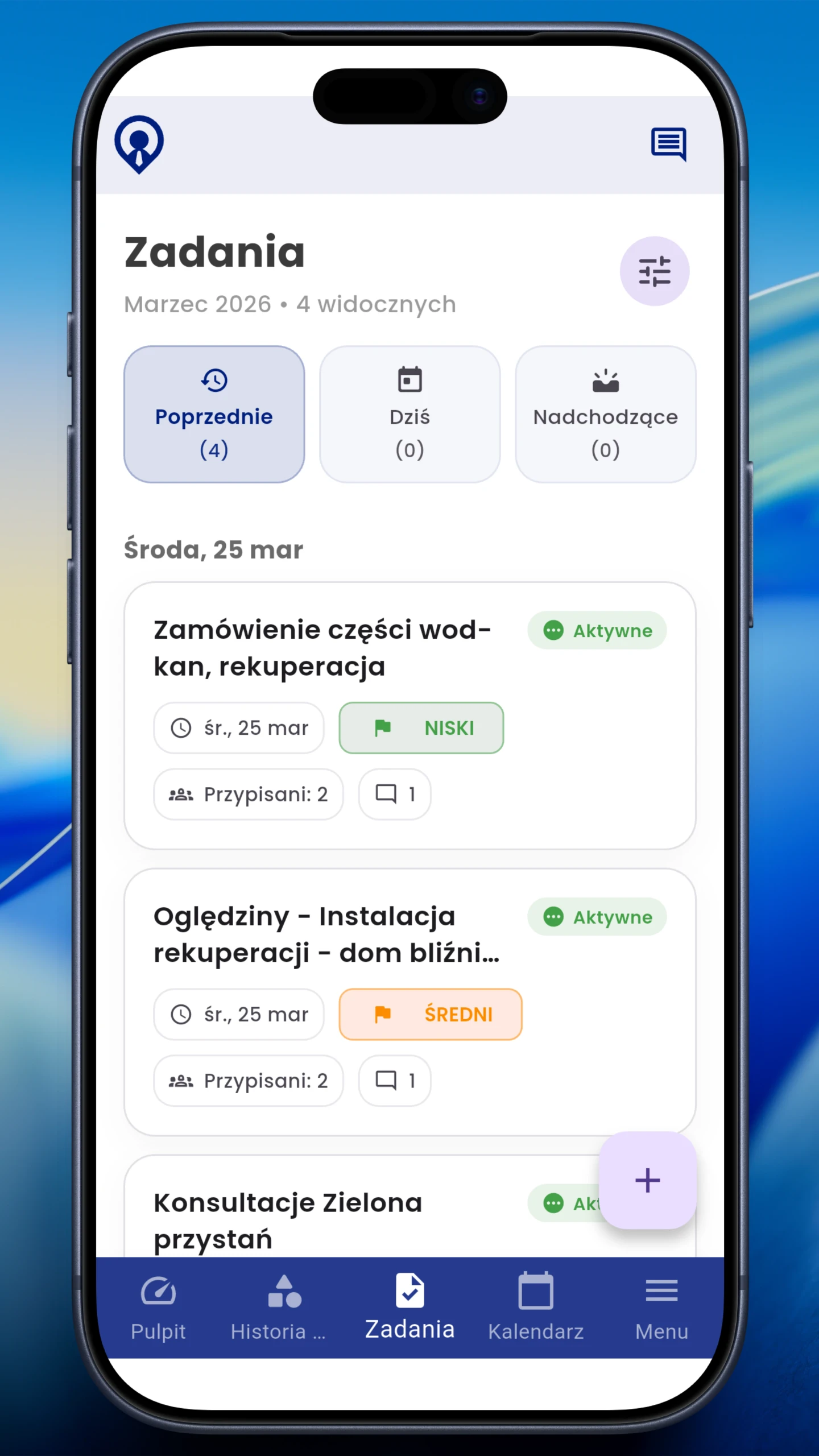
Task with description and status
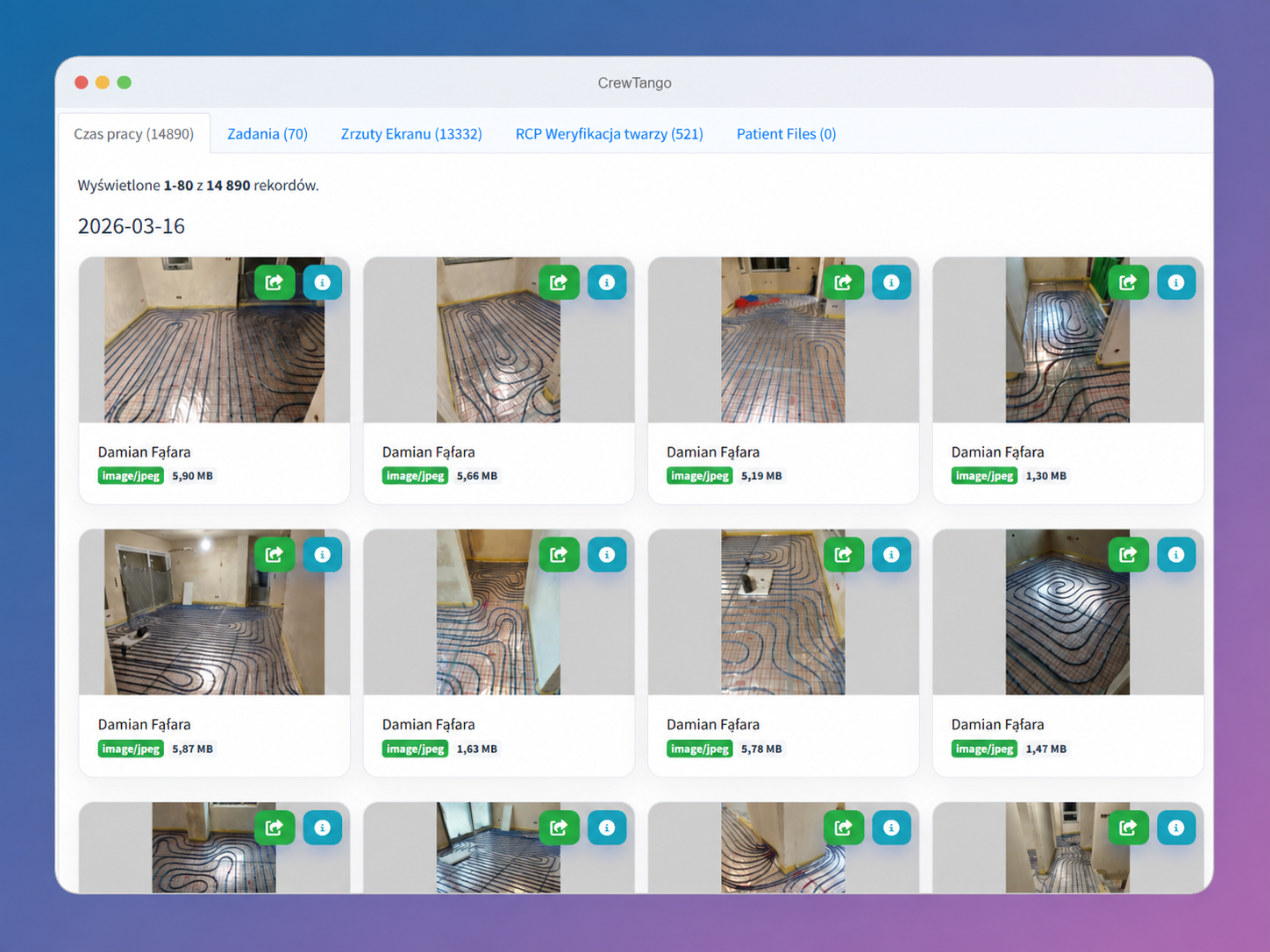
Work session file gallery
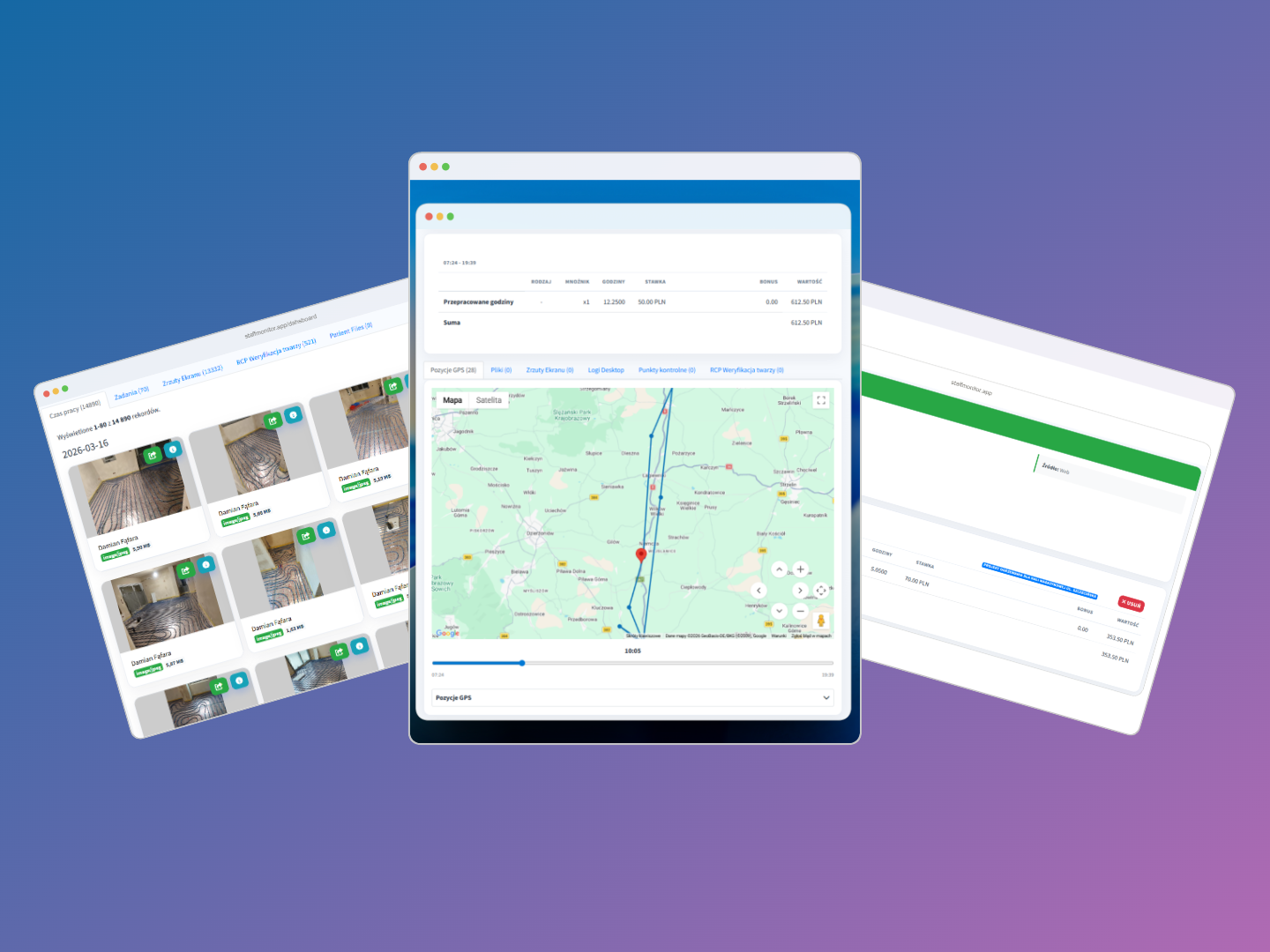
Completion records
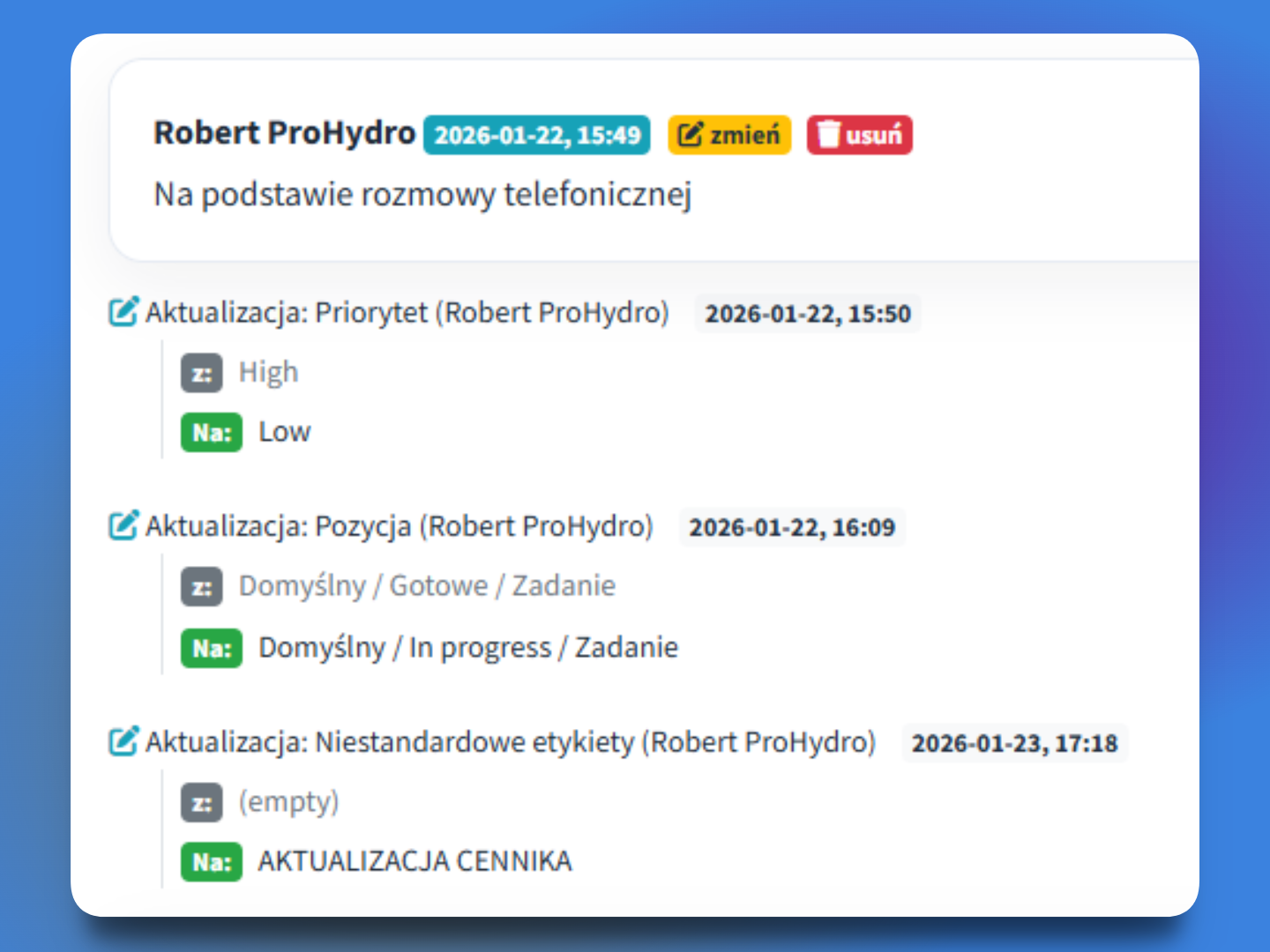
Change history and comments
Details and ownership
- Photos linked to a task or project work session
- Comment and date alongside each file
- Quick access for acceptance checks and complaints
Documentation makes sense when linked to work
Photos need context. In CrewTango, link documentation to a task or work session and project.
Task / job
See which work a file belongs to.
Working time
See how long the work took.
Acceptance / archive
Keep history for questions and complaints.
Photo documentation FAQ
Documentation that works for you
Start with tasks, photos and comments, then adapt the rest to your workflow.