Materials under control — from receipt to issue and return
Keep products, locations and every stock movement in one place. Employees scan a printed QR code or tap an NFC tag in the phone app, while managers see current quantities and complete movement history in the browser panel.
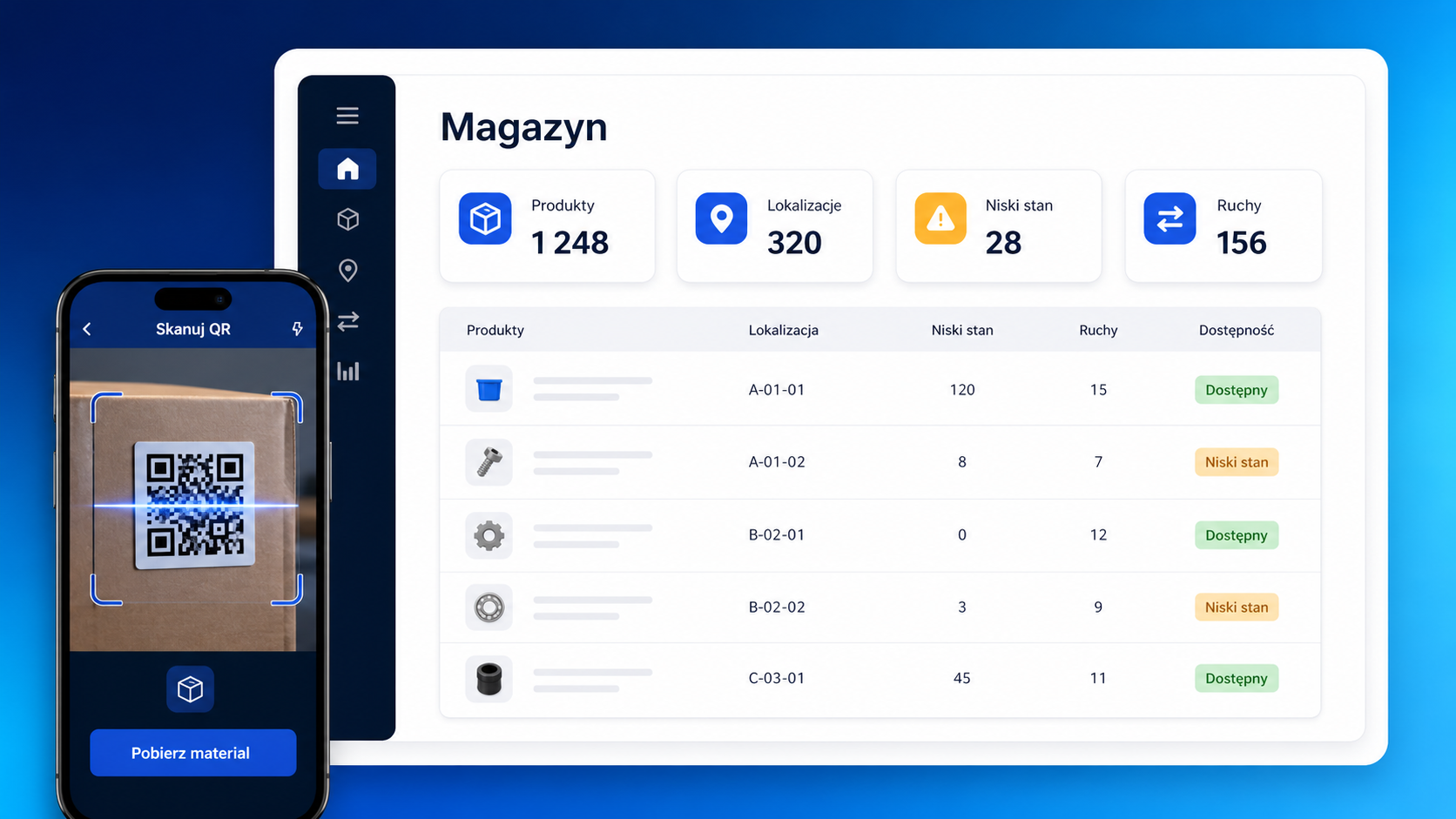
STEP-BY-STEP EXAMPLE
Receive, take and return without guessing stock
See how successive movements change the quantity at a location. The example uses fictional data.
Download a sample document or report →Product: gloves · main store
Receipt: 100 packs
The product and location have an opening quantity recorded.
Take for a team
Taken 12 · remaining 88
The history records the movement and the person who performed it.
Return of unused material
Returned 2 · stock 90
The manager sees the current quantity and movement history.
Care homes, cleaning operations, warehouse and the alarm module require manual activation on request, including during the trial. Imports, custom changes and integrations may require a separate quote.
Review trial terms and compare plans →GUIDE
Your first receipt, take and return
Before you start
Enable the warehouse module. An administrator prepares the catalogue and grants employees scanning access and allowed movement types.
Add a product and location
In Warehouse, use “New Product” and “New Location”. Define the quantity unit, such as a pack, and save a test product and location.
Receive Material
Choose “Receive Material”, the product, location and quantity 100. Enter the date and any supplier or document details needed. Save and verify stock of 100.
Read the code and take stock
Assign QR or NFC. In the employee app, read the identifier and check product and location. If the code identifies only a location, select the product too. Record a take of 12.
Record a return and review history
Return 2 unused packs. Verify stock of 90 and history: +100, −12, +2. Employees take and return; receipts, transfers and adjustments require the appropriate permissions.
How to check it worked
Stock of 90, three movements in history, and the correct product, location and author for each movement.
A practical warehouse layer connected to daily work
The module organizes what is in stock, where it is stored and who registered each movement. It does not replace company-wide ERP software or an advanced warehouse management system (WMS).
Products
Name, internal product code (SKU), unit, description, active status and minimum quantity.
Locations
A tree of warehouses, rooms, racks, shelves and other company locations.
Stock
Current quantity per product and location, including a low-stock view.
Movements
Receipts, issues, returns, transfers, adjustments and opening balances.
Know what you have and exactly where it is
A product card and a hierarchical location tree create one structure for the main warehouse, site storage, service vehicles or production-line points.
- product name, SKU, unit and description
- minimum quantity defined per product
- parent and child locations
- stock displayed for a specific product and location
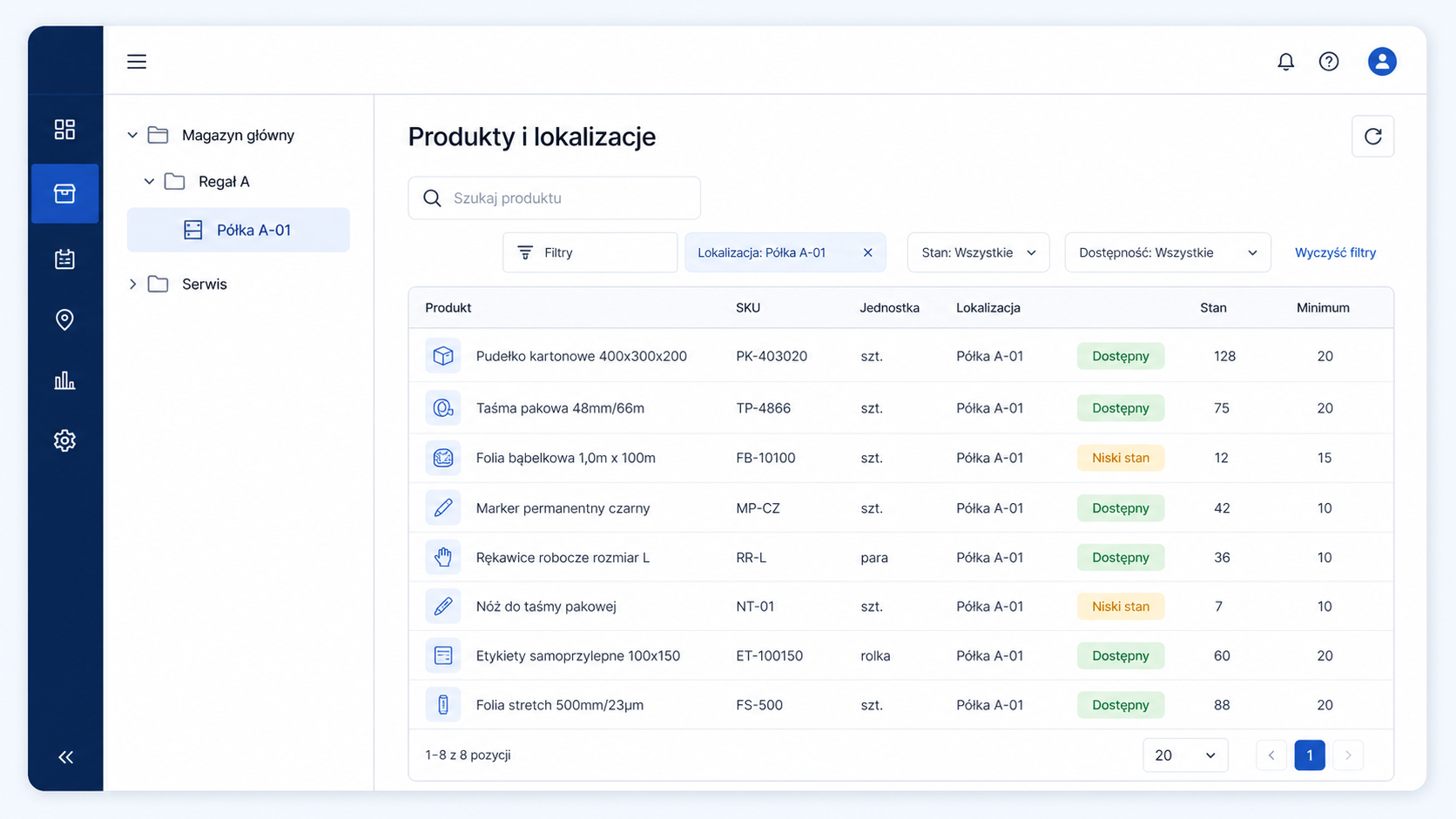
Low stock is visible before the shelf becomes empty
Compare current quantities with the minimum level set on each product. Filter the list and quickly find positions that need attention.
Current quantity
A single view of stock by product and location.
Minimum level
A threshold set on the product card for comparison.
Low-stock view
A clear filter for positions below the defined minimum.
Every operation follows the same clear pattern
Choose a product, location, quantity and the required context. The system saves the balance before and after the movement.
Opening balance
Set the starting quantity when launching a product in a location.
Receipt
Add materials with receipt date, supplier, document number and note.
Issue
Issue an item to a selected employee while recording who registered the movement.
Return
Return unused material or equipment to a selected location.
Transfer
Move stock between locations without losing its history.
Adjustment
Correct the balance with an explicit operation and audit trail.
Scan the item or location instead of searching through lists
An identifier can point to a product, a location or an exact stock position. The mobile app recognizes QR and NFC and opens the matching warehouse context.
- assign identifiers to product, location or stock position
- print QR labels for physical marking
- employee can take and return items
- warehouse administrator can also receive, transfer and adjust stock
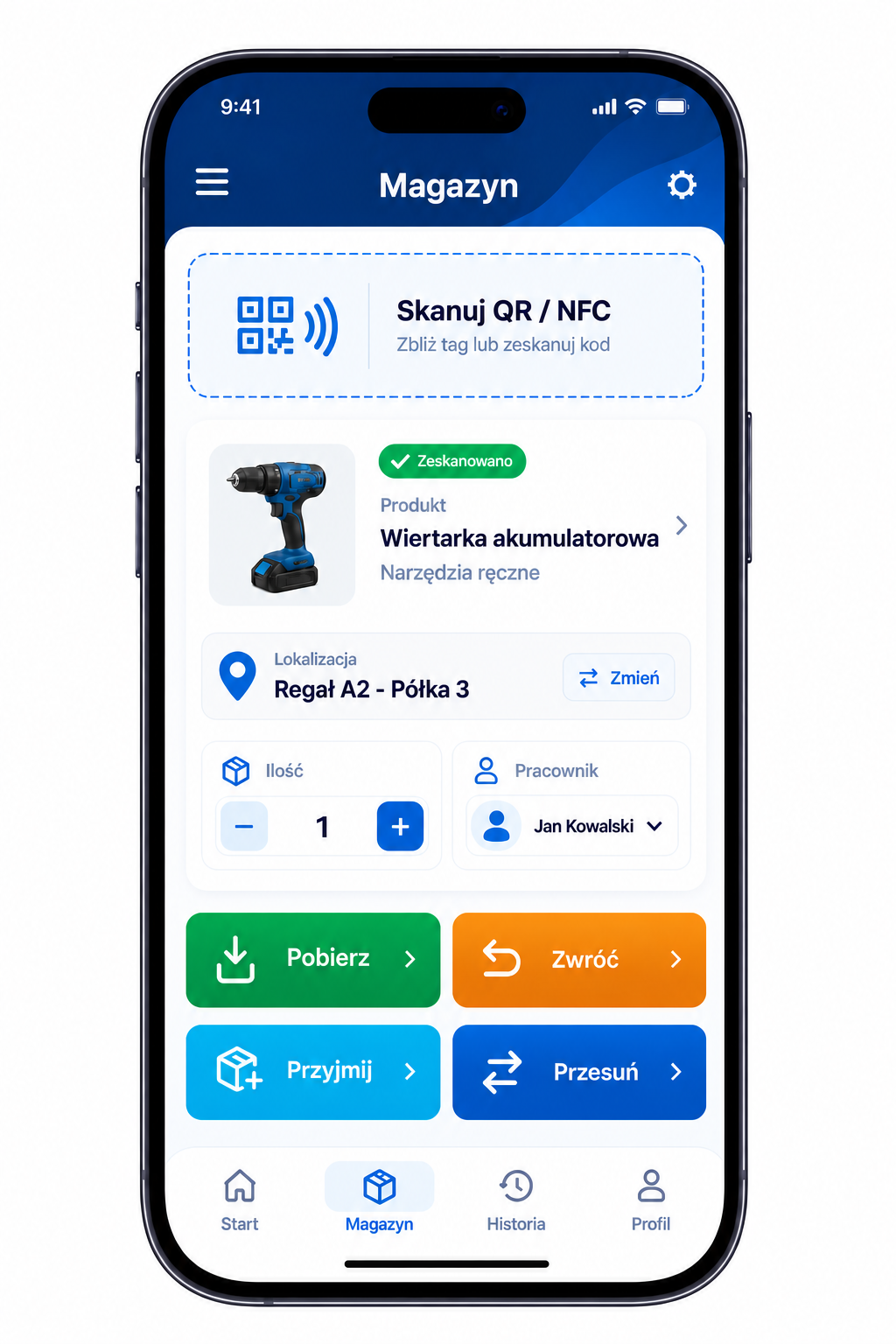
The screen and actions follow the user role
Warehouse access is separate from general mobile access. The available actions depend on permissions and how the device is used.
Employee
Scans an identifier, takes an item and registers its return.
Warehouse administrator
Can additionally receive, transfer and adjust stock.
Manager in the web panel
Searches stock, manages cards and locations, and reviews movement history.
Each movement leaves a complete history
The log records the operation, product, source and destination locations, quantity, before-and-after balances, recipient, registering user, device context and time.
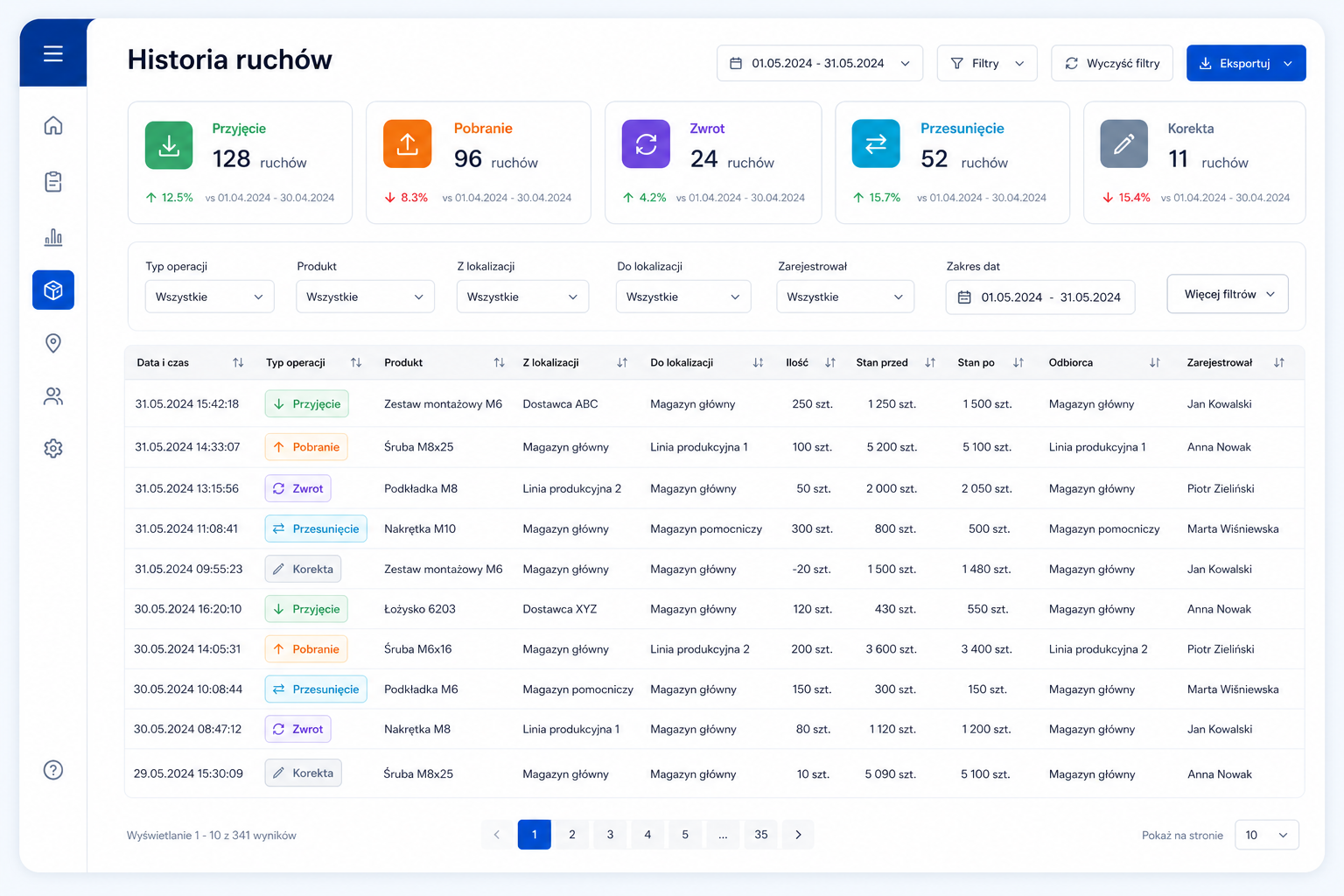
Where the warehouse module brings the most value
Stock terminology
Five abbreviations explained in plain language
You do not need warehouse-system terminology to understand how the module works.
An internal product code that helps distinguish similar items.
A printed square code scanned with the phone camera.
A tag read by holding a compatible phone close to it.
A broad system for managing company processes such as purchasing, finance and production.
A specialised system for advanced warehouse planning and operations.
Frequently asked questions
Put products, locations and movements into one visible process
Set up your first products and locations, label stock with QR codes and let the team register warehouse operations where they happen.