Contact & service request form builder

A form on your website. Every request in one place.

Collect enquiries, service requests and inspection requests. Your customer completes a form and receives an email. Your team has the details it needs to follow up in CrewTango.

No account or app installation needed for your customers.

Your website
CrewTango FORMSLet’s talk.

Tell us what you need.

First nameAnnaLast nameKowalska
What are you interested in?Contact forms
Send enquiry
New requestAnna Kowalska · DEMO-1042
Customer confirmation
An example CrewTango workflow
On your websiteEmail confirmationsA shared request inbox

Explore the whole workflow

What happens after “Submit”?

Choose an example and explore both sides of a request: the customer experience and your team’s workflow.

Interactive example
This demo uses fictional data. It saves nothing and sends no emails. To request a real demo, use “Book a demo”.
CrewTango DEMO

Let’s talk

* Required field

Sample request details

Details stay in this demonstration only.

A useful starting point

Start with a goal. Make it your own.

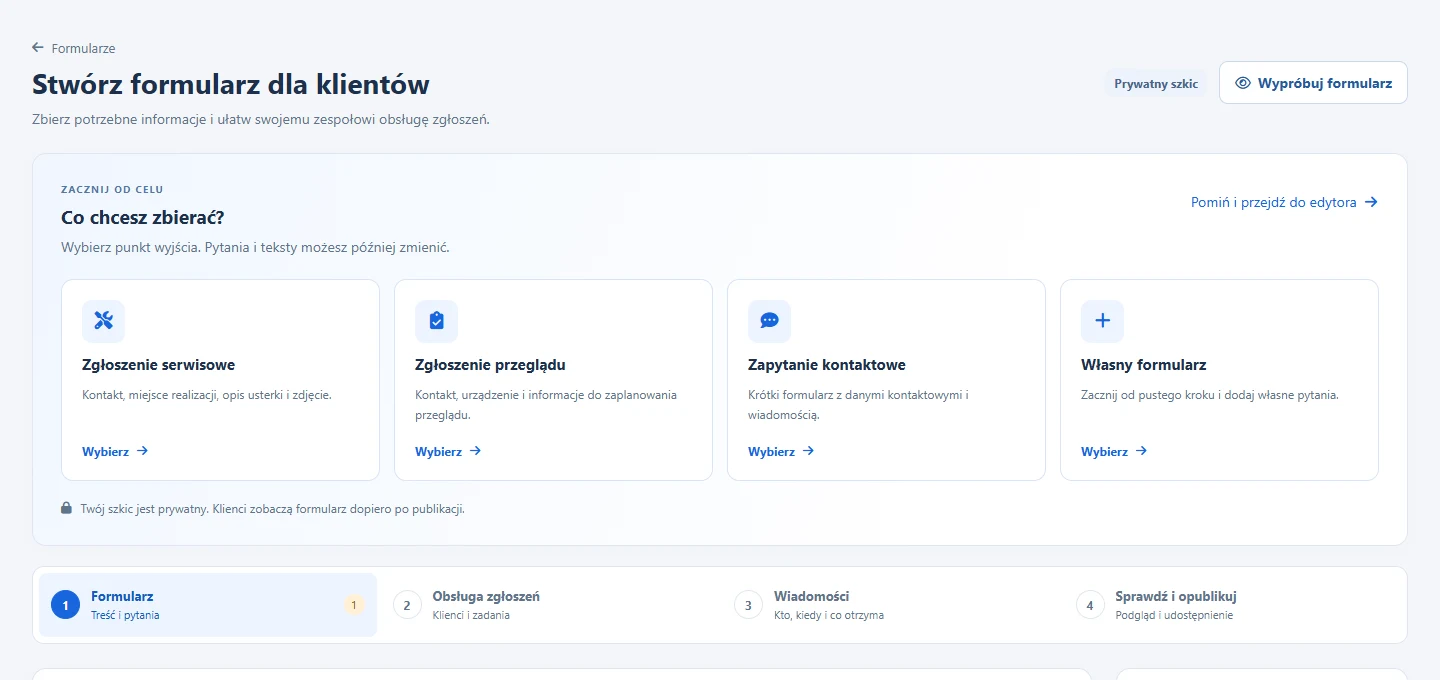
Use a template to get started, or begin with a blank form and build your own set of questions.

Contact

A question about your offer, a demo or a partnership. Six short fields and a way to reply.

Try this example

Service

Contact details, equipment, a description of the fault and a photo. Get the context before the first call.

Try this example

Inspection

Equipment and a preferred date. Your team reviews the request and arranges the visit.

Try this example

Have another workflow in mind? Choose the blank template and add the fields, information and consents you need.

Build it in CrewTango

Build your form. Preview it. Publish.

The editor takes you from form content through request handling and messages to publication.

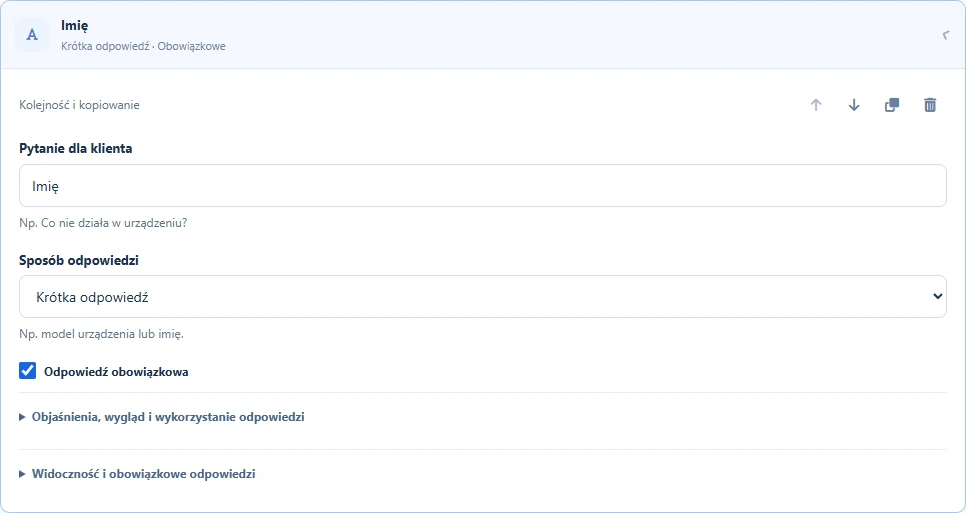
The actual form builder: contact form questions and field settings. The editor is shown in Polish.
Actual editor · sample form · Polish interface · click to enlarge
01

Your draft saves as you work

Add and duplicate questions, reorder them and move them between steps. Work in progress stays private.

02

Test the customer experience

Check mobile and desktop layouts, required fields, the thank-you screen and messages. Previewing creates no requests or emails.

03

Publish when you are ready

A readiness checklist highlights missing settings. Saving a draft leaves the form currently on your website unchanged.

View the template selection screenFour starting templates in the Polish editor: service, inspection, contact and a blank form.

Simple when possible. Detailed when needed.

Ask for the details each request needs.

A first enquiry only needs a few fields. For service, show a fault description and a photo. For an inspection, ask about the equipment and a preferred date. Questions can appear or become required based on the request type.

Text and commentsDropdowns and choicesDate and timePhotos and PDFsInformation and consents

One short screen or a form with 1–5 steps and a progress indicator.

01What is your request about?
Service
Questions for this typeFault descriptionEquipment photo
Inspection
Questions for this typePreferred dateEquipment number

Illustration of questions shown by request type.

Keep both sides informed

A confirmation for your customer. A notification for your team.

Tailor the subject and message to the request type. Include a name, company and request reference. Choose who on your team is notified and when.

To your customerEnquiry confirmation DEMO-1042

Thank you, Anna!

We have received your enquiry about contact forms. We will be in touch to arrange your demo.

DEMO-1042
This form was built with CrewTango.
Build a form like this for your business →
To your teamA new request to review
New

Anna Kowalska

Contact form · DEMO-1042

Contact details and answers are available with the request. Open it in the dashboard, review the customer and decide on the next step.

View a sample request →

Example messages. The promotional link is optional. Submission confirmation and email address verification are separate settings.

From enquiry to action

Give every request a place and a next step.

Review requests by form and status. Answers, attachments and history stay together. Link the customer and prepare a task using the details you have collected.

  • Match or create a customer and contact
  • Location and equipment details with the request
  • Prefilled task details for your team to review

A team member creates the task after reviewing the request. A preferred date does not reserve an appointment.

CrewTangoRequest inbox
AK
Anna KowalskaEnquiry about forms
New
DEMO-1042Details for the next step
Contact forms
I want to collect enquiries from my website.
  1. Request saved
  2. Customer confirmation
  3. Team reviews the request
Your website
Get in touchSend →
Get in touchFull nameAnna KowalskaE-mail[email protected]MessagePlease get in touch.Send →

Where your customers are

On a contact page. In a modal. Through a link.

A published form has its own link and embed code. Place it in your page content or in a modal opened by a button. The same form adapts to a phone screen.

  • Embed on the website origins you allow
  • Prefill the topic from the page once the integration is configured
  • Forms and messages in Polish or English

Good to know

Before you add your first form.

Does the customer need a CrewTango account?

No. Customers complete a public form in a browser on a computer or phone. No app installation is required.

Can I embed a form on my website?

Yes, if your website lets you add embed code. Publication provides an embed code and a public link. Specify the allowed website origins in the form settings.

Does everyone have to verify their email address?

No. Email verification is configurable. You can also send a submission confirmation without a verification step. New templates enable verification by default; choose the settings that fit your workflow before publishing.

Which files can customers attach?

JPG, PNG and WebP images, and PDFs. A request supports up to 5 files, with a maximum of 10 MB each; your company’s limit may be lower. Add an attachment field only where it is useful.

Can I split a form into steps?

Yes, from 1 to 5 steps. You can show progress, require answers and display questions based on the request type.

Do edits immediately change the live form?

No. You work on a private draft that saves as you edit. Customers see the new version after you publish it.

Does a request automatically become a task?

A team member reviews the request, links the customer and can create a task using prefilled details. They can check and adjust the information before creating the task.

How do I prepare Polish and English versions?

Choose the public form language and write your questions, choices and messages in that language. A bilingual website can embed two separately configured forms. The editor shown in the illustrations has a Polish interface.

How can my company activate the form builder?

During a demo, we will agree on the module scope, request workflow and activation for your company. Start with one form and one specific workflow.

Your company’s first form

Start with a better conversation.

We will show you the form, customer confirmation and request handling using your own workflow as an example.

Book a demo