OFFICE WORK

From project selection to an approved time report

CrewTango helps organise working time on Windows and Mac computers. Start with time tracking and enable additional information when needed and proportionate to the purpose.

Working time Scope adapted to the role Optional additional data
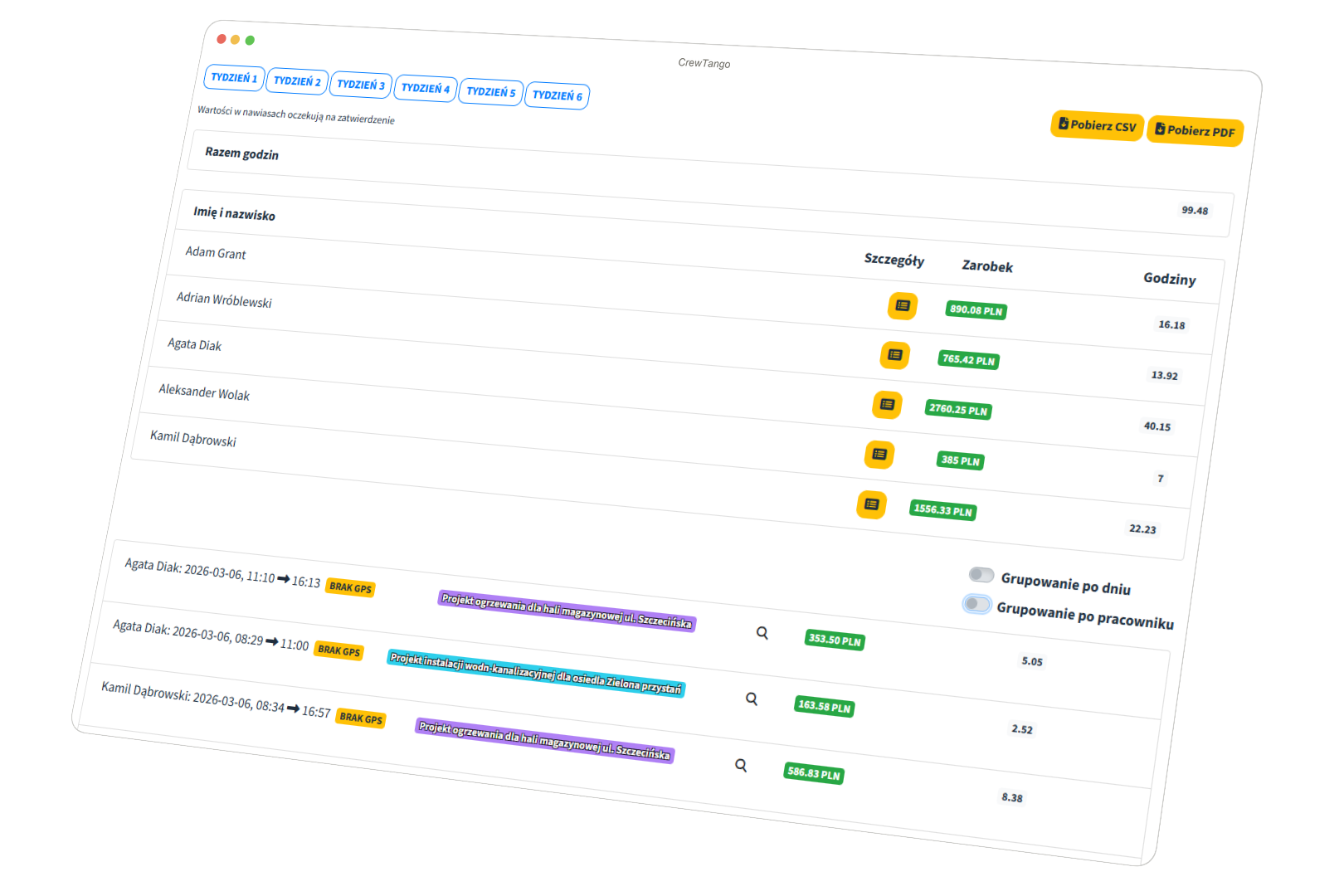
Office team working time report in CrewTango
KEY OUTCOMES

A clear work overview with the right amount of data

Managers receive information for planning, and employees understand the purpose and scope of recording.

Shared time report

Hours and projects are grouped by employee and period.

Fewer manual summaries

Managers can review workloads without constantly requesting updates.

Clear team rules

Everyone knows which data is recorded, why and who can see it.

PROPORTIONALITY

Define the purpose, then the data scope

Different companies and roles need different information. Start with the smallest scope that solves a specific problem.

1

Define the purpose

For example, project time calculations, workload planning or reviewing remote work.

2

Choose the data you need

Time and project are enough for most teams. Enable extra information for selected roles.

3

Explain the rules to the team

Employees should know the scope, retention period and who can access reports.

Good practice: review regularly whether the enabled scope is still needed and appropriate for the work.
HOW IT WORKS

From starting the timer to a completed report

Step 1

Employees choose a project

Start time tracking in the desktop app.

Step 2

The app records the agreed scope

Time is the foundation. Additional information depends on company settings and role.

Step 3

Records feed into the summary

Hours are grouped by employee, project and period.

Step 4

Managers review results

Compares workloads and prepares records for approval or pay calculations.

SAMPLE VIEWS

From daily details to the team summary

Views answer specific questions and keep technical settings separate.

Working time w CrewTango

Working time

See who spent how much time on the project.

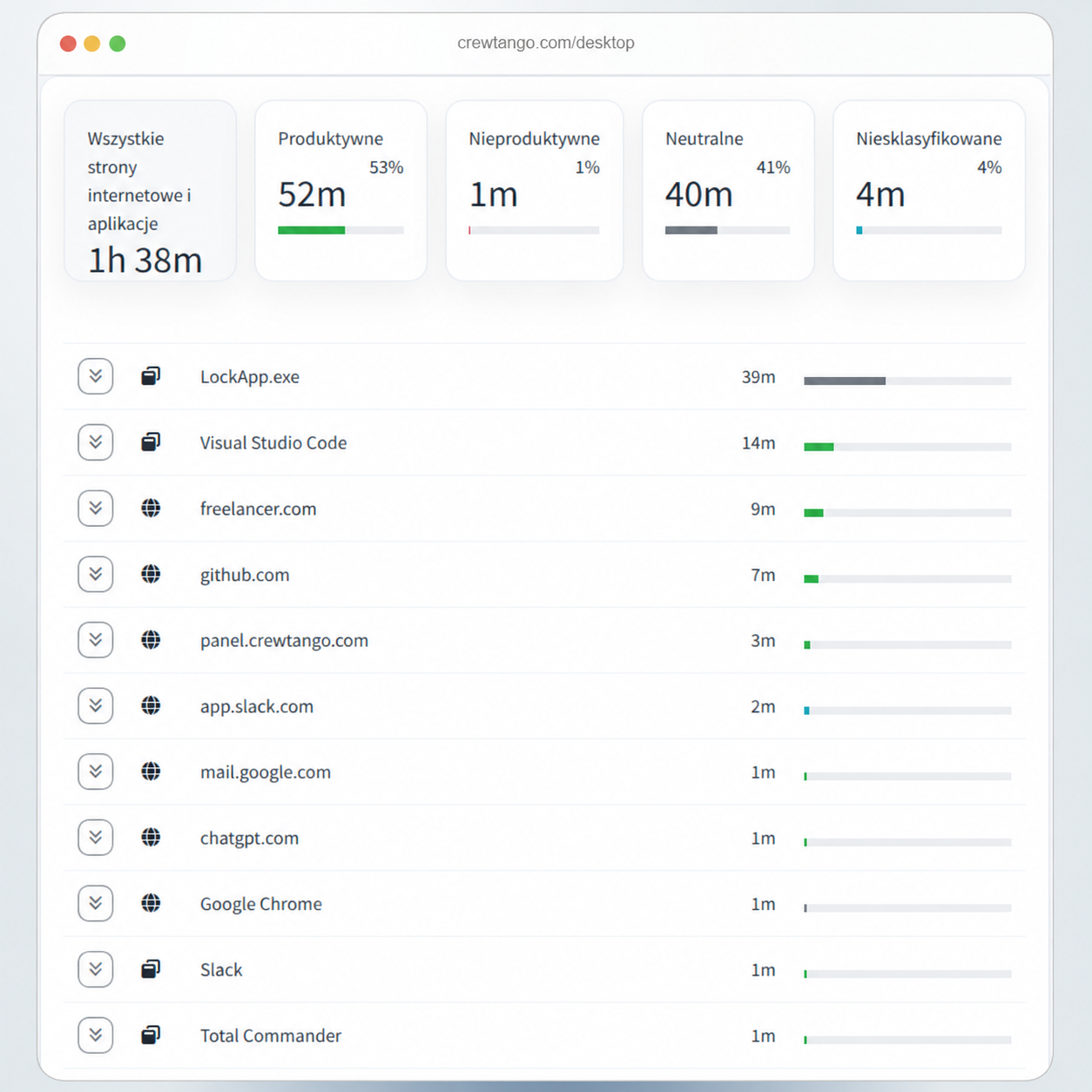
Tools used — optional w CrewTango

Tools used — optional

Which apps and websites were needed for work.

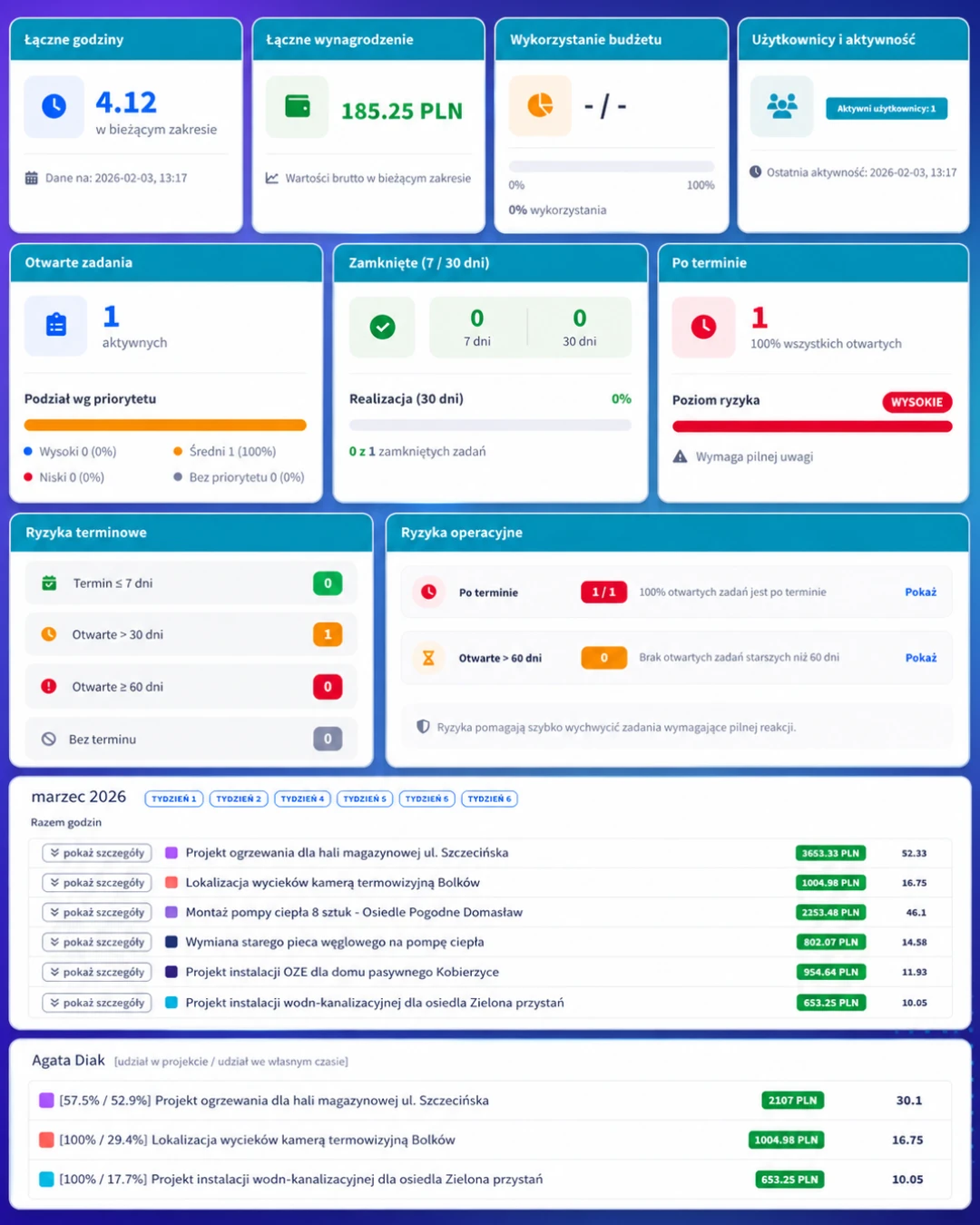
Manager summary w CrewTango

Manager summary

Time, projects and workload in the selected period.

DATA SCOPE

Enable the information each role needs

Additional data does not have to cover the entire company. Limit it to teams or roles where there is a clear need.

THE BASICS

Time and project

Start, finish and project create a simple timesheet.

OPTIONAL

Apps and websites

Understand time usage when the nature of the work calls for it.

OPTIONAL

Screenshots

Configure frequency, blurring and the roles covered by this feature.

ACCESS

Everyone sees data appropriate to their role

Employee

Sees personal time, projects and summaries.

Manager

Reviews records for the team they manage.

Administrator

Configures features, roles and permissions.

FAQ

Computer work FAQ

Yes. The CrewTango desktop app supports both systems.

No. Use working time alone as the foundation. Other features are optional and depend on justified company needs.

Start with a specific purpose and the smallest necessary scope. Vary settings by role and review them regularly.

Visibility depends on roles and permissions. Employees can have access to their own summaries.

Start with a simple time report

Adapt additional information later to your team's actual needs and rules.